 By carl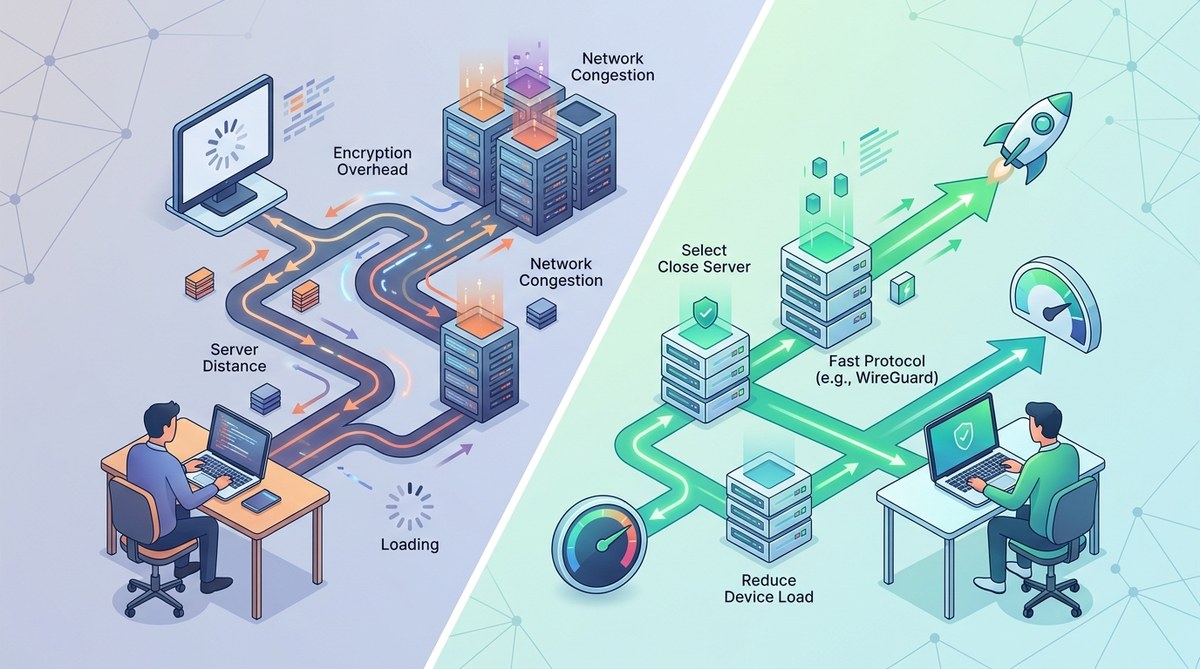
If you have ever clicked that connect button on your VPN app and watched your video stream buffer into a pixelated mess, you already know the answer. Yes, a VPN can slow down your internet. But the story does not end there. The slowdown is real, but it is also manageable. You do not have to choose between privacy and performance. The trick is understanding what causes the lag and knowing the right buttons to push.
A VPN slows your internet because it encrypts data, reroutes traffic through a distant server, and adds protocol overhead. However, you can regain much of that speed by switching to a nearby server, using WireGuard protocol, enabling split tunneling, and avoiding free VPNs. The right settings let you stay private without sacrificing performance.
Why Does a VPN Make Your Connection Feel Sluggish?
A VPN does not magically shrink your bandwidth. It adds extra steps to every data packet you send and receive. Think of it like taking a detour on a road trip. Instead of driving straight to a website, your data goes from your device to the VPN server, then to the website, and back again. That round trip alone adds a few milliseconds of latency.
But latency is only part of the picture. The bigger factor is encryption. Every piece of data gets scrambled before it leaves your device. That scrambling takes processing power. On an older laptop or a budget phone, the encryption overhead can be significant. You might see your download speed cut in half.
Here are the three main culprits:
- Encryption overhead: Your device has to work harder to lock and unlock data.
- Server distance: A server in another country adds hundreds of extra miles to your connection.
- Server load: If too many users share the same server, bandwidth gets split like a pizza at a party.
Understanding these factors helps you fix them. Let us walk through the most effective fixes in a clear order.
7 Ways to Speed Up Your VPN Connection
You can tackle a slow VPN from multiple angles. Some fixes take ten seconds. Others require a bit of planning. Here is a numbered list of the most powerful adjustments, ranked from easiest to most impactful.
-
Switch to a closer server location. Open your VPN app and pick a server that is physically near you. If you live in Chicago, do not connect to Tokyo. Pick a city in the same region. This cuts down travel time for your data.
-
Change your VPN protocol. Many VPNs default to OpenVPN because it is secure but it is also slower. Switch to WireGuard. WireGuard uses modern cryptography that is much less demanding on your CPU. It can nearly double your speeds on some devices.
-
Enable split tunneling. This feature lets you choose which apps use the VPN and which connect directly to the internet. For example, let your browser use the VPN for privacy, but let your video streaming app bypass it for speed. This is a game changer for gamers and streamers.
-
Use a wired Ethernet connection instead of Wi-Fi. Wi-Fi adds its own latency and interference. Plugging in directly removes that variable and gives your VPN a cleaner link.
-
Close bandwidth hungry background apps. Windows updates, cloud syncs, and torrent clients can choke your connection. Pause them while you need full speed.
-
Restart your router and modem. Sometimes the issue is not your VPN. It is your network gear. A simple reboot clears temporary cache and refreshes routing tables.
-
Upgrade to a paid premium VPN. Free VPNs often cap speeds and crowd users onto overloaded servers. A paid service with a large server network and modern protocols will always perform better.
| Fix | Time to try | Expected speed gain | Best for |
|---|---|---|---|
| Switch server location | 30 seconds | Moderate | Streaming, browsing |
| Change to WireGuard | 2 minutes | High | All activities |
| Enable split tunneling | 5 minutes | High | Gaming, work apps |
| Use Ethernet | 1 minute | Moderate | Any heavy use |
| Close background apps | 1 minute | Low to moderate | Sluggish devices |
| Restart router | 5 minutes | Low | Intermittent drops |
| Upgrade to paid VPN | 1 hour setup | High | Everyone |
Expert advice: Before you change anything, run a speed test without the VPN. Write down your baseline. Then connect to your VPN and test again. This tells you exactly how much the VPN is costing you. Without a baseline, you are guessing.
The Real Impact: Does a VPN Always Slow Things Down?
Not always. In some rare cases, a VPN can actually make your connection feel faster. This happens when your ISP throttles certain types of traffic, like streaming or torrenting. If your ISP sees encrypted data from a VPN, it cannot tell what you are doing, so it cannot throttle it. You might see an improvement if your ISP was already slowing down your connection.
But for most people, the answer to “does VPN slow down internet” is a clear yes, by about 20 to 50 percent on average. The exact number depends on your ISP, your hardware, and the VPN provider.
When a Proxy Might Be a Better Alternative
Sometimes privacy does not require a full VPN tunnel. If your main goal is to hide your IP address for a single task, like accessing geo blocked content or scraping data, a proxy might be faster. Proxies do not encrypt your traffic, so they skip the heavy encryption overhead. This makes them noticeably quicker for tasks that do not involve sensitive data.
However, proxies offer less privacy. Your ISP can still see your activity. A VPN encrypts everything. So ask yourself: do you need privacy from your ISP or just a different IP address? If the answer is just a different IP, then exploring a SOCKS5 proxy might give you the speed you want without the slowdown. You can learn more in our guide on how to set up a SOCKS5 proxy in 5 minutes.
Common Mistakes That Make Your VPN Slower
Even with good intentions, people often make small errors that sabotage their VPN speed. Here are the biggest ones to avoid:
- Connecting to a server on the other side of the world just to “feel more anonymous.” Geography matters. Pick nearby servers.
- Leaving multiple VPN apps running. If you have a VPN, a separate proxy, and a privacy browser all active at once, they collide.
- Ignoring protocol settings. Sticking with outdated protocols like PPTP is bad for both speed and security.
- Forgetting to update your VPN software. Newer versions often include performance improvements and bug fixes.
- Using a VPN on a device that is already running low on memory. Encryption needs RAM. Close other tabs.
How to Choose the Right VPN Protocol for Your Needs
Your VPN protocol is the engine under the hood. Switch it and your speed can change drastically. Here is a breakdown of the most common protocols available in 2026:
- WireGuard: The newest and fastest protocol. Uses modern cryptography. Light on CPU. Recommended for almost everyone.
- OpenVPN: Very secure but slower because it runs as a single process. Still a solid fallback if WireGuard is blocked.
- IKEv2: Good for mobile devices because it reconnects smoothly when you switch networks.
- Lightway: A newer protocol from some providers. Performance similar to WireGuard.
- PPTP and L2TP: Avoid these. They are outdated and insecure.
For daily use, choose WireGuard. It balances speed and security better than any other option in 2026. If you want more details, read our full guide on how to choose the right VPN protocol for your needs.
When Speed Loss Is Acceptable
Not every slowdown is a disaster. If you are reading the news or checking email, a 30 percent speed drop is barely noticeable. Pages still load in under a second. The trade off is worthwhile because you get encryption and IP masking.
The real pain shows up when you are streaming 4K video, attending a Zoom meeting, or downloading large files. In those cases, every megabit counts. That is when you should apply the fixes we discussed. And if you still cannot get acceptable speeds, consider using a proxy for those specific tasks instead.
Putting It All Together: Speed Test Walkthrough
To know if your VPN is slow, you need numbers. Here is a simple process you can follow right now:
- Go to a speed test site like Ookla.
- Run a test without your VPN connected. Write down the download speed, upload speed, and ping.
- Connect to your VPN and run the test again.
- Compare the results. If your download speed dropped by more than 40 percent, try changing the protocol or server.
If your VPN consistently cuts your speed by more than half, you might need to test if your VPN is actually working and protecting you. Sometimes slowdowns are a sign of DNS leaks or misconfigurations.
A Balanced View on Security and Performance
Privacy and speed do not have to be enemies. The key is to match the tool to the task. For everyday browsing, a VPN with WireGuard on a nearby server gives you both privacy and acceptable speed. For streaming that demands every bit of bandwidth, switch to a proxy or use split tunneling.
Remember that free VPNs almost always sacrifice speed because they need to make money somehow, often by selling your data or overloading servers. If you are serious about privacy without the drag, invest in a quality service. Our article on 5 common VPN mistakes that compromise your privacy covers what to watch out for.
Making Peace With a Slower Connection
A VPN will always add some overhead. That is the price of encryption and rerouting. But the slowdown does not have to ruin your experience. By choosing the right protocol, picking a nearby server, and using split tunneling wisely, you can keep your data private and your pages loading fast.
Next time you notice your connection dragging, do not just turn the VPN off in frustration. Walk through the list. Change the server. Switch to WireGuard. Close a few apps. Nine times out of ten, you will get your speed back and keep your privacy intact. That is a win you can feel every time you click connect.