 By carl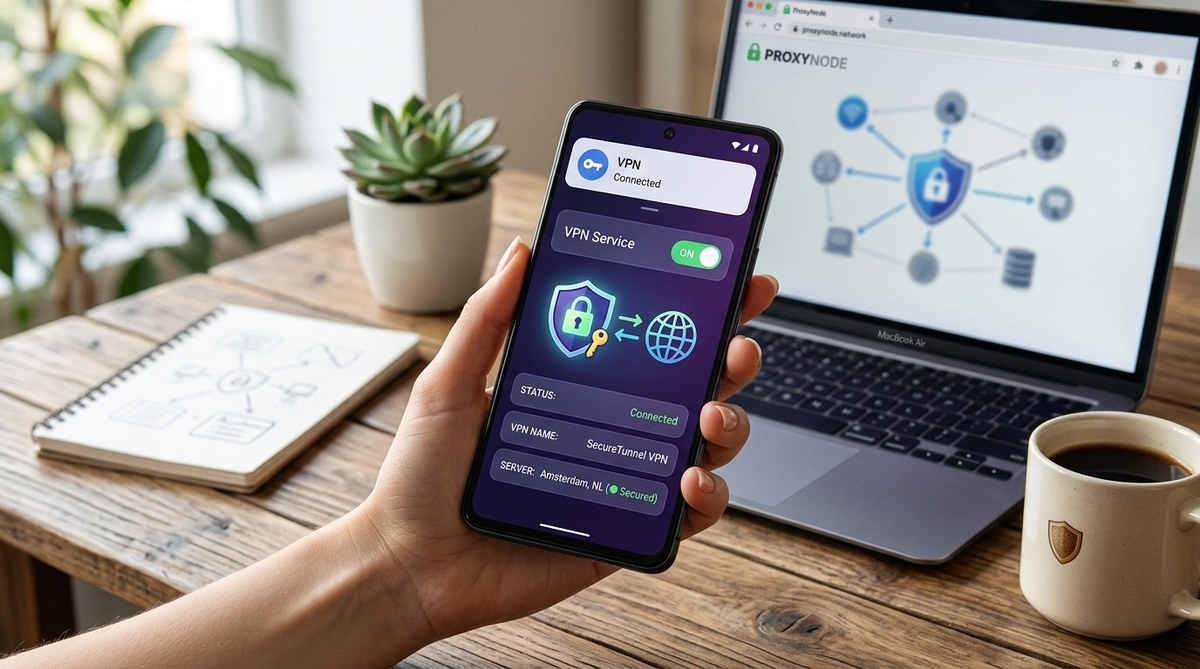
If you own an Android phone, you’ve probably heard that rooting gives you more control. Maybe you considered it just to use a VPN more freely. The good news is you don’t need root access at all. Android has built-in VPN support, and it works perfectly for privacy, security, and accessing geo-restricted content. In fact, rooting can actually make your device less secure and void your warranty. This guide will walk you through the exact steps to set up VPN on Android without root, covering everything from choosing a provider to testing for leaks.
You can set up a VPN on any Android device without rooting using built-in settings or a trusted app. Root is not required for full VPN functionality. Always choose a reputable provider, use strong protocols like WireGuard or OpenVPN, enable a kill switch, and test for DNS leaks. Avoid free VPNs that sell your data. Follow our step-by-step manual setup if you prefer not to use third-party apps.
Why You Do Not Need Root for a VPN
Many people assume that VPNs on Android require root because some advanced firewall apps need system-level access. That is not true for VPNs. The Android operating system includes a native VPN framework that any app can use. When you install a VPN app, it requests permission to create a virtual network interface. This is a standard permission, granted without root.
Rooting your phone opens up security holes and can break banking apps or streaming services that check for modified devices. By staying unrooted, you keep your warranty intact and your device stable. And you still get all the benefits of a VPN: encrypted traffic, hidden IP address, and access to blocked content.
Step-by-Step: Set Up a VPN on Android Without Root
There are two main ways to do this. You can use a VPN provider’s app, which is the easiest route. Or you can configure the VPN manually using Android’s built-in settings. Both methods work without root.
Method 1: Using a VPN App (Recommended for Beginners)
This method takes about two minutes. Most reputable VPN services offer a dedicated Android app on the Google Play Store.
- Open the Google Play Store on your Android device.
- Search for a VPN provider you trust. Avoid free VPNs with poor reviews or unknown origins. Look for services with a clear no-logs policy and strong encryption.
- Download and install the app.
- Open the app and sign in or create an account.
- Grant the VPN permission when prompted. Android will ask you to confirm. Tap “OK.”
- Choose a server location. Many apps let you select based on country or purpose (streaming, gaming, privacy).
- Tap the connect button. The app will show a key icon in the notification bar when active.
That is it. The VPN now protects your connection. You can change servers or disconnect at any time.
Method 2: Manual VPN Configuration (No App Required)
If you prefer not to install a third-party app, or if your provider supports manual setup, Android’s built-in VPN client works well. This method supports protocols like PPTP, L2TP/IPsec, and IKEv2. However, for better security, we recommend using OpenVPN or WireGuard via a third-party app because Android’s native client lacks the latest protocols.
Here is how to manually set up a VPN on Android without root using IKEv2 (a common protocol):
- Go to Settings > Network & Internet > VPN.
- Tap the + icon or “Add VPN.”
- Fill in the details:
- Name: Anything you like, e.g., “My VPN”
- Type: Choose IKEv2/IPsec MSCHAPv2 or IKEv2/IPsec PSK depending on your provider.
- Server address: Enter the server address your provider gave you.
- IPsec identifier: Usually left blank.
- IPsec pre-shared key: Enter the key if required.
- Username and password: Enter your login credentials.
- Tap Save.
- Tap on the new VPN profile and enter your username/password if prompted.
- Tap Connect.
Android will display a key icon in the status bar. You can disconnect from the settings.
Note: For OpenVPN or WireGuard, you need a separate app (like OpenVPN Connect or WireGuard app) because Android’s native VPN does not support these protocols. Install the app and import the configuration file from your provider.
Common Mistakes When Setting Up a VPN on Android
Even without root, you can make errors that compromise your privacy. Here are the most frequent ones and how to avoid them.
| Mistake | Why It Happens | How to Avoid It |
|---|---|---|
| Using a free VPN | Free services often log data or inject ads. | Invest in a paid VPN with a verified no-logs policy. Read our should you use a free VPN or pay for premium service guide. |
| Forgetting the kill switch | If the VPN drops, your real IP leaks. | Enable the kill switch in your VPN app settings. Learn how to set up a kill switch and why it matters. |
| Ignoring DNS leaks | Your DNS queries may bypass the VPN. | Use the VPN’s own DNS or a secure DNS like Cloudflare. Test with our how to test your VPN for DNS, IP, and WebRTC leaks tool. |
| Choosing the wrong protocol | PPTP is weak; WireGuard is fast. | Pick WireGuard or OpenVPN. See how to choose the right VPN protocol. |
| Not checking IPv6 leaks | Android may still send IPv6 traffic outside the VPN. | Disable IPv6 in your VPN app or use a provider that blocks IPv6. |
Expert Advice: Before you trust any VPN, run a leak test. Visit a site like ipleak.net while connected. If you see your real IP or a DNS server from your ISP, the VPN is not working correctly. Switch providers or reconfigure your settings. A VPN that leaks is no better than no VPN at all.
What Makes a Good Android VPN in 2026?
Not all VPNs are created equal. When choosing a service for Android without root, look for these features:
- Strong encryption: AES-256 or ChaCha20. Avoid PPTP.
- Kill switch: Blocks internet if VPN drops.
- No-logs policy: Verified by independent audits.
- Split tunneling: Lets you choose which apps use the VPN.
- Good speed: WireGuard is usually the fastest protocol.
- Server locations: Enough options to unblock Netflix, Hulu, or BBC iPlayer.
Avoid any VPN that asks for root permissions. Legitimate VPN apps never need them.
Testing Your VPN After Setup
Once you have your VPN running, verify it works. Follow these steps:
- Connect to the VPN.
- Open a browser and go to ipleak.net or dnsleaktest.com.
- Check that the displayed IP is not your real one.
- Look at the DNS servers. They should belong to your VPN provider, not your ISP.
- If you see your real ISP info, something is wrong. Recheck your configuration or try a different app.
We also recommend reading 5 common VPN mistakes that compromise your privacy for more tips.
Take Control of Your Android Privacy Today
Setting up a VPN on your Android device without root is simple and safe. You do not need to modify your phone or take any risks. Whether you use a trusted app or configure it manually, the process takes only minutes. The key is to pick a reliable VPN provider, enable the kill switch, and test for leaks regularly.
Remember: rooting can give you extra control, but it also opens doors to malware and instability. For most people, a non-rooted Android with a properly set up VPN is both secure and convenient. Give it a try today. Your privacy will thank you.