 By carl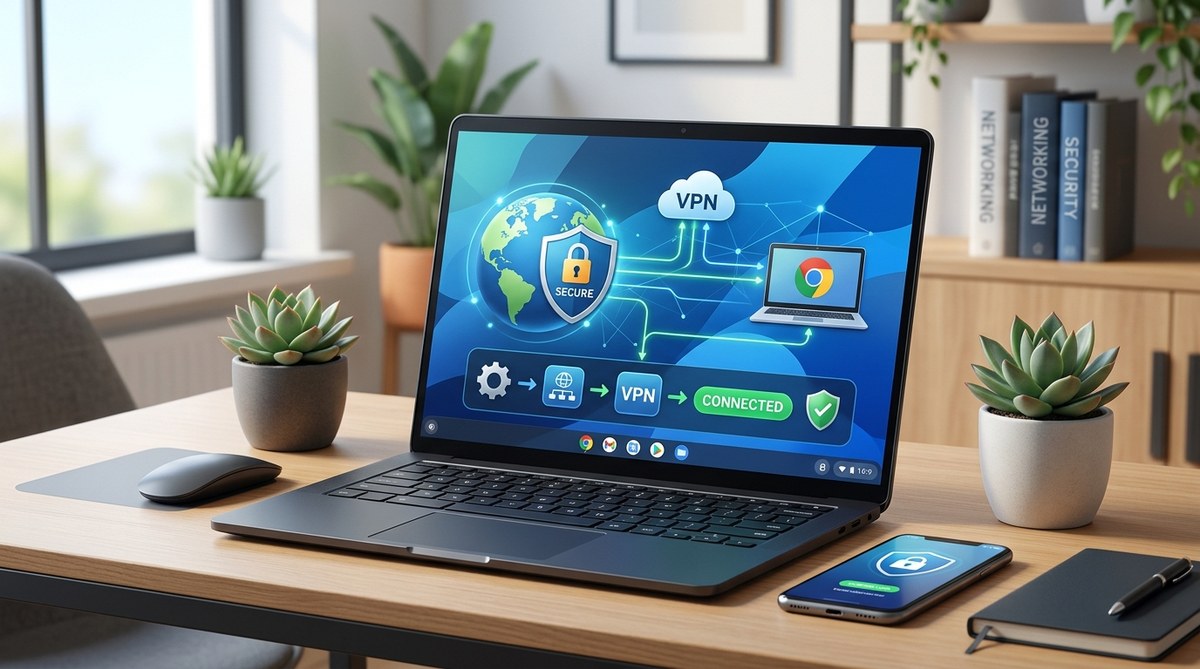
Your Chromebook is a great tool for school, work, or just browsing the web. But when you connect to a coffee shop Wi-Fi or a library hotspot, your data isn’t always safe. Anyone on the same network could snoop on your traffic. That’s where a VPN comes in. A VPN encrypts your connection, hides your IP address, and keeps your online activity private. In this guide, you’ll learn exactly how to set up a VPN on Chromebook using both the built-in Chrome OS tools and third-party apps. No technical degree required.
You can configure a VPN on your Chromebook in under ten minutes two ways: by adding a native L2TP/IPsec or OpenVPN connection through Settings, or by installing a dedicated VPN app from the Google Play Store. Both methods protect your browsing, but the app route is usually simpler for students and remote workers who want one-tap connections and extra features like a kill switch.
Why Your Chromebook Needs a VPN in 2026
Chromebooks are designed for speed and simplicity, which makes them popular in classrooms and home offices. But Chrome OS still shares the same internet risks as any other operating system. Public Wi-Fi networks, even those at your university or a local Starbucks, can be insecure. Without a VPN, your passwords, messages, and browsing history travel in plain text that anyone with basic tools can intercept.
A VPN creates a secure tunnel between your Chromebook and the internet. All your data gets encrypted before it leaves your device. Your internet service provider (ISP) can’t see which sites you visit. Advertisers have a harder time tracking you. And if you’re traveling, a VPN lets you access region-locked content like Netflix shows or Hulu movies that might be blocked in your current location.
For remote workers handling sensitive files or students submitting assignments on public networks, a VPN isn’t just a luxury. It’s a smart habit. In 2026, many schools and employers actually recommend or require the use of a VPN for off-campus access.
Two Routes to Protect Your Connection
You have two main options to set up a VPN on your Chromebook. Each one works, but they suit different needs.
-
Native VPN client (built into Chrome OS). This method uses the operating system’s own settings. You manually enter the server details provided by your VPN company. It works with protocols like L2TP/IPsec and OpenVPN. The setup takes a few steps, but once configured, you can turn the VPN on and off from the settings panel.
-
VPN Android app from the Play Store. Most VPN providers offer an Android app that runs perfectly on Chrome OS. You download the app, log in, and tap a button to connect. The app handles all the technical details. This route is usually easier for students who want something that works without fiddling with server addresses.
The table below breaks down which method might fit you better.
| Feature | Native VPN Client | VPN Android App |
|---|---|---|
| Ease of setup | Moderate (manual entry) | Easy (install and log in) |
| Protocols supported | L2TP/IPsec, OpenVPN (if configured) | Usually multiple (WireGuard, OpenVPN, IKEv2) |
| Extra features (kill switch, split tunneling) | Limited or none | Often included |
| Best for | Users who prefer built-in tools | Students, remote workers wanting one-tap connect |
| Need to update? | No (system feature) | Yes (app updates via Play Store) |
How to Set Up a VPN on Chromebook Using the Native Client
If your VPN provider gives you manual configuration files or server details, here’s how to add the connection directly in Chrome OS.
- Open your Chromebook’s Settings by clicking the time in the bottom-right corner and then the gear icon.
- In the left sidebar, select Network.
- Look for the section labeled VPN. If you don’t see it, click Add connection and then Add built-in VPN.
- Choose a VPN type. The most common option is L2TP/IPsec with pre-shared key. Some providers also support OpenVPN, but Chrome OS’s built-in client requires importing an
.ovpnfile via a third-party app like OpenVPN Connect. - Enter the details from your VPN provider:
- Server hostname (the VPN server address, e.g., us.vpnprovider.com)
- Service name (a label you’ll recognize)
- Provider type (usually L2TP/IPsec)
- Pre-shared key (if required by your provider)
- Username and password (your VPN account credentials)
- Click Connect. Your Chromebook will attempt to establish the VPN tunnel.
- Once connected, you’ll see a VPN icon in the status area. You can click it to disconnect or change settings.
Expert note: Some school-issued Chromebooks restrict manual VPN configuration. If the VPN option is grayed out, talk to your IT administrator. Alternatively, you can use an Android VPN app that doesn’t require system-level permissions.
How to Set Up a VPN on Chromebook Using an Android App
This is the method most people prefer. It’s faster and gives you access to features like a kill switch, which automatically blocks internet traffic if the VPN drops. Many apps also let you choose specific countries or servers for streaming.
- Open the Play Store on your Chromebook.
- Search for your VPN provider’s app. Popular choices include ProtonVPN, NordVPN, Surfshark, and ExpressVPN.
- Install the app like you would on any Android device.
- Open the app and sign in with your account credentials.
- Grant any permissions the app requests. Usually, it needs permission to create a VPN connection. Chrome OS will prompt you to confirm this.
- Tap the Connect button inside the app. The app will establish the VPN connection.
- Verify that the VPN is active. You should see a key icon in the system tray. The app will also show “Connected” with the server location.
After the initial setup, you can connect by simply opening the app and tapping the button. No need to re-enter details each time.
What to Check After You’re Connected
Setting up the VPN is only half the job. You need to make sure it’s actually working and keeping you safe. Here’s a short checklist:
- Visit a site like “whatismyipaddress.com”. Your public IP address should be different from your real one and should match the VPN server’s location.
- Check for DNS leaks. Some VPNs accidentally send your DNS requests to your ISP. Use an online leak test tool to confirm everything routes through the VPN.
- Test the kill switch. If your VPN app has a kill switch, enable it. Then briefly disconnect the app and see if your internet stops. Reconnect immediately.
- Run a speed test. VPNs can slow things down. If your connection is too slow, try switching to a server closer to you or using the WireGuard protocol if supported.
If you run into trouble, don’t panic. Many issues are common and fixable. For example, if the VPN connects but you can’t reach websites, you might have a DNS issue. A quick app restart usually resolves it. For persistent problems, refer to your provider’s support page.
Common Mistakes to Avoid When You Set Up a VPN on Chromebook
Even experienced users slip up sometimes. Here are the most frequent pitfalls and how to sidestep them.
- Using a free VPN that logs your data. Many free services make money by selling your browsing history. Stick with a reputable provider that has a clear no-logs policy. If you’re wondering whether free services are safe, our guide on what happens to your data when you connect to a free proxy server explains the risks in detail.
- Forgetting to turn on the VPN. It’s easy to assume you’re protected when you’re not. Make a habit of checking the key icon before browsing sensitive sites.
- Using an outdated VPN app. Updates often patch security holes. Keep your Android VPN app up to date through the Play Store.
- Not enabling the kill switch. If your VPN drops unexpectedly, your real IP address can be exposed. A kill switch prevents that. Learn more about how to set up a kill switch and why it matters for VPN users.
- Choosing the wrong protocol. Older protocols like PPTP are insecure. Use OpenVPN or WireGuard instead. Our guide on how to choose the right VPN protocol for your needs can help you decide.
A Quick Comparison: Native vs App Approach
To help you decide which method to use, here’s a pros and cons list.
Native VPN client
– Pros: No extra app needed; uses system resources; works without Play Store access.
– Cons: Manual setup; limited features; no automatic server selection.
Android VPN app
– Pros: One-tap connect; automatic server selection; includes kill switch, split tunneling, and other features; easier for non-technical users.
– Cons: Requires Play Store; app updates needed; some apps may drain battery slightly faster.
Most users will find the app approach more convenient, especially if they switch between servers often or want to stream content from another country.
Putting Your VPN Setup to Work
Now that you know how to set up a VPN on Chromebook, you’re ready to browse more securely. Whether you use the native client or an Android app, the important thing is to actually use it every time you’re on a network you don’t fully trust.
Start with the app method if you want the simplest path. Download a trusted VPN app, sign up, connect. That’s it. If you prefer a more hands-on approach, the native client gives you finer control over the connection details.
Once you’re connected, remember to test for leaks and enable the kill switch if available. The peace of mind is worth the few extra minutes.
If you want to understand the bigger picture of online privacy, our article on what your ISP can see when you browse and how to limit it explains what a VPN does and doesn’t hide.
Stay safe out there. And the next time you open your Chromebook at a campus library or a co-working space, you’ll know your connection is locked down.