 By carl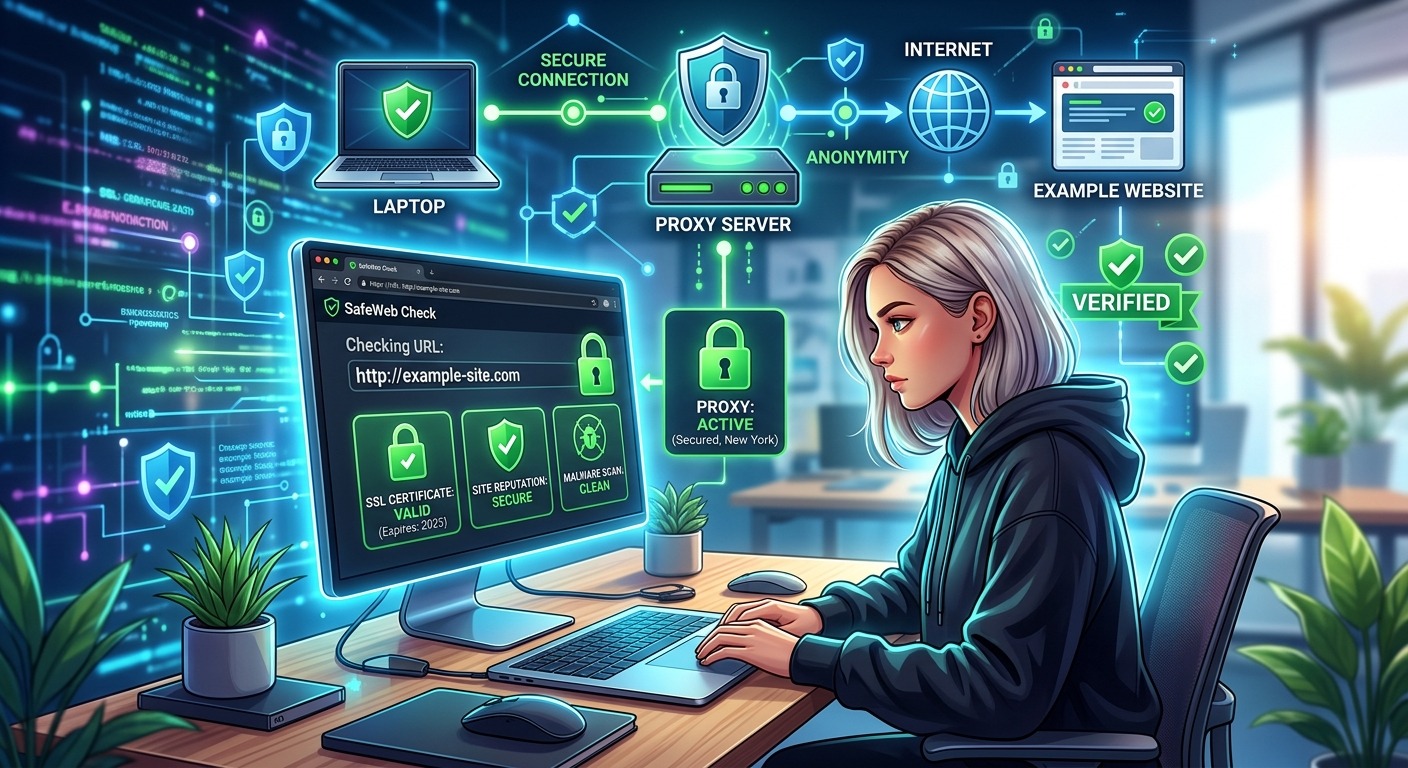
Your proxy is connected. Your public IP looks different. Then a link lands in your messages, promising a free download or asking you to confirm an account. Opening it feels less risky because your connection is hidden. But the website can still steal your password, push a harmful file, or trick you into granting access. A proxy changes how your traffic reaches a site. It does not make that site trustworthy.
Check the destination before trusting the connection.
- Confirm the address and look for independent evidence of the site’s reputation.
- Run a website scan, then check known malware reports and relevant blocklists.
- Keep browser protections enabled and treat clean results as evidence, not a guarantee.
What a Proxy Changes About Your Visit
A properly configured proxy relays requests on your behalf. For traffic routed through it, the destination generally sees the proxy’s IP address instead of your own. That can help with IP privacy, location testing, and other networking tasks.
The content coming back still reaches your browser. A fake sign-in form remains fake. A malicious download remains malicious. A compromised page can still serve dangerous scripts or send you toward another harmful site.
Some proxy services add filtering features. Those protections come from separate security systems, not from the act of relaying traffic. Unless you have verified that filtering exists and understand its coverage, do not assume your proxy checks websites for threats.
IP privacy also does not prevent you from identifying yourself. Logging into an account tells the site who you are. Existing cookies may connect your visit to earlier activity. Entering a password into a phishing clone hands that password to its operator, regardless of which IP address appears in the server logs.
Inspect the Address Before Opening the Site
Start with the link itself. On a desktop, hover over it to inspect the destination. On a phone, use a link preview or copy option that does not load the page. Copy the address into a text field where you can read it carefully.
Look for spelling changes, extra letters, unexpected endings, and misleading subdomains. An address can contain a familiar company name without belonging to that company. In account.example.com, the subdomain belongs to example.com. In example.com.login-check.net, the controlling domain is login-check.net.
Pay attention to the context, too. A delivery message that demands an immediate payment deserves scrutiny. A download link from an unknown forum account needs more checking than a link you obtained from a verified software publisher.
If the link claims to reach an account you already use, open your saved bookmark or type the known address yourself. You do not need to investigate a suspicious login link by visiting it.
Shortened links hide useful information about the destination. Use a trusted preview feature or URL analysis service to inspect them. Do not open one merely to find out where it goes.
Check Whether the Site Has a Credible History
Reputation checks help answer a basic question: has anyone else had trouble with this exact destination?
Search for the domain alongside terms related to scams, phishing, malware, or unauthorized charges. Read the results instead of relying on a search snippet. A detailed report naming the same domain carries more weight than a vague complaint about a business with a similar name.
Look for evidence beyond the site’s own claims. An established organization may have consistent contact details, references from other credible websites, and a history that matches its stated purpose. A copied logo and a polished homepage prove very little.
A recently registered domain deserves extra attention if it claims to represent a long-established service. Domain age alone cannot settle the question. New websites can be legitimate, and older domains can change owners or become compromised.
No search results also means less evidence, not automatic safety. A new phishing site may disappear before users have time to report it. If the site wants money, passwords, or an installation, uncertainty should carry more weight than it would for a public article.
Run a Website Scan Before Your First Visit
Once you have inspected the address, make scanning your first technical check before browsing the unfamiliar destination through your proxy. Paste its public URL into a website scanner and read the findings before opening the site yourself.
The linked tool checks technical conditions including HTTPS, certificates, security headers, cookies, and page content. Those results can reveal weak security or suspicious conditions that deserve attention. They do not establish that the operator is honest or that every downloadable file is harmless.
Read individual findings rather than stopping at a grade. A certificate failure affects trust in the connection. A form that submits information over plain HTTP creates a different concern. A missing security header may reflect poor configuration without proving that the website is malicious.
Check what the report actually covers. A technical vulnerability scan is not automatically a malware reputation check or a blocklist lookup. If those categories are absent, you still need to check them separately.
Submit public addresses only. Password reset links, private document links, and invitation URLs may contain access tokens. Sending those complete links to an external scanner can disclose information you intended to keep private. Review the service’s submission and report-sharing policies before providing anything sensitive.
Check for Known Malware and Phishing Flags
A malware reputation check asks whether a security service has identified the URL or domain as dangerous. That differs from checking whether a website has a valid certificate or properly configured headers.
Official documentation describes how dangerous site warnings help protect users from harmful websites and downloads. These protections address threats at the destination, which changing your IP address does not remove.
Use a reputable URL reputation service that explicitly reports malware and phishing detections. Check the submitted address, the result’s timestamp, and any explanation attached to a flag. An old finding may describe a problem that has been repaired. A current phishing warning is a strong reason to stop.
Keep the distinction between “clean” and “unknown” clear. A clean result means the service did not identify a threat within its coverage at that time. An unknown result may mean the destination has not been assessed enough to reach a useful judgment.
Different services can disagree. Their data sources, scanning schedules, and detection methods vary. If one credible source flags the destination, do not keep checking until another gives you the answer you wanted. Investigate the warning or choose a trusted alternative.
Confirm the Destination Is Not on Relevant Blocklists
Blocklists record destinations associated with particular kinds of activity. For this task, focus on lists covering malicious websites, phishing, and harmful URLs. An email spam listing answers a different question from a browser safety warning.
Check whether a reported entry applies to the domain, a specific URL, or the hosting IP address. That scope affects how you interpret the result. A shared hosting address can serve many unrelated websites. An IP-level listing may require more investigation before you attribute the problem to one site.
An explicit phishing listing for the exact address you received is much more direct. Treat it as a reason to avoid the link. A proxy that lets you reach the page despite a local block has not resolved the underlying threat.
Read the reason for any restriction. A workplace policy block, geographic restriction, and malware block are different events. Access being denied does not always prove danger. Access being allowed does not prove safety.
If a site is blocked for a stated security reason, switching proxy locations to reach it only changes access. It does not remove the malicious content or undo the reputation finding.
Make a Decision From the Combined Evidence
You now have several signals: the address, its reputation, the technical scan, known threat reports, and blocklist status. Read them together. No single score should decide whether you trust an unfamiliar destination.
A correctly spelled address with a credible history and no known threat flags may be reasonable to visit cautiously. A lookalike domain asking for account credentials should be avoided even if its certificate is valid and its technical scan looks tidy.
HTTPS deserves special care here. It protects data in transit between your browser and the HTTPS endpoint. It does not certify the operator’s intentions. A phishing site can use HTTPS and still collect every password entered into its forms.
The action you plan to take also matters. Reading a public page requires less trust than downloading software, paying an invoice, or uploading identification. If the evidence is thin, limit your activity or find another source.
You do not owe an unfamiliar site a visit. When warnings remain unresolved, closing the link is a complete and sensible decision.
Keep Your Protections Active After Connecting
Before browsing, update your browser and operating system. Leave phishing and malware protection enabled. Do not disable certificate checks or security warnings to make a destination work through your proxy.
A separate browser profile can help keep an unfamiliar browsing session apart from your everyday accounts and cookies. It does not prevent malware by itself. Private browsing also does not make harmful pages safe.
Watch for changes after the first page loads. A redirect to an unrelated domain introduces a new destination that needs checking. Unexpected downloads, requests to install extensions, and instructions to run commands are reasons to stop.
Reject notification requests and other permissions unless you understand why they are needed. If a page says you must install a browser update or disable protection to continue, close it and obtain updates through your browser’s own controls.
A pre-browse check reduces uncertainty. It cannot predict every later interaction or catch every newly created threat. Keep paying attention while you browse.
Make Destination Checks Part of Your Proxy Routine
Most proxy guides spend their time on addresses, ports, authentication, and IP tests. Those steps help confirm that traffic takes the intended route. They leave another question unanswered: should you trust the place that traffic is going?
Build that question into your routine. Inspect the unfamiliar URL, check its reputation, run a scan, review malware flags, and check relevant blocklists before opening it through your proxy. Keep browser protections active afterward.
A proxy can help hide your IP address. Checking the destination helps you avoid handing your data or device access to the wrong people. That habit is the missing layer in many proxy setups, and it belongs before the first click.