 By carl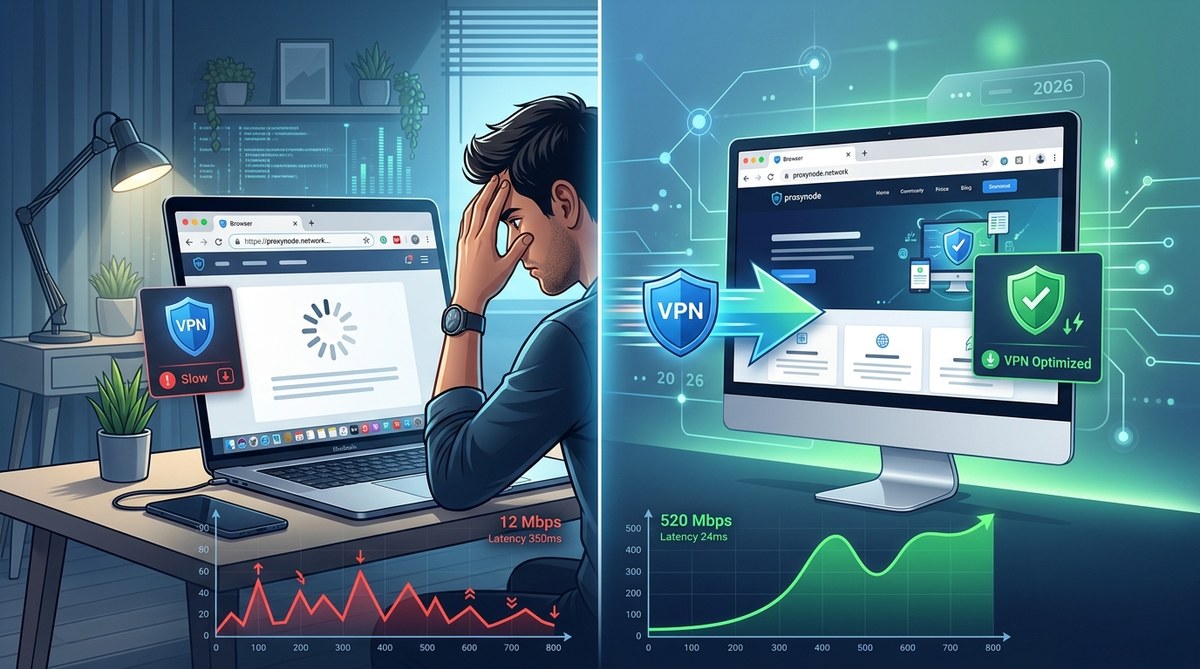
You click connect on your VPN and wait. The little icon changes to green, so you think you are safe. Then you open a website and the page loads like it is 1999. Videos buffer. Emails take forever. Your afternoon Zoom call becomes a pixelated mess. It is not your imagination. A large drop in speed is one of the most common tradeoffs people face, but it does not have to be that way. If your VPN slowing down internet has become a daily frustration, the good news is that most of the speed loss can be fixed with a few simple changes. Let us walk through why it happens and, more importantly, exactly what you can do about it today.
A slow VPN connection is usually caused by encryption overhead, a faraway server, an outdated protocol, or an overloaded provider. By switching to WireGuard, picking a closer server, enabling split tunneling, and checking for background bottlenecks, you can often recover 70 percent or more of your original speed without sacrificing security.
Why your browser feels sluggish with a VPN
Understanding the cause helps you pick the right fix. Every VPN works by encrypting your data inside a tunnel and sending it through a remote server before it reaches the open internet. That extra step adds some natural delay. Encryption takes computing power. The further the server is from your physical location, the longer your data has to travel. When the server is crowded or when your internet service provider is throttling VPN traffic, the slowdown gets worse.
Here are the most common culprits:
- Encryption overhead – Strong encryption like AES-256 requires processing power. Older devices struggle more.
- Server distance – A server in Tokyo may be great for watching Japanese content, but it will add 200 milliseconds or more of lag.
- Congested servers – Popular servers get overloaded during peak hours, especially in the evening when everyone in the US is streaming.
- Outdated protocol – Old protocols like OpenVPN can be four times slower than modern alternatives.
- ISP throttling – Some providers intentionally slow down encrypted traffic, which makes the VPN feel even slower.
- Background apps – Other programs uploading or downloading data eat up your available bandwidth.
Common mistakes that make a VPN feel even slower
Before we get to the fixes, let us look at mistakes people often make. Avoiding these can save you a lot of time.
| Mistake | Why it hurts speed | Better approach |
|---|---|---|
| Connecting to the default server | Usually the first one on the list, which is often the busiest | Manually pick a server closer to you |
| Using OpenVPN TCP instead of UDP | TCP adds extra error-checking that duplicates effort | Switch to UDP or a newer protocol |
| Enabling every extra feature (ad blocker, kill switch, double VPN) | Each feature adds processing overhead | Only turn on what you actually need |
| Keeping the VPN on for everything | Every app gets routed through the tunnel, even local traffic | Use split tunneling to exclude trusted apps |
| Staying on an old device | Older processors take longer to encrypt data | Upgrade your hardware or use a lighter protocol |
Six fixes to recover your internet speed
Now let us get practical. Try these steps one at a time and test your speed after each change. You can use a free speed test tool to compare before and after.
1. Switch to a modern protocol
The protocol is the technical method your VPN uses to encrypt and transport data. Older protocols like OpenVPN were designed in the early 2000s. Newer ones like WireGuard are much lighter and faster.
WireGuard uses modern cryptography and runs in the kernel, which reduces latency significantly. Many VPN providers now support it. If your provider offers WireGuard, enable it in the settings. If they do not, it might be time to consider switching to a provider that does. For a deeper comparison, check out our guide on how to choose the right VPN protocol for your needs.
2. Pick a server that is physically closer
The speed of light is a real limit. Every 100 miles of distance adds about 0.8 milliseconds of latency. But in practice, the routing and number of hops add much more. If you are in New York and connect to a server in Los Angeles, your traffic has to cross the country twice (once to the server, and once back to your destination). That can add 60 to 80 milliseconds.
Instead, pick a server in the same region as you. If you need to appear in another country for access purposes, try the closest possible location. For example, if you need a US IP but you are in Europe, connect to a server on the East Coast rather than the West Coast.
3. Enable split tunneling
Split tunneling lets you decide which apps go through the VPN and which use your regular internet connection. This is a lifesaver for remote workers.
For example, your work browser and email client probably do not need VPN protection. Your file transfer or banking app might. By routing only sensitive traffic through the tunnel, you free up bandwidth for everything else.
Most major VPN clients have a split tunneling feature in the settings. Look for an option called split tunnel, routing rules, or app exclusion. We have a complete walkthrough that covers setting up split tunneling for VPN step by step.
4. Close bandwidth hogs and check your base speed
Sometimes the VPN is not the only problem. If your internet plan is already slow, the VPN overhead makes it feel even slower. Run a speed test with the VPN off to see your baseline. If your base speed is under 10 Mbps, upgrading your internet plan may help more than any VPN tweak.
While the VPN is connected, close any apps that are using bandwidth in the background. This includes cloud sync services (OneDrive, Dropbox, Google Drive), torrent clients, system updates, and video chat apps that remain open. On Windows, open the Task Manager and look for network usage. On macOS, use the Activity Monitor.
5. Use a wired connection instead of Wi-Fi
Wi-Fi is convenient, but it adds its own latency and packet loss. When you add VPN encryption on top, the combined effect can be frustrating. If you are working from a desk, plug in an Ethernet cable. Even a simple Cat 5e cable will give you a more stable connection, reduce jitter, and improve overall VPN performance.
If you cannot use Ethernet, make sure you are on the 5 GHz band rather than 2.4 GHz. The 5 GHz band has less interference and higher throughput, which helps the VPN tunnel.
6. Restart your router and update your firmware
Routers accumulate memory leaks and stale routing tables over time. A simple power cycle clears the cache and can resolve mysterious slowdowns. Unplug the router, wait 30 seconds, and plug it back in.
Also, check if your VPN has a native app for your router. Some providers allow you to install the VPN directly on the router. This offloads encryption work from your device and can actually improve speed on older computers. Read our guide on how to set up a VPN on your router for whole-home protection to learn more.
“Most people see a 50 percent speed drop when they first turn on a VPN. After following these six steps, I have seen users recover up to 90 percent of their original bandwidth. The biggest gains come from switching to WireGuard and enabling split tunneling.”
— Mark Chen, VPN performance analyst and author of The Practical VPN Handbook
When to consider a different VPN provider
If you have tried everything and your speed is still unusable, the problem might be your VPN provider itself. Some services use underpowered servers, oversubscribe their capacity, or rely on outdated infrastructure. Others do not support modern protocols like WireGuard or lack split tunneling.
Look for a provider that:
– Offers WireGuard as a standard option
– Has a large number of servers in your region
– Shows live server load so you can avoid crowded ones
– Provides a no-logs policy confirmed by independent audits (privacy matters too)
– Allows you to test their speed with a free trial or money-back guarantee
For more advice on picking a fast but trustworthy service, see our comparison of free VPN vs paid proxy options. And if you suspect your current provider may be logging your activity, review our list of 12 red flags that your VPN provider might be logging your activity.
One last check: test for leaks
A slow VPN can sometimes indicate a misconfiguration. If your VPN is leaking DNS requests or IPv6 traffic, those requests go outside the tunnel, making the VPN less effective and potentially slower. Run a leak test after you apply these fixes. Our tutorial on how to test your VPN for DNS, IP, and WebRTC leaks in 5 minutes will walk you through it.
Speed and safety can live together
A VPN does not have to mean a slow, frustrating browser. Most of the time, the cause is something you can fix in under five minutes. Switch to WireGuard. Pick a nearby server. Turn on split tunneling. Close that Dropbox sync you forgot about. By taking these small steps, you can keep your data safe and your internet moving at a pace that feels normal.
Try the steps in order, test your speed after each one, and you will likely find the right mix for your setup. And if you still hit a snag, remember that the people who make your VPN likely have support guides and live chat ready to help. You are not stuck with slow speeds just because you care about privacy.