 By carl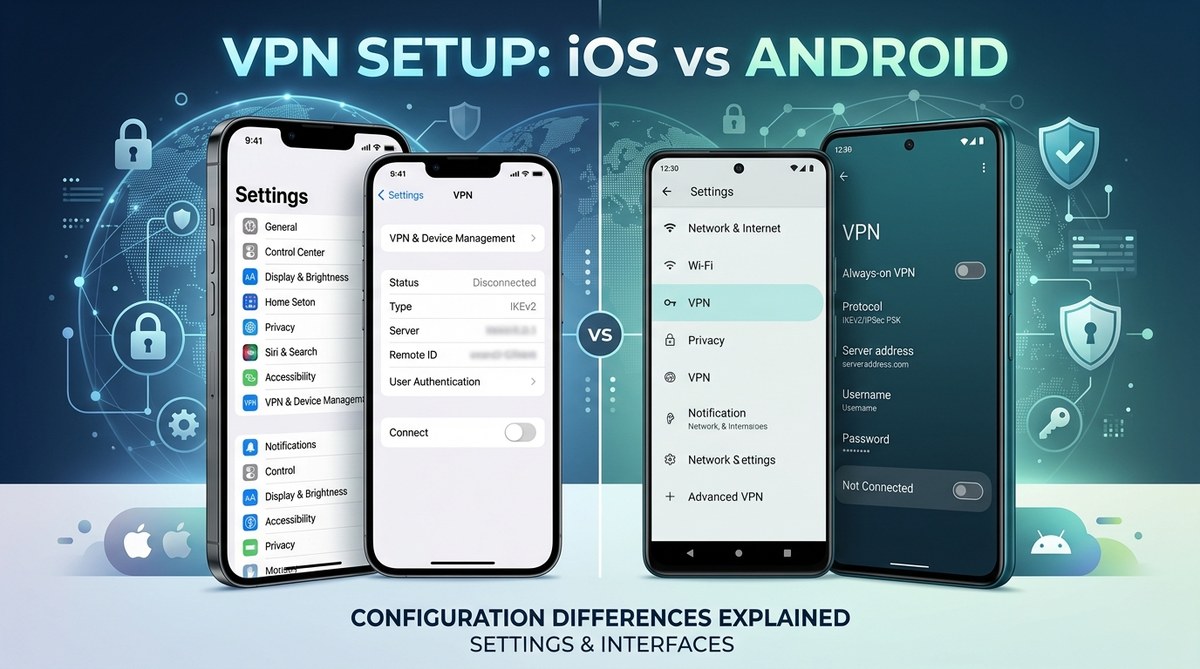
Getting a VPN up and running on your smartphone can feel straightforward, but there are specific differences between iOS and Android that can impact how you set up and use your VPN. Whether you are a tech enthusiast or a beginner wanting to safeguard your privacy, understanding these platform-specific steps is crucial. Knowing the nuances ensures you get the best security without running into common pitfalls. Let’s walk through how to configure a mobile VPN on both iOS and Android, highlighting the key differences and best practices.
Setting up a mobile VPN differs between iOS and Android. iOS offers a streamlined method via Settings, while Android provides more flexibility with third-party apps and manual configurations. Both platforms require attention to security protocols and careful selection of [VPN provider](https://en.wikipedia.org/wiki/Virtual_private_network)s to protect your data effectively.
How to set up a VPN on your iOS device
iOS makes connecting to a VPN simple and quick. Most users prefer this because of its integrated approach. You can either use a dedicated VPN app from a provider or manually configure a VPN profile within the system settings. Here’s how to do it step-by-step:
1. Download a VPN app from the App Store
The easiest way to get started is by choosing a reputable VPN provider. Popular options like NordVPN, ExpressVPN, or Surfshark have dedicated iOS apps. To install:
- Search for your preferred VPN in the App Store.
- Tap the download button.
- Launch the app and follow the onboarding instructions.
- Log in or subscribe if needed.
2. Configure a VPN manually in Settings
If you prefer not to use an app or want to set up a specific protocol, iOS enables manual configuration:
- Open the Settings app.
- Tap on General and then VPN.
- Select Add VPN Configuration.
- Choose the connection type: IKEv2, IPSec, or L2TP.
- Enter your VPN provider’s details, including server address, account name, password, and any shared secrets.
- Tap Done to save.
3. Connect and verify
- After setup, toggle the VPN switch to connect.
- You’ll see a VPN icon in the status bar, indicating active protection.
- To verify, visit a site like whatismyip.com to ensure your IP reflects the VPN’s location.
4. Best practices for iOS VPN setup
“Using the built-in VPN configuration ensures your device maintains a secure connection, but always choose a provider with a strict no-logs policy.”
- Always select a trusted VPN service.
- Enable the Connect on Demand feature for automatic connection.
- Keep the VPN app or profile updated.
How to set up a VPN on your Android device
Android offers more flexibility, giving users several options for VPN connection methods. You can install third-party apps, manually configure profiles, or even use built-in system options, depending on the version and manufacturer customizations.
1. Install a VPN app from Google Play
Most Android users prefer installing a VPN app for simplicity:
- Search for a reputable VPN provider in Google Play.
- Download and install the app.
- Launch it, subscribe or log in, and follow setup prompts.
- You can now connect with a single tap.
2. Manually configure a VPN profile
Android’s flexibility allows manual setup if you want to avoid third-party apps:
- Open Settings.
- Tap Network & internet then VPN.
- Select Add VPN.
- Enter the profile details: server address, username, password, and select the protocol.
- Save the profile.
3. Use third-party VPN apps with advanced features
Some providers offer configurations that require importing profiles or certificates:
- Download the configuration files from your VPN provider.
- Use the app’s import feature to load these profiles.
- Connect and verify as with other methods.
4. Verify your connection
- Once connected, check the status bar for the VPN icon.
- Confirm your IP address has changed via can-you-really-trust-free-public-proxies-for-browsing.
- Use security testing tools to ensure there are no leaks.
Comparing setup differences and common pitfalls
| Technique | iOS | Android |
|---|---|---|
| App-based setup | Recommended for simplicity and features | Also recommended, often more flexible |
| Manual configuration | Yes, via Settings, supports IKEv2, IPSec, L2TP | Yes, via Settings, supports multiple protocols |
| Protocol options | Usually IKEv2, L2TP/IPSec, or IKEv2 only | Supports PPTP, L2TP/IPSec, IKEv2, OpenVPN (via apps) |
| Profile import | Not typical, built-in config, limited customization | Common, especially for advanced users |
| Auto-connect options | Built-in, straightforward | Via app or profile settings |
Common mistakes include using untrusted VPN providers or neglecting to enable features like kill switches. Misconfiguring protocols can also expose you to leaks or reduced security.
| Mistake | Effect | Solution |
|---|---|---|
| Using free or untrusted VPNs | Risk of data logging or breaches | Choose credible providers with strict privacy policies |
| Not enabling kill switch | Data leaks if VPN disconnects | Activate kill switch within app or system settings |
| Using outdated protocols | Reduced security, vulnerabilities | Use modern protocols like IKEv2 or WireGuard if available |
| Manual setup errors | Connection failures, leaks | Double-check server details and credentials |
Best practices for responsible VPN use on iOS and Android
- Always update your device and VPN app to patch security issues.
- Use strong, unique passwords for VPN accounts.
- Enable features like auto-reconnect and kill switches.
- Avoid free VPNs that lack transparency or have poor reviews.
- Regularly test for leaks, especially DNS and WebRTC.
- Be aware of your provider’s logging policies and jurisdiction.
“A well-configured VPN is only as strong as the provider’s privacy policy. Always read the terms before trusting your data.”
Final thoughts for secure mobile connectivity
Setting up a mobile VPN on iOS versus Android involves understanding the platform-specific options, protocols, and security features. iOS offers a streamlined experience with built-in configurations, making it ideal for quick setup and less technical users. Android provides more choices and customization, suitable for those comfortable with manual profiles or third-party apps. Whichever platform you use, always prioritize reputable providers and keep your system updated to ensure your online activities remain private and protected.
Keep your mobile privacy tight with the right setup
Getting your VPN configured correctly on your device is a vital step toward safeguarding your personal data. Take time to understand your platform’s options, follow best practices, and regularly test your connection. A little effort now helps prevent privacy breaches later. Whether you prefer the simplicity of iOS or the flexibility of Android, securing your mobile connection is within reach and worth the investment.