 By carl
You bought a Fire Stick to stream your favorite shows, not to become a tech expert. But privacy matters, and so does accessing content that might be blocked in your region. Installing a VPN on your Fire Stick sounds complicated, but it’s actually easier than programming your old DVD player. Most people finish the entire process in under ten minutes, even if they’ve never touched a VPN before.
Installing a VPN on your Firestick takes just a few minutes using the Amazon App Store. You’ll enable the app download, sign in to your VPN account, and connect to a server. No computer skills needed. The process works the same whether you have a basic Fire Stick or the 4K Max version. Your streaming stays private and you gain access to geo-restricted content.
Why Your Fire Stick Needs a VPN
Your internet provider sees everything you stream. They know when you binge-watch at 2 AM. They track which shows you watch and which websites you visit through your Fire Stick.
A VPN encrypts that data. Your provider sees encrypted traffic, nothing more. They can’t tell if you’re watching a cooking show or a crime documentary.
Streaming services also restrict content based on location. A show available in the UK might be blocked in the US. A VPN lets you connect through servers in different countries, making it appear you’re browsing from that location.
Here’s what matters for Fire Stick users:
- Protection from internet provider snooping
- Access to region-locked streaming libraries
- Safer public WiFi use when traveling with your Fire Stick
- Prevention of bandwidth throttling during peak hours
- Added security for apps you sideload
Choosing the Right VPN for Your Fire Stick
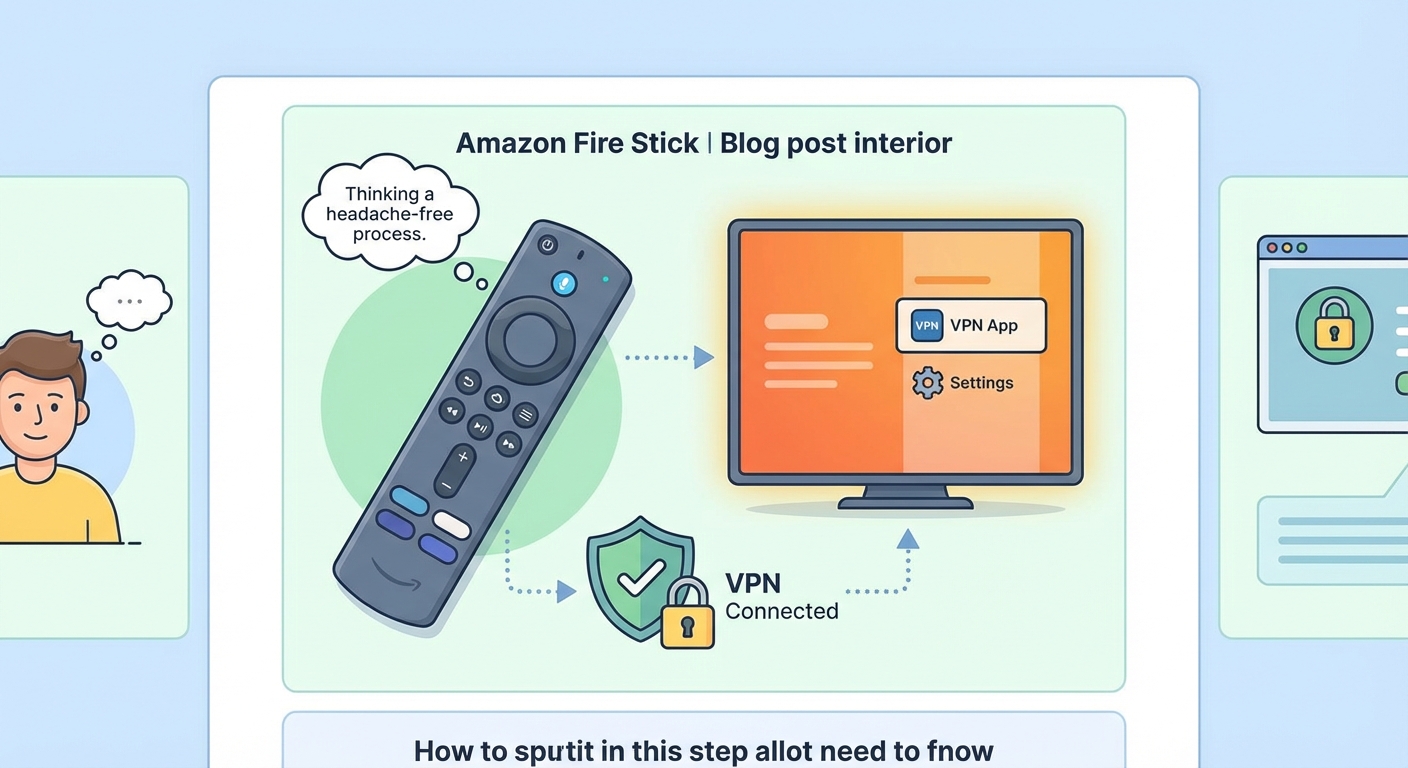
Not every VPN works well on Fire Sticks. Some lack dedicated apps. Others slow your connection to a crawl, making 4K streaming impossible.
The best VPNs for Fire Stick share these traits:
- Native Fire Stick apps in the Amazon App Store
- Fast servers that don’t buffer during HD streaming
- Simple interfaces designed for TV remotes
- Reliable connections to popular streaming services
- Strong encryption without complicated settings
You need a paid VPN subscription before starting installation. Free VPNs rarely offer Fire Stick apps, and they typically limit data or speed so severely that streaming becomes frustrating.
Most premium VPNs cost between $3 and $12 monthly, depending on subscription length. Annual plans save money compared to monthly billing.
How to Install VPN on Firestick Using the Amazon App Store
This method works for over 95% of popular VPN services. You’ll use your Fire Stick remote for everything.
Step 1: Prepare Your Fire Stick
Turn on your Fire Stick and TV. Make sure you’re connected to the internet.
From the home screen, scroll to the settings gear icon on the right side of the top menu. Select it with your remote.
Navigate to “My Fire TV” or “Device” depending on your Fire Stick model. Select “Developer Options.”
Turn on “Apps from Unknown Sources” if you plan to sideload apps later. For Amazon App Store installations, you can skip this step.
Return to the home screen.
Step 2: Find Your VPN in the App Store
Point your remote at the screen and press the microphone button. Say the name of your VPN service, like “NordVPN” or “ExpressVPN.”
The search results will appear. Look for the official app, which usually shows the VPN company logo.
You can also search manually by selecting the magnifying glass icon at the top left of the home screen. Type your VPN name using the on-screen keyboard.
Step 3: Download and Install
Select the VPN app from search results. The app page shows screenshots, descriptions, and download size.
Click “Get” or “Download” to start installation. The button changes to show download progress.
Installation typically takes 30 seconds to two minutes, depending on your internet speed and the app size.
When installation finishes, you’ll see an “Open” button. Don’t click it yet.
Step 4: Sign In to Your VPN Account
Now click “Open” to launch the VPN app.
The first screen asks you to sign in. You’ll need the email and password you used when subscribing to the VPN service.
Use your Fire Stick remote to navigate the on-screen keyboard. This part takes patience. Each letter requires individual selection.
Some VPNs offer alternative login methods:
- QR codes you scan with your phone
- Activation codes you enter on a computer
- Pre-configured accounts that auto-login
Check your VPN’s website or welcome email for these options. They save time compared to typing passwords with a remote.
Step 5: Connect to a Server
After signing in, you’ll see the main VPN screen. Most apps show a large connect button in the center.
Click the connect button. The VPN automatically selects the fastest server near your location.
Connection takes 5 to 15 seconds. The button usually changes color or displays “Connected” when ready.
Your Fire Stick now routes all internet traffic through the VPN. Everything you stream is encrypted.
Step 6: Test Your Connection
Open a streaming app like Netflix or YouTube. Try playing a video.
If the video loads and plays normally, your VPN works correctly. You’re done.
If videos won’t play or you see proxy errors, you might need to select a different server. Go back to the VPN app and choose a server in another location.
Understanding Server Selection
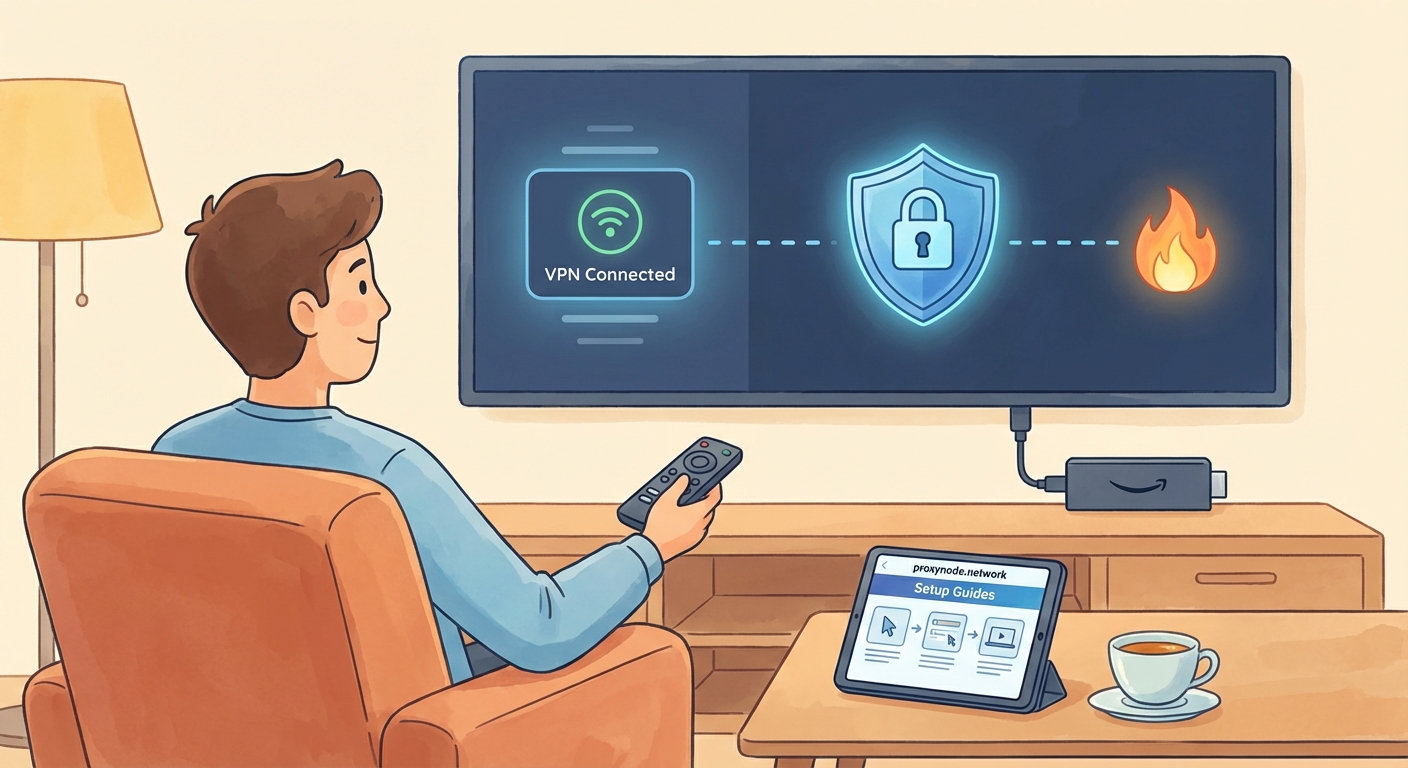
The default “fastest server” option works great for general privacy. But accessing region-specific content requires manual server selection.
Want to watch BBC iPlayer? Connect to a UK server. Looking for US Netflix? Choose a US server.
Most VPN apps organize servers by country. Some also list servers by city or show server load percentages.
Choose servers with lower load percentages for better speeds. A server at 90% capacity will stream slower than one at 30%.
Distance affects speed. Connecting from New York to a Tokyo server adds latency. For fastest streaming, pick servers closer to your physical location unless you specifically need a distant region.
Alternative Installation Methods
The Amazon App Store method covers most situations. But some scenarios require different approaches.
Installing Through APK Files
Older VPN services might not appear in the Amazon App Store. You’ll need to sideload their Android APK files.
This requires:
- Enabling “Apps from Unknown Sources” in Fire Stick settings
- Installing the Downloader app from Amazon App Store
- Using Downloader to fetch the VPN’s APK from a URL
- Running the APK installer
Only download APKs from official VPN websites. Third-party APK sites sometimes bundle malware.
Setting Up VPN on Your Router
Router-level VPNs protect every device on your network, including Fire Sticks.
This approach requires:
- A router that supports VPN clients (not all do)
- Technical comfort with router settings
- Willingness to have all home traffic routed through the VPN
Router VPNs eliminate per-device setup. But they make switching servers or turning off the VPN more cumbersome.
Using Screen Mirroring
You can run a VPN on your phone or laptop, then mirror that screen to your Fire Stick.
This method is inefficient. It drains your device battery, requires keeping your phone or laptop running during streaming, and often produces lower video quality.
Only use screen mirroring as a last resort when other methods fail.
Common Installation Problems and Fixes
| Problem | Likely Cause | Solution |
|---|---|---|
| VPN app not found in App Store | Service doesn’t offer Fire Stick app | Use APK sideloading or router VPN |
| Login keeps failing | Wrong credentials or expired subscription | Verify email/password on VPN website |
| Connection hangs at “Connecting” | Server overload or internet issue | Try different server or restart Fire Stick |
| Streaming apps show proxy errors | VPN detected by streaming service | Switch to different server location |
| Extremely slow buffering | Distant server or slow VPN | Choose closer server or upgrade VPN plan |
| App crashes on launch | Corrupted installation | Uninstall and reinstall VPN app |
Most problems resolve with a Fire Stick restart. Hold the Select and Play buttons simultaneously for five seconds to restart without unplugging.
Optimizing VPN Performance on Fire Stick
Fire Sticks have less processing power than computers. VPN encryption uses some of that limited power.
Follow these tips for best performance:
Close unused apps. Fire Sticks keep apps running in the background. Press and hold the Home button, then select the app you want to close.
Use VPN protocols designed for speed. Most VPNs offer multiple protocols. WireGuard and IKEv2 typically stream faster than OpenVPN on Fire Sticks.
Connect through wired ethernet when possible. WiFi adds latency. The Fire Stick 4K Max and some older models support ethernet adapters.
Clear app cache monthly. Go to Settings, Applications, Manage Installed Applications, select your VPN, and clear cache.
Update your VPN app. Developers regularly improve performance. Enable automatic updates in Fire Stick settings.
Checking If Your VPN Actually Works
Don’t assume your VPN works just because it says “Connected.”
Test it properly:
- Connect to your VPN and select a specific country server
- Open the Silk Browser app on your Fire Stick
- Navigate to a site like “whatismyip.com” or “ipleak.net”
- Check the displayed location and IP address
The location should match your chosen VPN server country, not your actual location. The IP address should belong to your VPN provider, not your internet provider.
If you see your real location or ISP name, the VPN isn’t working correctly. Disconnect, restart the Fire Stick, and try connecting again.
Managing Your VPN After Installation
You don’t need to manually connect every time you use your Fire Stick. Most VPN apps offer auto-connect features.
Enable auto-connect in your VPN app settings. The VPN will activate automatically when your Fire Stick starts.
Some apps let you choose:
- Auto-connect to last used server
- Auto-connect to fastest server
- Auto-connect only on specific WiFi networks
The third option helps if you only want VPN protection on public WiFi, not at home.
To temporarily disable your VPN, open the app and click disconnect. You don’t need to uninstall it.
Switching Between Servers for Different Content
Different streaming services detect VPNs differently. A server that works for one service might fail for another.
Save time by noting which servers work best for your favorite apps. Some VPN apps let you favorite specific servers for easy access.
When a streaming service blocks your connection:
- Try a different server in the same country
- Clear the streaming app’s cache
- Restart your Fire Stick
- Contact your VPN’s support if problems persist
Premium VPNs actively maintain servers that work with major streaming platforms. They update server IPs when streaming services block them.
Updating Your VPN App
VPN companies release updates to fix bugs, improve speeds, and maintain access to streaming services.
Enable automatic updates:
- Go to Fire Stick Settings
- Select Applications
- Choose Appstore
- Turn on Automatic Updates
Manual updates work too. Open the Amazon App Store, search for your VPN, and select “Update” if available.
Updates usually install in under a minute. Your VPN settings and saved servers remain intact after updating.
Uninstalling a VPN You No Longer Want
Changed VPN providers? Uninstalling the old app is simple.
From the Fire Stick home screen:
- Navigate to Settings
- Select Applications
- Choose Manage Installed Applications
- Find your VPN app in the list
- Select Uninstall
- Confirm when prompted
Uninstalling doesn’t cancel your subscription. You need to cancel through the VPN provider’s website or app to stop billing.
Using Multiple VPNs on One Fire Stick
You can install several VPN apps simultaneously. This lets you switch providers based on which works best for specific content.
Only one VPN can run at a time. Trying to connect two VPNs simultaneously causes connection failures.
To switch between VPNs:
- Disconnect from the current VPN
- Exit that app
- Open the other VPN app
- Connect to a server
Running multiple VPNs uses extra storage space. Fire Sticks have limited storage, especially older models. Uninstall VPNs you rarely use.
Privacy Considerations Beyond Installation
Installing a VPN is step one. Using it correctly matters just as much.
Remember these privacy principles:
VPNs don’t make you invisible. Streaming services still see your account information. Your VPN sees your traffic instead of your ISP.
Choose VPNs with no-logs policies. This means the company doesn’t record your browsing activity. Independent audits verify these claims.
Avoid free VPNs. They often sell your data to advertisers, defeating the privacy purpose. Some inject ads into your browsing.
Keep your VPN subscription active. Expired subscriptions mean unprotected streaming. Set calendar reminders before renewal dates.
Use strong account passwords. A compromised VPN account gives someone else access to your subscription and potentially your activity logs.
Streaming Safely Without Technical Stress
You’ve installed a VPN on your Fire Stick. You didn’t need a computer science degree or a help desk call. You used your remote, followed clear steps, and now your streaming stays private.
The technical part is finished. Now you can watch what you want, when you want, without your internet provider tracking every show. You’ve gained access to content libraries from around the world. And you’ve added a layer of security that protects your data whether you’re streaming at home or connecting through hotel WiFi.
Keep your VPN updated, connect before you stream, and enjoy the privacy you deserve. Your Fire Stick just became a lot more powerful.