 By carl
You’re trying to load a website and suddenly see “502 Bad Gateway” staring back at you. The page won’t load. Nothing happens when you refresh. It’s one of those moments where you wonder if the problem is on your end or theirs.
A 502 bad gateway error occurs when one server receives an invalid response from another server upstream. This usually means a communication breakdown between servers handling your request. While frustrating, most 502 errors are temporary and can be resolved through simple troubleshooting steps like refreshing the page, clearing cache, or checking server logs if you manage the site.
What a 502 bad gateway error actually means
A 502 bad gateway error is an HTTP status code that signals a communication failure between servers. Think of it like a relay race where one runner doesn’t pass the baton properly.
When you visit a website, your request often travels through multiple servers. You might hit a proxy server, then a load balancer, then the actual web server hosting the content. If any server in that chain gets a response it can’t understand or process from the next server, it throws a 502 error.
This is different from a 500 Internal Server Error, which indicates a problem within a single server. A 502 specifically means the server acting as a gateway or proxy received an invalid response from an upstream server.
The error can appear in different forms depending on the server configuration:
- 502 Bad Gateway
- 502 Service Temporarily Overloaded
- Error 502
- HTTP 502
- 502 Proxy Error
- Bad Gateway: The proxy server received an invalid response from an upstream server
All these variations point to the same root issue.
Why 502 errors happen
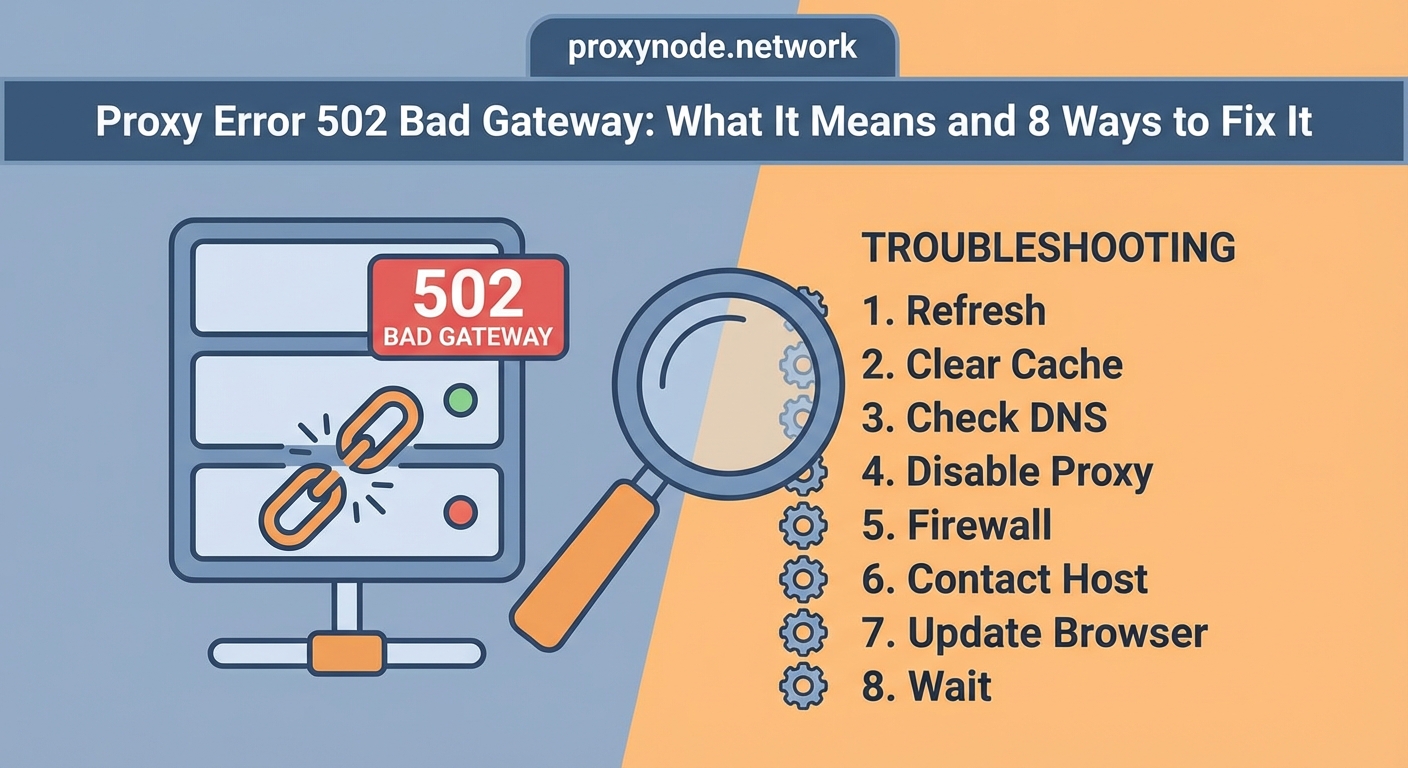
Several factors can trigger a 502 bad gateway error. Understanding the cause helps you fix it faster.
Server overload
The upstream server might be handling more requests than it can manage. During traffic spikes, like a product launch or a viral post, servers can become overwhelmed. They either respond too slowly or send incomplete responses, causing the gateway server to return a 502.
Network connectivity issues
Poor network connections between servers create communication failures. If the gateway server can’t reach the upstream server due to network problems, DNS failures, or routing issues, you’ll see a 502 error.
Server maintenance or crashes
When an upstream server goes down for maintenance or crashes unexpectedly, the gateway server has nowhere to send your request. It returns a 502 because it can’t get a valid response.
Firewall or security software blocking requests
Overly aggressive firewall rules can block legitimate requests between servers. Security software might flag normal traffic as suspicious and prevent the servers from communicating properly.
PHP timeout issues
For WordPress sites and other PHP applications, scripts that run too long can timeout. The web server gives up waiting for PHP to finish processing and returns a 502 error.
CDN or proxy configuration problems
Content delivery networks and reverse proxies can be misconfigured. Wrong timeout settings, incorrect upstream server addresses, or cache issues can all lead to 502 errors.
How to fix a 502 bad gateway error as a user
If you’re visiting a website and encounter this error, try these steps first.
1. Refresh the page
Hit F5 or click the refresh button. Many 502 errors are temporary glitches that resolve within seconds. The server might have been momentarily overloaded or restarting a service.
2. Wait a few minutes and try again
Sometimes the best solution is patience. If the server is under heavy load or undergoing maintenance, waiting five to ten minutes often resolves the issue.
3. Clear your browser cache and cookies
Outdated cached data can cause problems. Clear your browser cache and cookies, then try loading the page again.
For Chrome:
1. Press Ctrl+Shift+Delete
2. Select “Cached images and files” and “Cookies”
3. Click “Clear data”
For Firefox:
1. Press Ctrl+Shift+Delete
2. Select “Cookies” and “Cache”
3. Click “Clear Now”
4. Try a different browser or device
Switch to another browser or device to rule out local issues. If the site loads on your phone but not your computer, the problem might be with your browser settings or extensions.
5. Check if the site is down for everyone
Use a service like Down For Everyone Or Just Me to check if other people are experiencing the same issue. If the site is down for everyone, you’ll know it’s not your problem.
6. Restart your router
Network issues on your end can sometimes cause 502 errors. Restart your router by unplugging it for 30 seconds, then plugging it back in.
7. Flush your DNS cache
Your computer stores DNS information locally. Flushing this cache can resolve issues if the DNS records have changed recently.
On Windows:
1. Open Command Prompt as administrator
2. Type ipconfig /flushdns
3. Press Enter
On Mac:
1. Open Terminal
2. Type sudo dscacheutil -flushcache; sudo killall -HUP mDNSResponder
3. Press Enter
8. Contact the website owner
If none of these steps work and the error persists, reach out to the website administrator. They need to know their site is experiencing issues.
Fixing 502 errors as a website owner
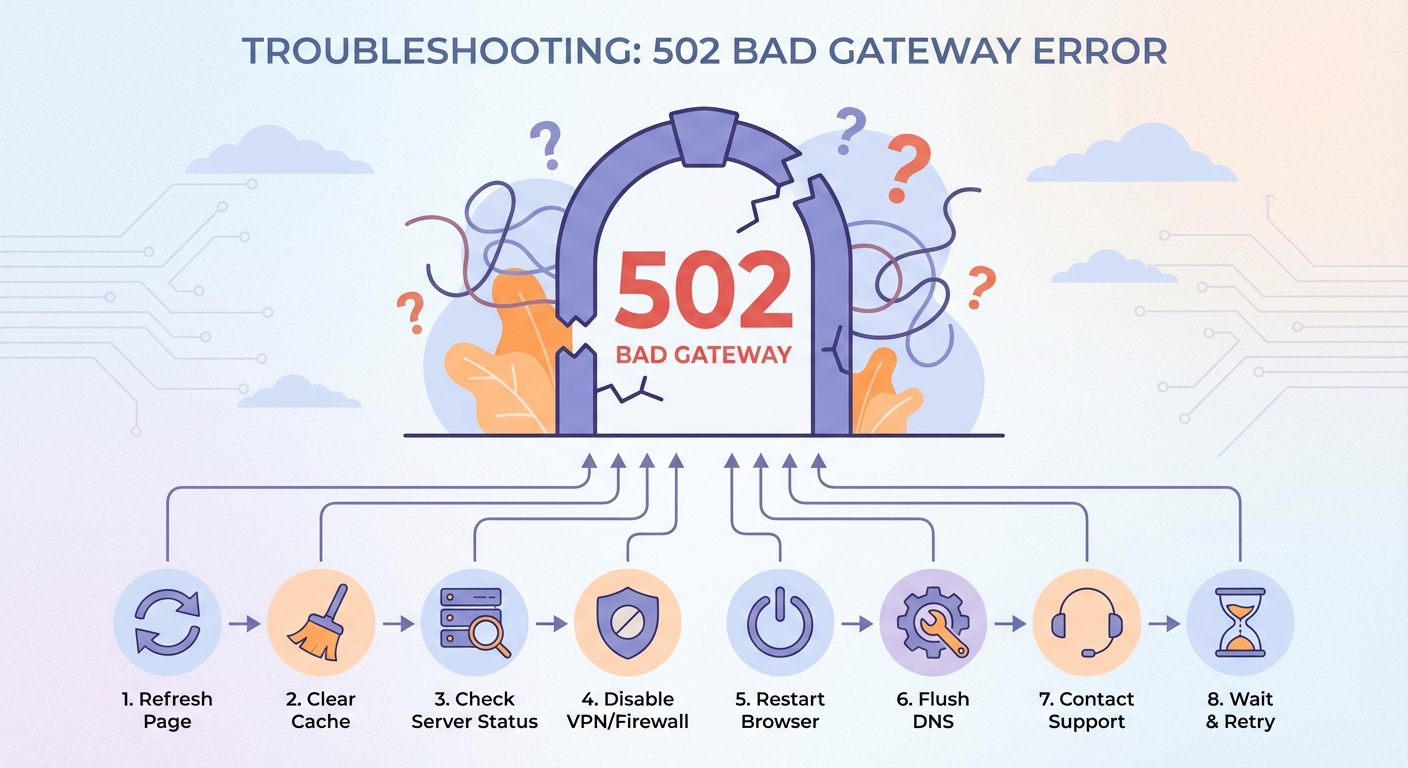
If you manage the website showing 502 errors, you need to dig deeper.
Check your server logs
Server logs reveal what’s happening behind the scenes. Look for error messages around the time users reported 502 errors.
For Apache, check:
– /var/log/apache2/error.log
– /var/log/httpd/error_log
For Nginx, check:
– /var/log/nginx/error.log
Look for timeout errors, connection refused messages, or upstream server failures.
Review your server resources
High CPU usage, maxed out RAM, or full disk space can cause 502 errors. Use commands like top, htop, or free -m to check resource usage.
If your server is consistently overloaded, you might need to upgrade your hosting plan or optimize your application.
Check your PHP configuration
For WordPress and other PHP sites, timeout settings matter. Edit your php.ini file and adjust these values:
max_execution_time = 300
max_input_time = 300
memory_limit = 256M
Restart your web server after making changes.
Verify your proxy or load balancer settings
If you use Nginx as a reverse proxy, check your timeout settings in the configuration file:
proxy_connect_timeout 600;
proxy_send_timeout 600;
proxy_read_timeout 600;
send_timeout 600;
These values are in seconds. Adjust them based on your application’s needs.
Disable problematic plugins or themes
For WordPress sites, a faulty plugin or theme can cause 502 errors. Disable all plugins by renaming the plugins folder via FTP, then re-enable them one by one to identify the culprit.
Contact your hosting provider
If you’ve tried everything and still see 502 errors, contact your hosting support team. They can check for server-level issues you can’t access.
Common mistakes that make 502 errors worse
| Mistake | Why it’s a problem | Better approach |
|---|---|---|
| Constantly refreshing | Adds more load to an already stressed server | Wait a few minutes between attempts |
| Changing multiple settings at once | Makes it impossible to identify what fixed the issue | Change one setting at a time and test |
| Ignoring server logs | Misses the actual cause of the error | Always check logs first |
| Setting timeouts too low | Causes legitimate requests to fail | Set timeouts based on your longest-running scripts |
| Not monitoring server resources | Lets problems build up until they cause outages | Use monitoring tools to catch issues early |
If you’re seeing 502 errors regularly, treat them as a warning sign. They indicate your server infrastructure is struggling to keep up with demand. Address the underlying capacity or configuration issues before they turn into complete outages.
Preventing future 502 errors
Taking proactive steps reduces the chance of 502 errors happening again.
Implement proper monitoring
Use monitoring tools like UptimeRobot, Pingdom, or New Relic to track your site’s availability. Set up alerts so you know immediately when errors occur.
Optimize your application
Slow database queries, unoptimized images, and inefficient code all contribute to server strain. Regular performance audits help identify bottlenecks.
Use a CDN
Content delivery networks reduce load on your origin server by caching static content closer to users. This decreases the chance of overwhelming your server during traffic spikes.
Scale your infrastructure
If you’re consistently hitting resource limits, it’s time to scale up. Add more server capacity, implement load balancing, or move to a more robust hosting solution.
Keep software updated
Outdated server software, PHP versions, or application code can contain bugs that cause 502 errors. Regular updates patch these issues.
Configure proper timeout values
Set realistic timeout values based on your application’s actual needs. Too short and legitimate requests fail. Too long and you waste resources on stuck processes.
Test changes in staging
Never make configuration changes directly on your production server. Use a staging environment to test changes first.
Understanding the technical side
For developers and system administrators, understanding the technical flow helps troubleshoot 502 errors more effectively.
When a 502 error occurs, here’s typically what happens:
- A client (browser) sends a request to a gateway server
- The gateway server forwards the request to an upstream server
- The upstream server either doesn’t respond, sends an invalid response, or takes too long
- The gateway server times out or receives garbage data
- The gateway server returns a 502 status code to the client
The gateway server in this scenario could be:
– A reverse proxy like Nginx or Apache
– A load balancer
– A CDN edge server
– An API gateway
– A proxy server
Common technical causes include:
Backend server crashes
If your application server (like PHP-FPM, Node.js, or Python) crashes or stops responding, the web server returns a 502.
Connection pool exhaustion
When all available connections to the database or backend service are in use, new requests fail with a 502.
DNS resolution failures
If the gateway server can’t resolve the hostname of the upstream server, it returns a 502.
SSL/TLS handshake failures
Problems with SSL certificates or TLS configuration between servers can cause 502 errors.
Real scenarios where 502 errors appear
Understanding common scenarios helps you recognize and fix issues faster.
E-commerce site during Black Friday
A retail website sees 10x normal traffic. The database server becomes overwhelmed processing orders. The web server times out waiting for database responses and returns 502 errors to customers.
API rate limiting
A mobile app makes too many requests to a backend API. The API gateway hits its rate limit and starts rejecting requests with 502 errors.
WordPress site with slow plugins
A WordPress site has multiple plugins that make external API calls. One plugin’s API is down. The plugin keeps trying to connect, causing PHP to timeout and trigger 502 errors.
Microservices communication failure
In a microservices architecture, Service A calls Service B. Service B is being redeployed. During the deployment window, Service A receives connection refused errors and returns 502s to clients.
When to escalate the issue
Some 502 errors require professional help. Know when to escalate.
Call in experts if:
– Errors persist for more than an hour despite basic troubleshooting
– Server logs show nothing obvious
– The issue affects revenue or critical business functions
– You’ve exhausted all standard fixes
– The problem occurs intermittently and you can’t reproduce it
Document everything before escalating. Include:
– When the errors started
– How often they occur
– What you’ve already tried
– Relevant log entries
– Any recent changes to the server or application
Making sense of it all
502 bad gateway errors are frustrating but usually fixable. For users, the solution is often as simple as refreshing or waiting. For website owners, it requires investigating server logs, checking configurations, and ensuring adequate resources.
The key is staying calm and working through solutions systematically. Start with the simplest fixes and work toward more complex troubleshooting. Most 502 errors resolve within minutes. The ones that don’t point to deeper infrastructure issues worth addressing.
Keep your servers monitored, your software updated, and your configurations documented. When 502 errors do appear, you’ll be ready to handle them efficiently and get your site back online.