 By carl
You’re streaming a show, and suddenly the buffering wheel appears. Again. You check your connection and realize your VPN is on. The internet was fine five minutes ago, but now it feels like you’re back on dial-up.
Slow VPN speeds aren’t just annoying. They disrupt work calls, kill gaming sessions, and turn a simple download into an overnight project. The good news? Most VPN slowdowns have simple causes and even simpler solutions.
VPN slowdowns usually stem from server distance, protocol settings, or network congestion. Switching servers, adjusting encryption protocols, enabling split tunneling, and optimizing your base internet connection can restore most of your original speed. Understanding these factors helps you troubleshoot effectively without needing technical expertise or expensive upgrades.
Understanding why VPNs slow down your connection
Every VPN adds extra steps to your internet traffic. Your data travels to a VPN server first, gets encrypted, then continues to its destination. That process takes time.
Think of it like taking a detour on a road trip. The scenic route might be safer and more private, but it adds miles to your journey. Your VPN does the same thing digitally.
Distance matters more than you’d think. A server 5,000 miles away means your data has to travel 10,000 miles round trip for every click. Physics doesn’t care about your internet plan.
Encryption adds another layer of processing. Strong encryption protects your privacy but requires your device to scramble and unscramble data constantly. Older devices struggle more with this workload.
Server crowding creates bottlenecks. Popular VPN servers get packed during peak hours, just like highways during rush hour. Too many users sharing the same server means everyone moves slower.
Your base internet speed sets the ceiling. A VPN can’t make your connection faster than it already is. If you start with 10 Mbps, that’s your maximum, and the VPN will likely reduce it further.
Seven fixes to speed up your VPN connection
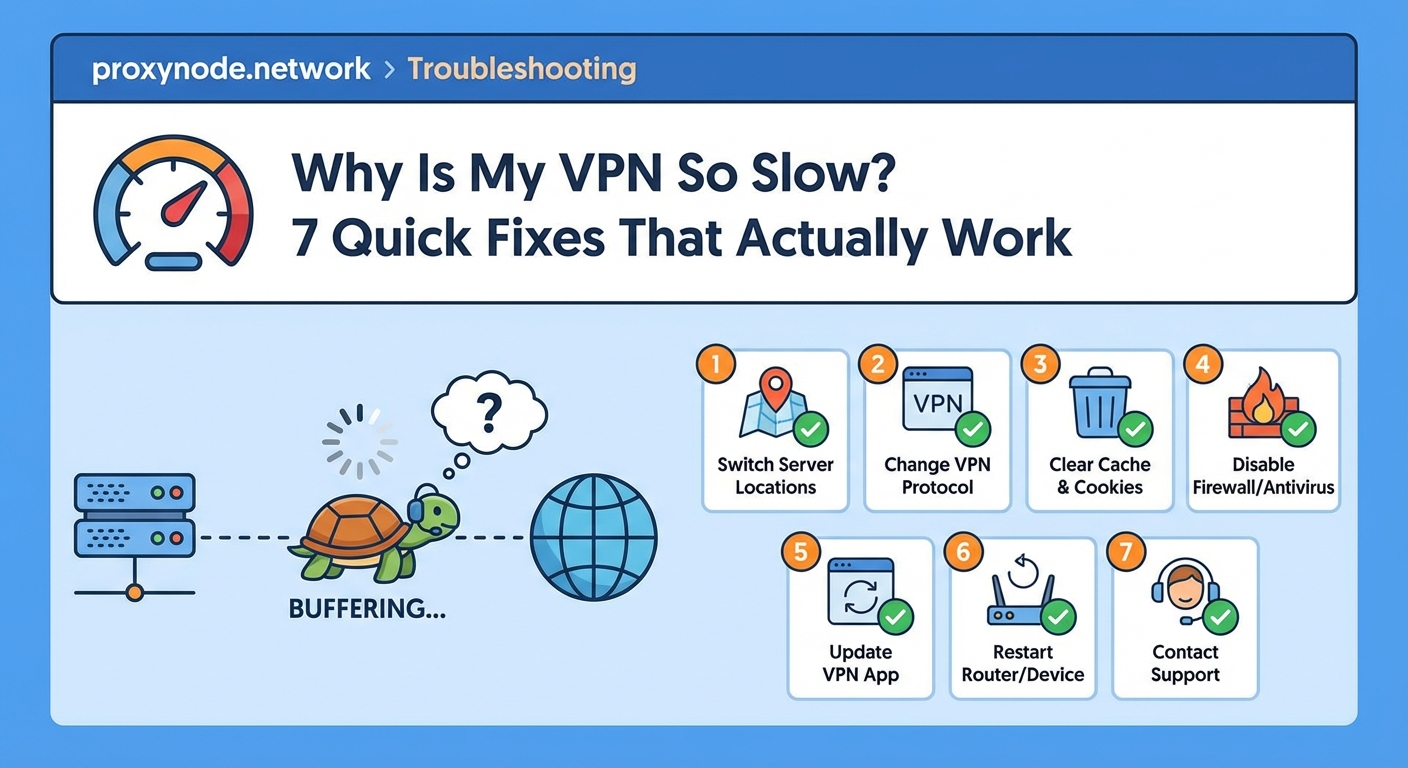
1. Switch to a closer server
Location makes a massive difference. Connect to a server in your country or a neighboring one instead of halfway around the world.
Most VPN apps show server locations and sometimes even current load percentages. Pick one that’s both nearby and not overcrowded.
Test a few different servers in the same region. Server performance varies based on hardware, maintenance schedules, and current user load. One server might be three times faster than another in the same city.
2. Change your VPN protocol
VPN protocols handle how your data gets encrypted and transmitted. Different protocols offer different speed and security balances.
Try these protocols in order:
- WireGuard: Newest and often fastest
- IKEv2: Great for mobile devices
- OpenVPN UDP: Faster than TCP
- OpenVPN TCP: More reliable but slower
Your VPN app usually has a protocol setting in preferences or advanced options. Switch it, reconnect, and test your speed.
WireGuard has become the gold standard for most users. It’s lean, modern, and significantly faster than older protocols without sacrificing security.
3. Enable split tunneling
Split tunneling lets you choose which apps use the VPN and which connect directly. This feature reduces VPN server load and speeds up apps that don’t need privacy protection.
You might want banking apps and browsers on the VPN but let streaming services or games connect directly. This setup gives you privacy where it matters without slowing everything down.
Not all VPN providers offer split tunneling, but most premium services do. Check your app settings under advanced features or connection options.
4. Restart your router and device
This sounds too simple to matter, but it works surprisingly often. Routers and devices accumulate connection issues over time that slow everything down, VPN included.
Follow this sequence:
- Disconnect from your VPN
- Restart your device completely
- Unplug your router for 30 seconds
- Plug the router back in and wait for full connection
- Reconnect to your VPN
Fresh connections clear out temporary glitches and often restore normal speeds. Do this weekly if you use your VPN constantly.
5. Adjust your encryption level
Some VPN apps let you choose encryption strength. Military-grade 256-bit encryption offers maximum security but requires more processing power.
If you’re just browsing normal websites or streaming content, 128-bit encryption provides plenty of protection with less performance impact.
Check your VPN settings for encryption options. Switching from AES-256 to AES-128 might give you a noticeable speed boost without meaningful security loss for everyday use.
6. Check for background bandwidth hogs
Your VPN isn’t always the problem. Other apps might be eating your bandwidth while the VPN takes the blame.
Common culprits include:
- Cloud backup services syncing large files
- Software updates downloading in the background
- Streaming apps auto-playing content
- Torrent clients you forgot to close
Open your task manager or activity monitor. Sort by network usage. Close or pause anything you’re not actively using.
7. Upgrade your VPN service or plan
Free VPNs and budget services often have speed limits, fewer servers, and overcrowded networks. They work, but slowly.
Premium VPN services invest in better infrastructure, more servers, and faster connections. The difference in performance can be dramatic.
If you’ve tried everything else and speeds are still terrible, your VPN service might be the bottleneck. Research providers known for speed, not just security.
Comparing common VPN speed problems and solutions
| Problem | Likely Cause | Best Solution |
|---|---|---|
| Constant buffering while streaming | Server too far away | Switch to closer server location |
| Slow speeds only during evenings | Server congestion | Try different server or off-peak hours |
| Fast connection but slow downloads | Protocol inefficiency | Change to WireGuard or IKEv2 |
| Entire internet crawls with VPN on | Base connection too slow | Upgrade internet plan first |
| Mobile VPN slower than desktop | Device processing limits | Use lighter protocol like IKEv2 |
| Specific apps unusably slow | All traffic routing through VPN | Enable split tunneling |
Testing your VPN speed properly
Run speed tests both with and without your VPN active. This gives you a baseline and shows exactly how much the VPN impacts your connection.
Use the same speed test site for both tests. Run each test three times and average the results. Internet speeds fluctuate, so multiple tests give you accurate data.
Test at different times of day. Your VPN might perform great at 3 AM but struggle at 8 PM when everyone’s online. Knowing your peak and off-peak speeds helps you plan usage.
The best VPN speed test happens during your normal usage. Run a test, then actually use the internet how you normally would. Real-world performance matters more than theoretical numbers.
Document your results. Write down which server, protocol, and settings gave you the best speeds. You’ll want this information when speeds drop again later.
Advanced troubleshooting for persistent problems
Sometimes the standard fixes don’t work. These advanced steps require more technical comfort but can solve stubborn speed issues.
Try connecting through your router instead of individual devices. Many modern routers support VPN connections at the network level. This approach can improve performance across all devices.
Check if your ISP throttles VPN traffic. Some internet providers deliberately slow down VPN connections. Test with different protocols and ports to see if certain configurations avoid throttling.
Disable IPv6 in your network settings. Some VPNs don’t handle IPv6 traffic well, causing speed problems and potential privacy leaks. Forcing IPv4-only connections often improves performance.
Update your VPN app to the latest version. Developers constantly optimize performance and fix bugs. An outdated app might be missing important speed improvements.
Consider your antivirus and firewall settings. Security software sometimes conflicts with VPN traffic, scanning every packet and creating delays. Add your VPN app to your security software’s exception list.
When to accept slower speeds
Some situations require accepting reduced speeds as the cost of privacy and security. Understanding these tradeoffs helps set realistic expectations.
Connecting to specific countries for content access means accepting distance-related slowdowns. If you need a Japanese server from the United States, physics limits how fast that connection can be.
Maximum security settings prioritize protection over speed. If you’re handling sensitive information, the extra encryption time is worth the performance hit.
Older devices simply can’t process modern encryption quickly. A five-year-old phone will always run VPNs slower than a new laptop. Upgrade your hardware or accept the limitations.
Your next steps for faster VPN performance
Start with the easiest fixes first. Switch servers, change protocols, and restart your devices. These three steps solve most VPN speed problems without technical knowledge.
Test each change individually. Make one adjustment, test your speed, then move to the next fix. This approach shows you exactly what works for your specific setup.
Keep notes on what improves your speeds. Your ideal settings might differ from general recommendations based on your location, device, and internet provider.
VPN speeds don’t have to be frustrating. Most slowdowns have straightforward solutions that take minutes to implement. Try these fixes today, and you’ll likely see immediate improvement in your connection performance.