 By carl
You’re sitting on your couch, ready to stream your favorite show, only to see that dreaded message: “This content is not available in your region.” Frustrating, right? Or maybe you’re concerned about your internet provider tracking every show you watch. Either way, a VPN can solve both problems, and getting one running on your smart TV is easier than you think.
Setting up a VPN on your smart TV takes three main approaches: installing directly on compatible TVs, configuring your router, or using a streaming device. Each method works differently depending on your TV brand and technical comfort level. Most people can complete the setup in under ten minutes using the router method or a Fire Stick. You’ll gain access to geo-restricted content while protecting your viewing privacy from your internet provider.
Why Your Smart TV Needs a VPN
Smart TVs are amazing for streaming, but they come with privacy concerns. Your internet service provider can see everything you watch. Streaming platforms track your viewing habits. And worst of all, content libraries change based on your location.
A VPN creates a secure tunnel for your internet traffic. It hides your real IP address and makes it look like you’re browsing from somewhere else. This means you can watch content from different regions and keep your viewing habits private.
But here’s the thing: not all smart TVs make VPN setup straightforward. Some brands support VPN apps directly. Others require workarounds. Let’s break down your options.
Three Ways to Connect Your Smart TV to a VPN
You have three main methods to get a VPN running on your television. Each has pros and cons depending on your TV brand and home network setup.
| Method | Best For | Difficulty | Time Required |
|---|---|---|---|
| Direct app installation | Android TV, Fire TV | Easy | 5 minutes |
| VPN-enabled router | All TV brands | Moderate | 15-20 minutes |
| Streaming device with VPN | TVs without app support | Easy | 8 minutes |
The direct installation method works if your TV runs Android TV or you use a Fire Stick. The router method protects every device in your home but takes longer to set up. The streaming device approach gives you flexibility without touching your router settings.
Setting Up a VPN Directly on Android TV or Fire TV
If you own an Android TV (like Sony, Philips, or some Samsung models) or use an Amazon Fire TV Stick, you’re in luck. These devices support VPN apps from their app stores.
Here’s how to install a VPN app directly:
- Turn on your TV and navigate to the app store (Google Play Store for Android TV, Amazon Appstore for Fire TV).
- Search for your VPN provider’s app (make sure you already have a VPN subscription).
- Download and install the app just like you would on your phone.
- Open the app and sign in with your VPN account credentials.
- Select a server location and tap connect.
- Wait for the connection to establish (usually takes 10-20 seconds).
- Open your streaming app and start watching.
The app will show a key icon or notification when you’re connected. Your TV’s internet traffic now runs through the VPN server.
“Installing a VPN app directly on your streaming device is the most straightforward method for most users. It requires no network configuration and you can toggle it on and off whenever needed.”
This method works great because you can easily switch server locations. Watching British TV? Connect to a UK server. Want American Netflix? Switch to a US server. The flexibility is unmatched.
Configuring Your Router for Whole-Home VPN Protection
If your smart TV doesn’t support VPN apps (common with LG, Samsung Tizen, and Vizio models), setting up the VPN on your router protects every device connected to your home network.
This approach requires a VPN-compatible router. Many modern routers from Asus, Netgear, and Linksys support VPN configurations. Check your router’s documentation or look for “VPN client” settings in the admin panel.
Follow these steps to configure your router:
- Log into your router’s admin panel (usually by typing 192.168.1.1 or 192.168.0.1 into your browser).
- Find the VPN client section (location varies by router brand and model).
- Select your VPN protocol (OpenVPN is most common and secure).
- Download your VPN provider’s configuration files from their website.
- Upload the configuration file to your router’s VPN settings.
- Enter your VPN username and password.
- Save the settings and activate the VPN connection.
- Restart your router to ensure all settings take effect.
- Verify the connection by checking your IP address on your smart TV’s browser.
Your smart TV will automatically use the VPN connection as soon as you restart it. No additional configuration needed on the TV itself.
The downside? Every device on your network now uses the VPN. Your phone, laptop, and smart home devices all route through the VPN server. This can slow down devices that don’t need VPN protection.
Some routers let you create separate networks. You could set up one network with VPN for your TV and streaming devices, and another without VPN for everything else.
Using a Streaming Device as Your VPN Gateway
Can’t install apps on your TV and don’t want to mess with router settings? A streaming device offers the perfect middle ground.
Devices that work well with VPNs include:
- Amazon Fire TV Stick (all generations)
- NVIDIA Shield TV
- Chromecast with Google TV
- Apple TV (requires additional setup steps)
The Fire TV Stick is the easiest option for most people. It costs around $40, plugs into your TV’s HDMI port, and supports dozens of VPN apps.
Setup takes just a few minutes:
- Plug the Fire Stick into your TV’s HDMI port and power it on.
- Complete the initial setup and connect to your WiFi network.
- Go to the Amazon Appstore and search for your VPN app.
- Install the VPN app and sign in.
- Connect to a VPN server.
- Launch Netflix, Hulu, or any other streaming app.
Your TV itself isn’t using the VPN. Only the Fire Stick’s traffic goes through the VPN tunnel. This means you can still use your TV’s built-in apps without VPN if needed.
Choosing the Right VPN Server Location
Once your VPN is set up, picking the right server matters more than you might think. Different servers unlock different content libraries.
Here’s what works for popular streaming services:
- Netflix US: Connect to a server in New York, Los Angeles, or Chicago
- BBC iPlayer: Use a London or Manchester server
- Hulu: US servers only (try East Coast locations for better speeds)
- Disney+: Available in multiple regions, but US has the largest library
Distance affects speed. A server 5,000 miles away will be slower than one 500 miles away. If you’re in California and want US content, choose a West Coast server for better performance.
Some VPN providers offer specialized streaming servers. These are optimized for video and often work better with platforms that actively block VPNs.
Common Problems and How to Fix Them
Even with proper setup, you might hit some snags. Here are the issues people face most often:
The streaming service detects your VPN and blocks playback. This happens when platforms identify VPN IP addresses. Solution: switch to a different server in the same country. If that doesn’t work, contact your VPN’s support team for recommended servers.
Your internet speed drops significantly. VPNs add encryption overhead, which can slow things down. Try a server closer to your physical location. Also check if your VPN offers a WireGuard protocol option, which is faster than older protocols.
The VPN keeps disconnecting. Router-based VPNs sometimes drop connections. Enable the “auto-reconnect” feature in your router’s VPN settings. For app-based setups, make sure your VPN app has the latest updates installed.
Your TV can’t connect to the internet at all after VPN setup. Double-check your router configuration if using the router method. Make sure you entered the correct VPN credentials. For app-based setups, try disconnecting from the VPN and reconnecting.
Streaming quality is poor even with good internet. Your VPN server might be overloaded. Switch to a different server in the same region. Also consider upgrading your VPN plan if you’re on a free or basic tier.
Understanding the Legal Side
Using a VPN is legal in most countries. You’re simply protecting your privacy and securing your internet connection. However, what you do with that VPN connection matters.
Bypassing geo-restrictions technically violates most streaming services’ terms of service. Netflix, Hulu, and others state in their agreements that you should only access content available in your region. That said, they rarely take action beyond blocking VPN IP addresses.
Copyright infringement remains illegal whether you use a VPN or not. A VPN doesn’t give you permission to pirate content. Stick to legitimate streaming services and you’ll be fine.
Some countries restrict or ban VPN use entirely. China, Russia, Iran, and a few others have laws limiting VPN access. If you’re traveling, research local regulations before connecting.
Maintaining Your VPN Connection
Once everything works, a bit of maintenance keeps things running smoothly.
Check for VPN app updates monthly. Providers constantly update their apps to work with streaming platforms and improve security. Enable automatic updates if your device supports it.
Test your connection periodically. Visit a site that shows your IP address and location. Make sure it displays your VPN server’s location, not your real one.
Monitor your VPN subscription. Most services require annual or monthly payments. Set a calendar reminder before renewal so you’re not caught off guard.
Keep your router firmware updated if you use the router method. Manufacturers release updates that fix security issues and improve performance.
Making the Most of Your Setup
Now that your VPN is running, you can access content from around the world. British crime dramas on BBC iPlayer. Japanese anime on regional Netflix. Sports events that aren’t broadcast in your country.
But don’t just use it for streaming. Your VPN also protects you when browsing on your TV’s built-in browser. Shopping apps, social media, and other services benefit from the extra privacy layer.
Remember that VPNs aren’t perfect. They slow your connection slightly due to encryption. They don’t make you completely anonymous online. And they won’t protect you from malware or phishing attempts.
Think of your VPN as one tool in your privacy toolkit. It’s an important tool, especially for smart TV use, but not a magic solution to every security concern.
Getting Started Today
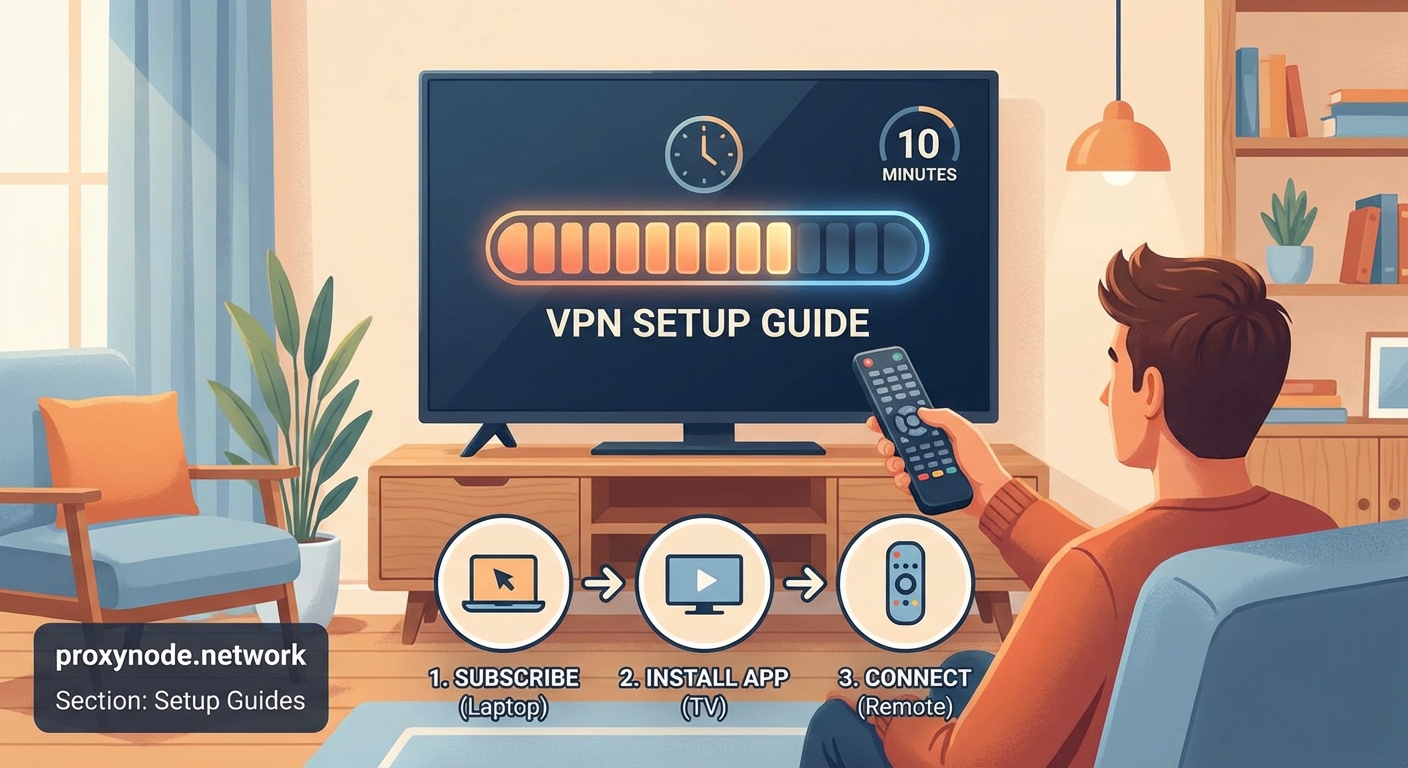
Setting up a VPN on your smart TV opens up a world of content while protecting your privacy. Whether you install an app directly, configure your router, or use a streaming device, the process takes less time than watching a sitcom episode.
Start with the method that matches your technical comfort level. If you’re not confident tweaking router settings, grab a Fire Stick and install a VPN app. If you want to protect multiple devices at once, invest the extra time in router configuration.
The hardest part is just getting started. Once you see that connection established and realize you can access shows you couldn’t watch before, you’ll wonder why you didn’t set this up sooner. Your couch, your TV, your content, your privacy. That’s how streaming should work.