 By carl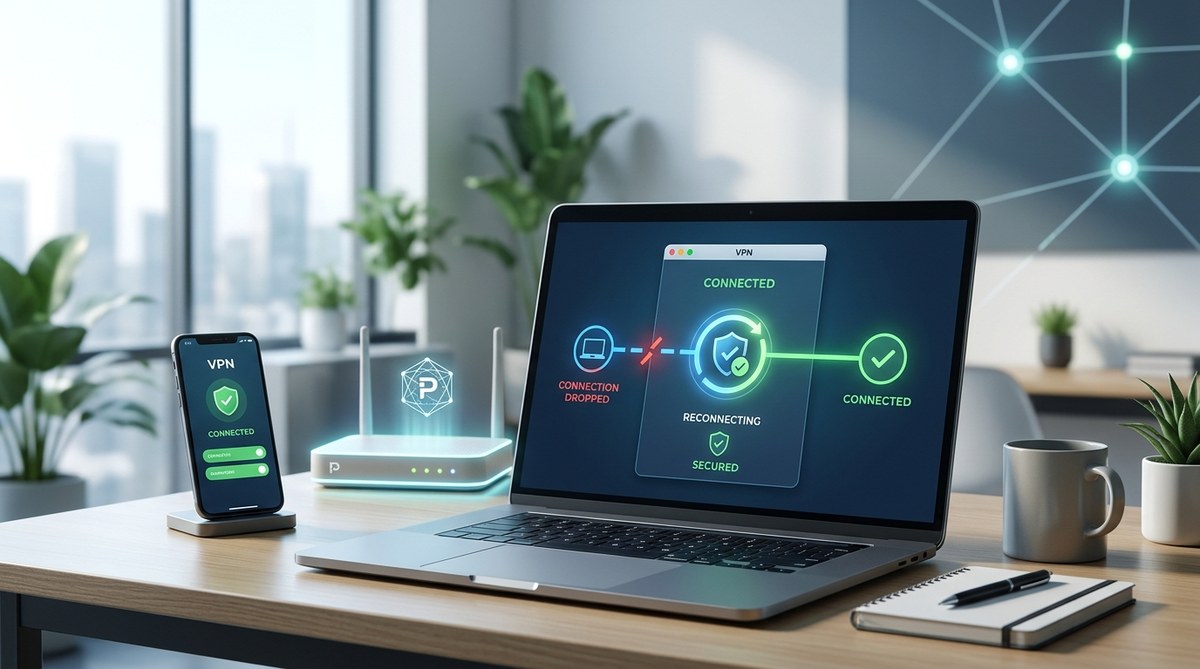
Staying connected to a VPN can sometimes feel like trying to hold onto a slipping rope. When your VPN keeps disconnecting, it disrupts your workflow, compromises your privacy, and wastes your time. Fortunately, there are reliable ways to address these issues and improve your connection stability. Whether you’re working remotely, streaming content, or just browsing securely, understanding how to fix VPN connection drops is essential for a seamless experience.
Frequent VPN disconnections can stem from network issues, outdated software, or misconfigured settings. Applying systematic troubleshooting steps can restore stability and keep your connection secure and continuous.
Understanding why VPN connections drop
Before diving into fixes, it’s important to grasp what causes VPN disconnections. Several factors can contribute, including unstable internet, server overloads, or software conflicts. Recognizing these roots helps target your troubleshooting more effectively.
Common reasons for VPN drops
- Unstable internet connection: If your internet fluctuates or drops frequently, your VPN will likely disconnect.
- Server overload or instability: Connecting to a congested or malfunctioning server can cause sudden drops.
- Outdated VPN software: Running old versions may contain bugs that interfere with stability.
- Firewall or security software interference: Firewalls, antivirus, or network policies might block VPN traffic.
- Network configuration issues: Incorrect DNS settings, IP conflicts, or router misconfigurations can lead to disconnections.
- Weak Wi-Fi signals: Poor wireless signals increase the chance of interruption.
- VPN protocol incompatibility: Some protocols may not work well with your network or device.
Practical steps to fix VPN connection drops
Addressing VPN drops involves a systematic process. Here’s a list of proven steps to stabilize your connection.
1. Check your internet stability
A VPN relies on a stable internet connection. Begin by testing your connection:
- Run a speed test to verify your bandwidth.
- Restart your modem/router to reset the connection.
- Connect via Ethernet if possible for more stability.
- Ensure no other devices are hogging bandwidth.
2. Switch VPN servers and protocols
Server overloads are common culprits. Try connecting to a different server—preferably one nearer to your location.
Additionally, experiment with different VPN protocols. For example:
- OpenVPN TCP or UDP
- WireGuard
- IKEv2/IPSec
Some protocols are more reliable depending on your network environment. You can usually change these in your VPN app’s settings.
3. Update your VPN software
Outdated VPN clients may contain bugs that cause disconnections. Check for updates:
- Visit your VPN provider’s website or app store.
- Download the latest version.
- Restart your device after updating.
Keeping your VPN software current ensures compatibility and access to stability improvements.
4. Configure your firewall and antivirus settings
Security software can block VPN traffic if misconfigured:
- Add your VPN app to the firewall’s exception list.
- Disable any conflicting security features temporarily to test connectivity.
- Ensure that your network isn’t blocking VPN ports; common ports include 1194 (OpenVPN), 1701 (L2TP), and 500 (IKEv2).
5. Optimize your network settings
Incorrect DNS or IP conflicts can cause drops:
- Switch to a reliable DNS provider, such as Google DNS (8.8.8.8 and 8.8.4.4) or Cloudflare DNS (1.1.1.1).
- Flush your DNS cache to clear old entries.
- Restart your device to refresh network configurations.
6. Use a wired connection and improve Wi-Fi signals
Wireless signals can be unreliable:
- Use an Ethernet cable when possible.
- Move closer to your Wi-Fi router.
- Remove interference from other electronics.
- Change Wi-Fi channels if your network is congested.
7. Enable auto-reconnect and kill switch features
Many VPN apps offer options to automatically reconnect after disconnection and to block internet traffic if the VPN drops unexpectedly:
- Enable the auto-reconnect feature.
- Turn on the kill switch to prevent data leaks during disconnections.
This ensures your privacy remains intact even if your VPN temporarily drops.
8. Reinstall or switch VPN providers if problems persist
If none of the above work, consider:
- Reinstalling your VPN app.
- Trying a different VPN service known for stability.
- Contacting customer support for assistance.
Sometimes, server issues or software bugs require expert intervention or an alternative solution.
Troubleshooting table: techniques versus mistakes
| Technique | Mistake to avoid |
|---|---|
| Switching protocols | Using incompatible or unsupported protocols |
| Updating software | Running outdated versions with known bugs |
| Changing DNS settings | Using unstable or unreliable DNS providers |
| Using Ethernet | Relying solely on Wi-Fi without signal optimization |
| Enabling auto-reconnect | Forgetting to turn on kill switch for extra protection |
| Reinstalling VPN | Ignoring underlying network issues instead of fixing them |
Expert advice on maintaining a stable VPN connection
“A consistent VPN experience hinges on both your network quality and the VPN setup. Always keep your software up-to-date, choose the right server and protocol, and ensure your local network is optimized for stability,” recommends cybersecurity expert Jane Smith.
Additional tips for a reliable VPN experience
- Regularly check your internet connection health.
- Use wired connections for critical tasks.
- Schedule routine updates of your VPN app.
- Test your VPN for leaks regularly to confirm your privacy is protected.
- Avoid connecting to overly congested servers.
Final thoughts on fixing VPN disconnections
Persistent VPN drops can be frustrating, but with a methodical approach, they are often fixable. Start by assessing your internet connection, then move through server and protocol adjustments. Keep your software current, optimize your network setup, and use features like auto-reconnect and kill switch to safeguard your privacy. Occasionally, switching providers or reinstalling the app can solve stubborn issues.
Remember, a stable VPN connection enhances both your security and your online experience. Take the time to fine-tune your setup to enjoy continuous, protected browsing without interruptions.