 By carl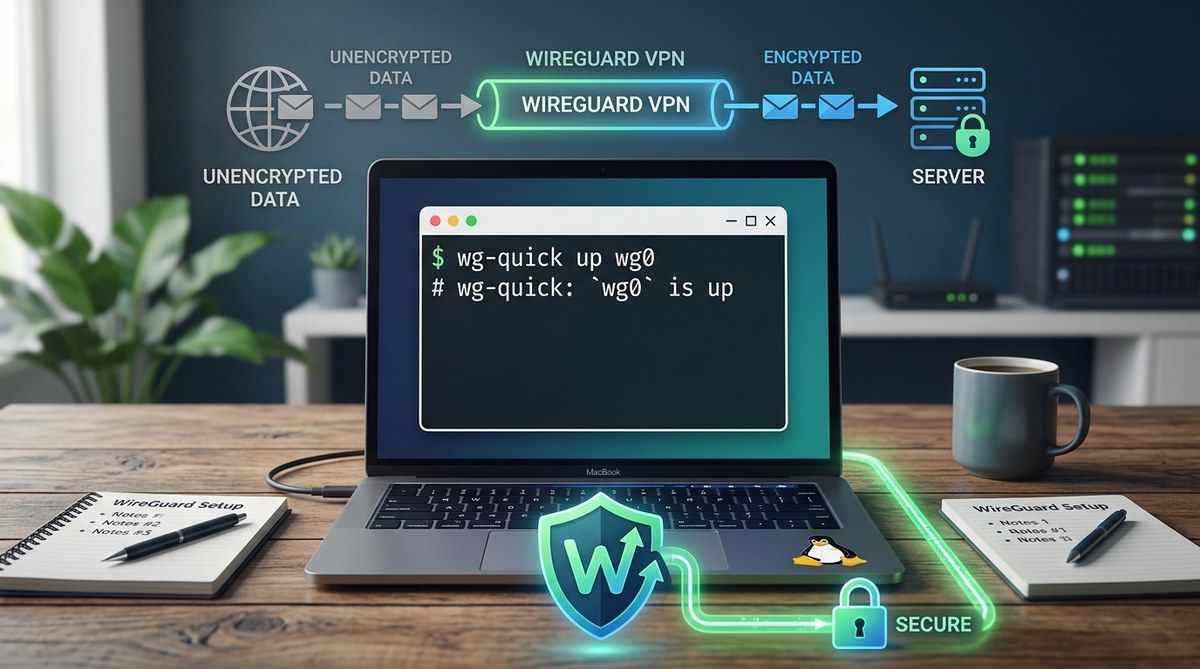
Getting a VPN up and running on your Linux system might sound complicated at first. But with WireGuard, the process is simpler than you might think. It offers a lightweight, fast, and secure way to protect your online activity. Whether you want to browse privately, access geo-restricted content, or secure your data on public networks, setting up WireGuard is a practical choice. This guide walks beginners through each step to install, configure, and verify your VPN connection confidently.
Setting up WireGuard on Linux is straightforward with clear instructions. Generate keys, install the software, configure the server and client, and test your connection. This process boosts your privacy and security in just a few simple steps suitable for beginners.
Understanding what makes WireGuard a great VPN choice on Linux
WireGuard is a modern VPN protocol known for its simplicity and speed. Unlike older protocols such as OpenVPN or IPsec, WireGuard has a smaller codebase, making it easier to audit and more secure. Its design focuses on creating a secure peer-to-peer connection with minimal configuration. When installed on Linux, it integrates smoothly with the system’s existing networking tools.
This protocol uses cryptography that is state-of-the-art, ensuring your data stays protected during transit. It is lightweight, which means less CPU usage and faster connection times. Many Linux distributions now include WireGuard in their official repositories, making installation hassle-free.
Preparing your Linux system for WireGuard
Before beginning, ensure your Linux system is updated. This helps avoid compatibility issues. Open your terminal and run:
sudo apt update && sudo apt upgrade -y
for Debian-based systems like Ubuntu. For Fedora or CentOS, use:
sudo dnf update
You also need to decide whether your setup will be a server or a client. A server will host the VPN, and clients will connect to it. For most beginners, starting with a client setup on your Linux machine is a great way to test WireGuard.
Step-by-step setup for WireGuard on Linux
1. Install WireGuard
On Ubuntu or Debian, install using:
sudo apt install wireguard
For Fedora:
sudo dnf install wireguard-tools
Once installed, verify the installation by checking the version:
wg --version
2. Generate encryption keys
WireGuard uses a pair of keys — a private key and a public key. These are essential for secure communication.
Run the following commands to generate keys:
umask 077
wg genkey | tee privatekey | wg pubkey > publickey
This creates two files: privatekey and publickey. Keep your private key secret. The public key will be shared with the server or other peers.
3. Configure the client
Create a configuration file, usually named wg0.conf, in /etc/wireguard/.
sudo nano /etc/wireguard/wg0.conf
Fill it with the following template, replacing placeholders with your actual keys and network details:
[Interface]
PrivateKey = YOUR_PRIVATE_KEY
Address = 10.0.0.2/24
DNS = 8.8.8.8

[Peer]
PublicKey = SERVER_PUBLIC_KEY
Endpoint = your.server.ip:51820
AllowedIPs = 0.0.0.0/0, ::/0
PersistentKeepalive = 25
- Replace
YOUR_PRIVATE_KEYwith the contents of yourprivatekeyfile. - Replace
SERVER_PUBLIC_KEYwith the server’s public key. - Use your server’s IP or domain in
Endpoint.
4. Enable IP forwarding and firewall rules
To allow your Linux machine to route traffic through the VPN, enable IP forwarding:
sudo sysctl -w net.ipv4.ip_forward=1
Make it persistent by editing /etc/sysctl.conf and adding:
net.ipv4.ip_forward=1
Set up firewall rules to allow traffic through the VPN port (51820):
sudo ufw allow 51820/udp
If you use a different firewall, adjust accordingly.
5. Start WireGuard
To activate the VPN, run:
sudo wg-quick up wg0
Check the status with:
wg show
If everything is correct, your VPN interface will be active, and your traffic is now encrypted.
Connecting to a WireGuard server
If you are setting up a client, you need the server’s public key and endpoint. These are usually shared during the server setup process. The server’s configuration must include your public key and assigned IP address.
On the server side, generate keys and configure the peer (client). The server’s configuration might look like:
[Interface]
PrivateKey = SERVER_PRIVATE_KEY
Address = 10.0.0.1/24
ListenPort = 51820

[Peer]
PublicKey = CLIENT_PUBLIC_KEY
AllowedIPs = 10.0.0.2/32
Once both server and client configurations are in place, enabling the VPN on both ends connects your systems securely.
Verifying your VPN connection
After activating WireGuard, confirm your connection with:
curl ifconfig.me
This will show your public IP address. If the setup is correct, it should match the server’s IP or the VPN’s assigned IP.
You can also test connectivity by pinging the server:
ping 10.0.0.1
If the ping succeeds, your VPN is working.
Expert tip: Always keep your private keys secure and avoid sharing them. Regularly update WireGuard and your system to benefit from security patches and improvements.
Troubleshooting common issues
| Technique | Mistake to Avoid | Solution |
|---|---|---|
| Incorrect key sharing | Sharing private keys | Only share public keys with peers |
| Firewall blocking ports | Not opening UDP port 51820 | Use ufw allow 51820/udp or equivalent |
| Wrong endpoint IP | Using incorrect server IP | Confirm server IP or hostname resolves correctly |
| Missing IP forwarding | Not enabling IP forwarding | Run sysctl -w net.ipv4.ip_forward=1 and make persistent |
Best practices for responsible VPN use
Using a VPN like WireGuard enhances your privacy but does not make you invincible. Always keep your keys secret and regularly update your software. Avoid using free or untrusted VPN servers, as they can log your activity or compromise your security. When connecting to public Wi-Fi, a VPN encrypts your data, but it is wise to combine it with other security measures such as two-factor authentication.
Final thoughts on mastering WireGuard on Linux
Getting started with WireGuard on Linux is accessible with clear steps and minimal fuss. By generating keys, installing the software, configuring your client or server, and testing the connection, you can establish a secure VPN tunnel in moments. This setup not only improves your online privacy but also gives you control over your data.
Once your VPN is active, you have a reliable shield for your internet activity. Keep your system updated and practice safe key management. With this foundation, you can expand your VPN network or customize configurations as you get more comfortable.
Keep your Linux connection private with WireGuard
Taking the time to set up your own VPN can seem intimidating at first. But once you understand the basic steps, it becomes a straightforward process. Use these instructions as a starting point to protect your online presence. The effort pays off, giving you peace of mind every time you connect. Happy VPNing!