 By carl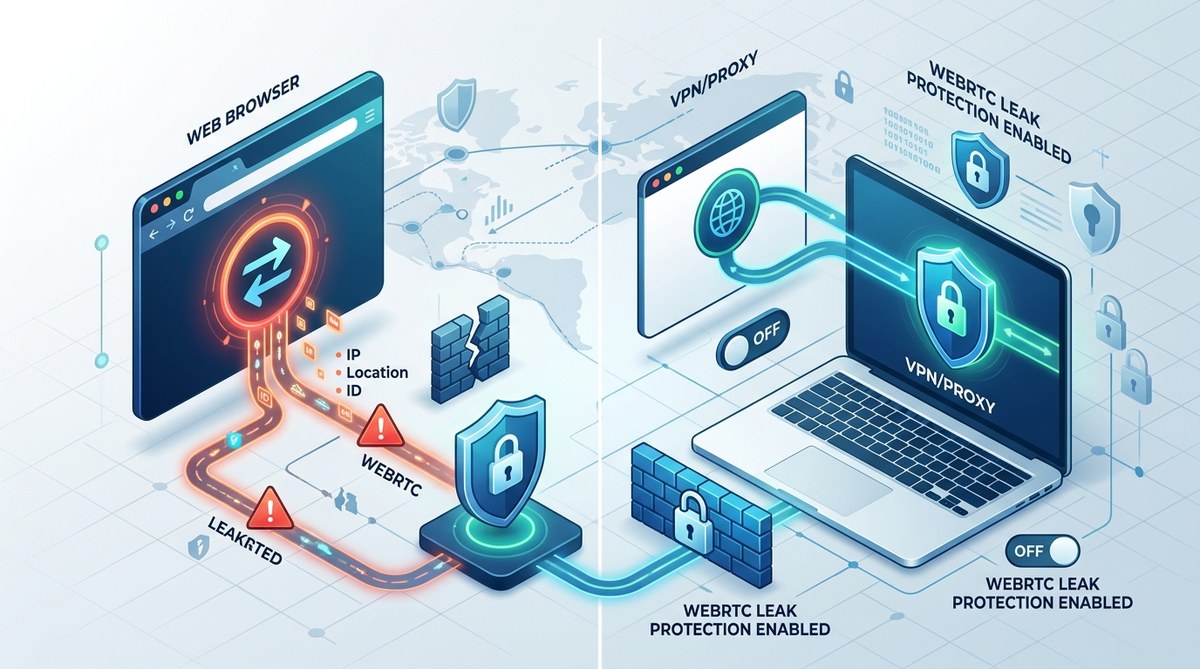
You think your VPN hides your IP address. It probably does for most traffic. But there is a quiet loophole in your browser that can give you away in an instant. It’s called WebRTC, and it doesn’t care about your VPN tunnel. Websites can force your browser to make direct peer-to-peer connections, and those connections leak your real IP no matter how many proxy layers you have running. The fix isn’t hard, but you need to know where to look.
WebRTC leaks are a critical privacy flaw that bypasses VPNs and proxies by sending your real IP address during peer-to-peer browser connections. You can detect them with free online tests and fix them by disabling WebRTC in your browser settings, using a dedicated extension, or enabling your VPN’s leak protection. Without this fix, your location and ISP remain visible to any site that asks.
WebRTC: A Privacy Blind Spot
WebRTC stands for Web Real-Time Communication. It lets your browser handle video calls, voice chats, and file transfers without extra plugins. Services like Google Meet, Discord, and Zoom (in browser mode) rely on it. But to make those connections fast, WebRTC uses a protocol called STUN to discover your public IP address. And that discovery happens even when the site doesn’t need peer-to-peer communication.
The problem is that WebRTC requests bypass your proxy or VPN. The browser asks the STUN server for your IP, and the STUN server sees your real IP, not the VPN one. The site can then read that response. This is not a bug. It is a feature of the standard, and it defeats your privacy setup.
How to Detect a WebRTC Leak
Before you fix anything, you need to confirm the leak exists. Here is how to scan for it.
- Visit a WebRTC leak test site like
browserleaks.com/webrtcoripleak.net. - While your VPN or proxy is active, check the IP address shown in the WebRTC section.
- If you see your home IP address listed anywhere, you have a leak.
- Repeat the test in a different browser if you use multiple ones.
- Also test on your mobile device if you browse there.
Most people are surprised when they see their real IP sitting right next to the VPN IP. A quick check takes ten seconds and can save you a lot of exposure. For a deeper dive, read our guide on how to test your VPN for DNS, IP, and WebRTC leaks in 5 minutes.
How to Fix WebRTC Leaks
The good news is you can block WebRTC from leaking without breaking most of your browsing. Here is a step-by-step process that works in 2026.
-
Disable WebRTC in Firefox. Type
about:configin the address bar, accept the risk, and search formedia.peerconnection.enabled. Double-click it to set the value tofalse. This turns off WebRTC entirely. Some video call sites may stop working, but you can toggle it back when needed. -
Use an extension for Chrome and Edge. Chrome does not let you disable WebRTC natively. Install an extension like WebRTC Leak Prevent or uBlock Origin (which has a WebRTC blocking option). After installation, open the extension settings and choose “Disable non-proxied UDP” or “Force WebRTC to use the proxy.” Restart your browser.
-
Block WebRTC in Brave. Brave already has built-in controls. Go to
Settings, thenShields, and enable “Block fingerprinting.” Under “Privacy and security,” set “WebRTC IP handling policy” to “Disable non-proxied UDP.” Brave is one of the easiest browsers to lock down. -
Configure your VPN to block WebRTC. Many VPN apps now include a “WebRTC leak protection” toggle. Enable it. If your VPN does not have this, consider switching to a provider that takes leaks seriously. A kill switch alone won’t stop WebRTC leaks because the connection isn’t dropped. The VPN simply doesn’t know about the STUN request.
-
Use a script blocker. Tools like NoScript or uMatrix (for advanced users) can prevent WebRTC scripts from running on untrusted sites. This method is more manual but gives you fine-grained control.
If you are using a proxy instead of a VPN, the situation is similar. WebRTC will still bypass a proxy unless you disable it. For a comparison of methods, check our breakdown of residential vs datacenter proxies and how they interact with browser leaks.
Common Mistakes and the Right Approach
Even after fixing WebRTC, people often make errors that leave them exposed. Here is a table of common mistakes and what actually works.
| Mistake | Why It Fails | Correct Approach |
|---|---|---|
| Only enabling a kill switch | Kill switch stops all traffic when VPN drops, but WebRTC leaks before the drop | Disable WebRTC at the browser level AND use a VPN with leak protection |
| Relying on incognito mode | Incognito still allows WebRTC | Same as above; incognito does not block any WebRTC requests |
| Using a single old extension | Some extensions get outdated and miss new WebRTC variants | Keep extensions updated or use a browser with native blocking |
| Forgetting to test after the fix | You assume it worked but a re-enabled feature can break it | Run a leak test every time you update your browser or VPN |
| Turning off WebRTC globally | Some legitimate sites need it for voice/video | Use a toggle extension or browser profile for sites that require WebRTC |
One more critical point: never assume your proxy or VPN is enough. WebRTC works at a lower level. Even if you run a secure SOCKS5 proxy, the browser can still make a direct STUN connection. To understand the full picture, read about common proxy errors and how to fix them, especially if you see weird connection drops after blocking WebRTC.
The Role of VPNs in Preventing WebRTC Leaks
A good VPN can help, but it is not a silver bullet. Many VPN providers now include “WebRTC leak blocking” in their apps. When enabled, the VPN intercepts all outgoing STUN requests and either drops them or routes them through the VPN tunnel. This works, but only if the VPN software is running and correctly configured.
Here is where things get tricky: if you use a VPN that does not support IPv6, and your browser makes an IPv6 STUN request, that request may bypass the VPN entirely. That is a separate but related problem. We cover that in our article on why your VPN might still expose your location through IPv6 leaks.
For maximum safety, combine a VPN that blocks WebRTC with a browser that has WebRTC disabled. You don’t need to choose one or the other. Use both.
“I tested my VPN on five different leak sites and saw only the VPN IP. But when a security researcher checked my browser’s WebRTC, my home IP was right there. No one had ever told me that video calls could expose me. Disabling WebRTC took thirty seconds and fixed everything.”
* Anonymous feedback from a privacy forum user, 2026
That quote illustrates the gap between awareness and action. Most people only check the basic IP leak test. WebRTC leaks are quieter, but they are just as dangerous.
Why Disabling WebRTC is a Better Long-Term Solution
Extensions are convenient, but they can break after browser updates. A new version of Chrome might deprecate an extension’s WebRTC blocking API. That happened in 2024 with Manifest V3 changes. The safest path is to move to a browser that lets you disable WebRTC natively.
Firefox, Brave, and LibreWolf all offer native toggles. If you need Chrome for specific sites, create a dedicated browser profile with WebRTC disabled via extension, and use it only for trusted tasks. For everyday browsing, use a privacy-focused browser.
If you absolutely need WebRTC for work (video conferencing, live collaboration), consider using a separate browser profile that has WebRTC enabled, and keep your main profile locked down. That way you only expose your real IP when necessary and on a trusted network.
A Real-World Example: What Happens When You Don’t Fix It
Imagine you are using a VPN to access geo-blocked content or to browse from a remote location. A website you visit runs a silent WebRTC request. It sees your real IP in Chicago, even though your VPN says you are in London. That website logs your real IP and ties it to your session. Your VPN just became useless for that site.
Worse, an advertiser or tracker can chain that leaked IP with your browsing habits. Over time, they build a profile that includes your home location, even if you always use a VPN. The leak undermines your entire privacy strategy.
This is not hypothetical. Major ad networks have been caught using WebRTC to detect VPN users and serve them targeted ads based on real IPs. The fix is simple, and it’s one of the most effective steps you can take in 2026.
Locking Down Your Browser for Good
Once you have disabled WebRTC, take a few extra steps to harden your browser overall.
- Disable WebGL and canvas fingerprinting in your browser settings or via a privacy extension. This prevents sites from fingerprinting your graphics card.
- Set your browser to block third-party cookies. That reduces tracking from cross-site scripts.
- Use a privacy-respecting DNS like Quad9 or Cloudflare’s 1.1.1.1, even when your VPN is off.
- Review your browser extensions regularly. Remove anything you don’t use, especially ones with broad permissions.
For a complete walkthrough of all these settings, see our guide to browser fingerprinting explained and how to stop it.
When you combine a WebRTC fix with good browsing habits, you close the most common loophole that exposes your real IP. Many people spend hours choosing the right VPN but ignore the five-minute browser fix that makes it all worthwhile.
Your Privacy Deserves More Than a Band-Aid
WebRTC leaks are one of those problems that feels technical until you realize how easy it is to solve. A single browser setting or a lightweight extension can shut down the leak instantly. Do not rely on your VPN alone. Take control of your browser first.
Test your setup today. Disable WebRTC. Run a leak test. Then enjoy the peace of mind that comes from knowing your real IP stays hidden no matter what a site asks for. It is a small change that makes a big difference in your daily privacy.