 By carl
You open your VPN app, enter your credentials, and wait. Instead of connecting, you see an error message: authentication failed. Your access is blocked, and you’re stuck wondering what went wrong. This frustrating problem stops you from accessing the internet securely, but the good news is that most authentication errors have simple fixes you can apply yourself.
VPN authentication errors usually stem from incorrect login credentials, expired subscriptions, outdated software, or network conflicts. Most issues resolve through basic troubleshooting like verifying your username and password, checking your account status, updating your VPN client, or adjusting firewall settings. Advanced problems may require protocol changes or time synchronization fixes.
What VPN Authentication Actually Means
Authentication is the process your VPN uses to verify your identity before granting access to its servers. When you connect, your device sends credentials to the VPN provider’s authentication server. This server checks whether your username, password, and account are valid and active.
If any part of this verification fails, you get blocked. The error message might say “authentication failed,” “login error,” or “credentials rejected.” Different VPN providers word these messages differently, but they all mean the same thing: something prevented the server from confirming your identity.
Understanding this process helps you troubleshoot more effectively. Authentication happens before encryption or tunneling begins. Your device never establishes a secure connection if it can’t pass this first checkpoint.
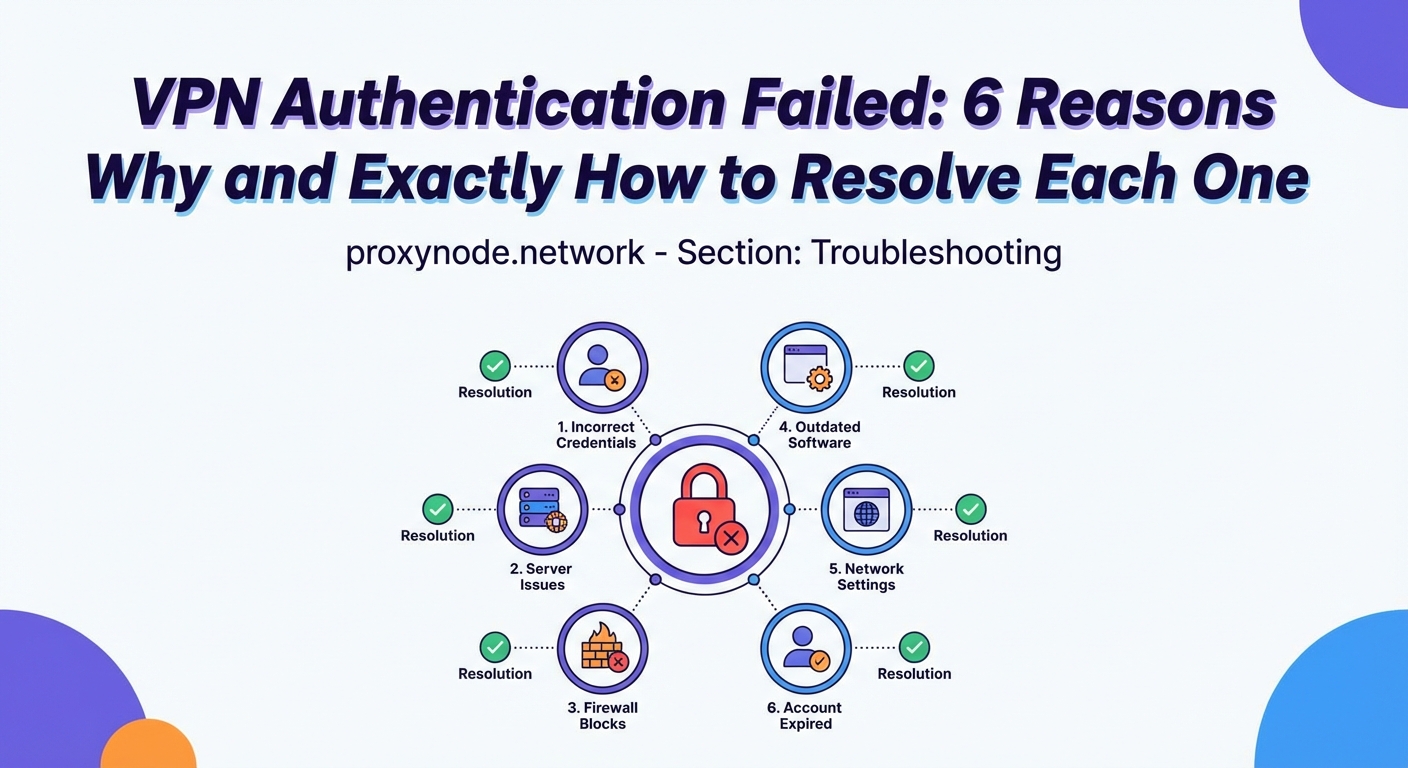
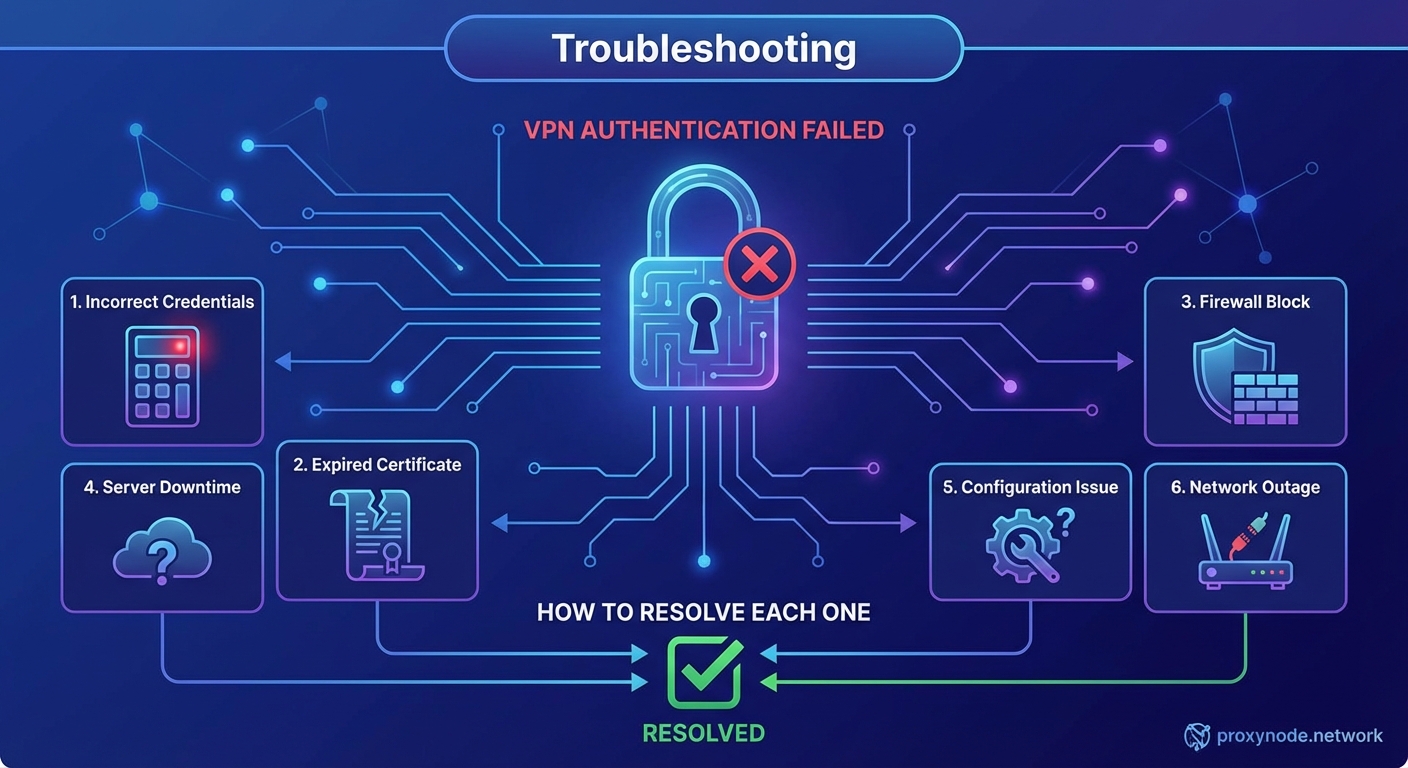
Six Common Causes and Their Fixes
Wrong Username or Password
This is the most frequent culprit. You might have typed your credentials incorrectly, used an old password, or confused your VPN login with another account.
How to fix it:
- Double check your username for typos, extra spaces, or incorrect capitalization.
- Copy your password from a password manager instead of typing it manually.
- Reset your password through your VPN provider’s website if you’re uncertain.
- Check whether your VPN requires your email address or a separate username.
Some VPN services use your email as the username. Others assign a unique username during signup. If you recently changed your email or password, make sure you’re using the updated credentials.
Expired or Suspended Account
Your subscription might have lapsed, your payment failed, or your account was suspended for violating terms of service. VPN providers typically block authentication for inactive accounts.
How to fix it:
- Log into your account dashboard on the provider’s website.
- Check your subscription status and expiration date.
- Verify that your payment method is current and charges went through.
- Contact support if your account shows active but authentication still fails.
Free trials often expire without warning. If you signed up during a promotional period, check whether that period ended. Some providers send renewal reminders to spam folders, so search your email for payment notifications.
Outdated VPN Software
VPN clients receive regular updates that fix bugs, patch security vulnerabilities, and maintain compatibility with authentication servers. Running an old version can break the login process.
How to fix it:
- Open your VPN app and check for updates in the settings menu.
- Visit the provider’s official website to download the latest version.
- Uninstall your current client completely before installing the new version.
- Restart your device after updating to clear any cached settings.
Automatic updates don’t always work perfectly. Some operating systems block background updates or require manual approval. Set a reminder to check for VPN updates monthly if your app doesn’t notify you automatically.
Firewall or Antivirus Interference
Security software on your device might block VPN authentication packets, treating them as suspicious traffic. Corporate firewalls and school networks often restrict VPN connections intentionally.
How to fix it:
- Temporarily disable your antivirus software and attempt to connect.
- Add your VPN client to your firewall’s whitelist or allowed applications.
- Check your router settings for VPN blocking features.
- Try connecting from a different network to rule out local restrictions.
If disabling your antivirus fixes the problem, re-enable it and configure an exception for your VPN. Most security software lets you whitelist specific programs without lowering overall protection. Never leave your antivirus disabled permanently.
Server Configuration Problems
The VPN server you’re trying to reach might be down, overloaded, or undergoing maintenance. Authentication servers occasionally fail even when connection servers work fine.
How to fix it:
- Select a different server location in your VPN app.
- Check your provider’s status page for reported outages.
- Switch between server types like standard, streaming optimized, or P2P servers.
- Clear your app’s cache and reconnect to refresh the server list.
Popular server locations experience more traffic and higher failure rates. If you’re connecting to a major city during peak hours, try a less popular location nearby. The authentication process often completes faster on servers with lighter loads.
Time Synchronization Issues
VPN authentication uses time-stamped certificates and tokens. If your device clock is significantly off, the authentication server rejects your connection as a security precaution.
How to fix it:
- Enable automatic time and date settings on your device.
- Manually sync your system clock with an internet time server.
- Check your time zone setting to ensure it matches your location.
- Restart your device after correcting the time.
Even a few minutes of difference can trigger authentication failures. This problem appears more often on devices that have been off for extended periods or systems with failing CMOS batteries. Virtual machines and dual-boot setups sometimes have persistent time sync issues.
Comparing Fix Difficulty and Success Rates
| Issue | Difficulty Level | Typical Success Rate | Time Required |
|---|---|---|---|
| Wrong credentials | Very easy | 95% | 2 minutes |
| Expired account | Easy | 90% | 5 minutes |
| Outdated software | Easy | 85% | 10 minutes |
| Firewall blocking | Moderate | 75% | 15 minutes |
| Server problems | Easy | 80% | 5 minutes |
| Time sync errors | Moderate | 70% | 10 minutes |
Protocol and Port Adjustments
Sometimes authentication fails because your network blocks the protocol or port your VPN uses. Different protocols have different authentication methods and network requirements.
Try switching protocols in this order:
- Start with OpenVPN (UDP), which works on most networks.
- Switch to OpenVPN (TCP) if UDP fails, as TCP bypasses some restrictions.
- Try WireGuard for modern networks with strict filtering.
- Use IKEv2 on mobile devices for better stability.
- Fall back to L2TP or PPTP only as a last resort on restricted networks.
Each protocol authenticates differently. OpenVPN uses certificates and username/password combinations. IKEv2 relies more heavily on certificate authentication. WireGuard uses public key cryptography without traditional username/password authentication.
If you’ve tried multiple protocols and authentication still fails, the problem likely lies with your credentials or account status rather than network configuration. Focus your troubleshooting on verifying your login information and subscription status before making additional protocol changes.
Advanced Troubleshooting Steps
When basic fixes don’t work, these advanced techniques often resolve stubborn authentication problems.
Clear all VPN-related data:
Your device stores authentication tokens, certificates, and connection profiles that can become corrupted. Completely removing and reinstalling your VPN client deletes this cached data.
- Uninstall the VPN application through your system settings.
- Delete remaining configuration files from your user directory.
- Restart your computer to clear memory caches.
- Download a fresh installer from the official website.
- Install the client and enter your credentials as a new user.
Reset network settings:
Network configuration problems sometimes prevent proper authentication handshakes. Resetting your network adapter clears these issues.
On Windows, open Command Prompt as administrator and run these commands:
netsh winsock reset
netsh int ip reset
ipconfig /flushdns
On macOS, go to System Preferences, select Network, and click “Assist me” followed by “Diagnostics.”
On mobile devices, toggle airplane mode on and off, or reset network settings in your system preferences.
Check DNS configuration:
Some VPN providers require specific DNS settings for authentication. If your device uses custom DNS servers, they might interfere with the authentication process.
- Switch to your ISP’s default DNS servers temporarily.
- Try Google DNS (8.8.8.8 and 8.8.4.4) or Cloudflare DNS (1.1.1.1).
- Enable DNS over HTTPS if your VPN supports it.
- Disable any DNS-based ad blockers during authentication.
What to Tell Support When Nothing Works
If you’ve exhausted all troubleshooting steps, contact your VPN provider’s support team with this information ready:
- Your exact error message, including any error codes.
- The device type and operating system version you’re using.
- Your VPN client version number.
- The server location you’re trying to connect to.
- The protocol and port settings you’re using.
- A list of troubleshooting steps you’ve already tried.
- Whether authentication works on other devices with the same account.
Support teams resolve issues faster when you provide complete details upfront. Screenshot your error messages and settings screens before contacting them. Many providers offer live chat support that can walk you through advanced diagnostics in real time.
Prevention Tips for Future Authentication Problems
Avoid authentication headaches by building these habits:
- Save your credentials in a reliable password manager.
- Enable automatic updates for your VPN client.
- Set calendar reminders for subscription renewals.
- Keep your device’s operating system current.
- Whitelist your VPN in security software during initial setup.
- Test your VPN connection after major system updates.
Regular maintenance prevents most authentication failures. Spending five minutes monthly on VPN upkeep saves hours of frustrating troubleshooting later.
When Authentication Failures Signal Bigger Issues
Persistent authentication problems sometimes indicate more serious concerns. If you’ve verified your credentials, updated your software, and tried multiple networks but still can’t connect, consider these possibilities:
Your account might have been compromised. Someone changing your password or using all your simultaneous connections would trigger authentication failures. Check your account’s login history and active sessions through your provider’s dashboard.
Your VPN service might be blocking your region. Some providers restrict access from certain countries due to legal requirements. This typically happens when traveling internationally with an account registered in a different country.
Your ISP might be actively blocking VPN traffic. Some internet providers and governments use deep packet inspection to identify and block VPN protocols. This requires more sophisticated workarounds like obfuscated servers or protocol disguising.
Getting Back Online Securely
Authentication errors feel frustrating, but they’re usually straightforward to fix. Start with the simple solutions like checking your password and updating your software. Work through the troubleshooting steps methodically rather than trying everything at once. Most people resolve authentication failures within 15 minutes using the techniques outlined here. Your VPN connection protects your privacy and security, so taking time to fix authentication problems properly is worth the effort.