 By carl
Setting up a proxy server on Windows 10 might sound technical, but it’s actually straightforward once you know where to click. Whether you need it for workplace requirements, enhanced privacy, or accessing region-specific content, Windows 10 gives you several ways to configure proxy settings. This guide walks you through each method with clear steps that anyone can follow.
Windows 10 offers three main proxy configuration methods: automatic detection, script-based setup, and manual entry. Each serves different needs. Automatic works best for corporate networks, scripts handle complex configurations, and manual setup gives you complete control over individual proxy servers. Most users will find manual configuration the most practical for personal proxy services, requiring only an IP address and port number.
Understanding proxy servers on Windows 10
A proxy server acts as a middleman between your computer and the internet. Instead of connecting directly to websites, your requests go through the proxy first. The proxy then fetches the content and sends it back to you.
This setup offers several benefits. Companies use proxies to monitor network traffic and enforce security policies. Individuals use them to mask their IP address, bypass geographic restrictions, or access content that might be blocked in their region.
Windows 10 handles proxy configuration through the Settings app. The operating system routes your internet traffic according to the rules you define. Some applications respect these system-wide settings automatically, while others need separate configuration.
The key difference between proxies and VPNs matters here. Proxies typically work at the application level and don’t encrypt your traffic. VPNs create encrypted tunnels for all network activity. Both have their place depending on your needs.
Three ways to configure proxy settings
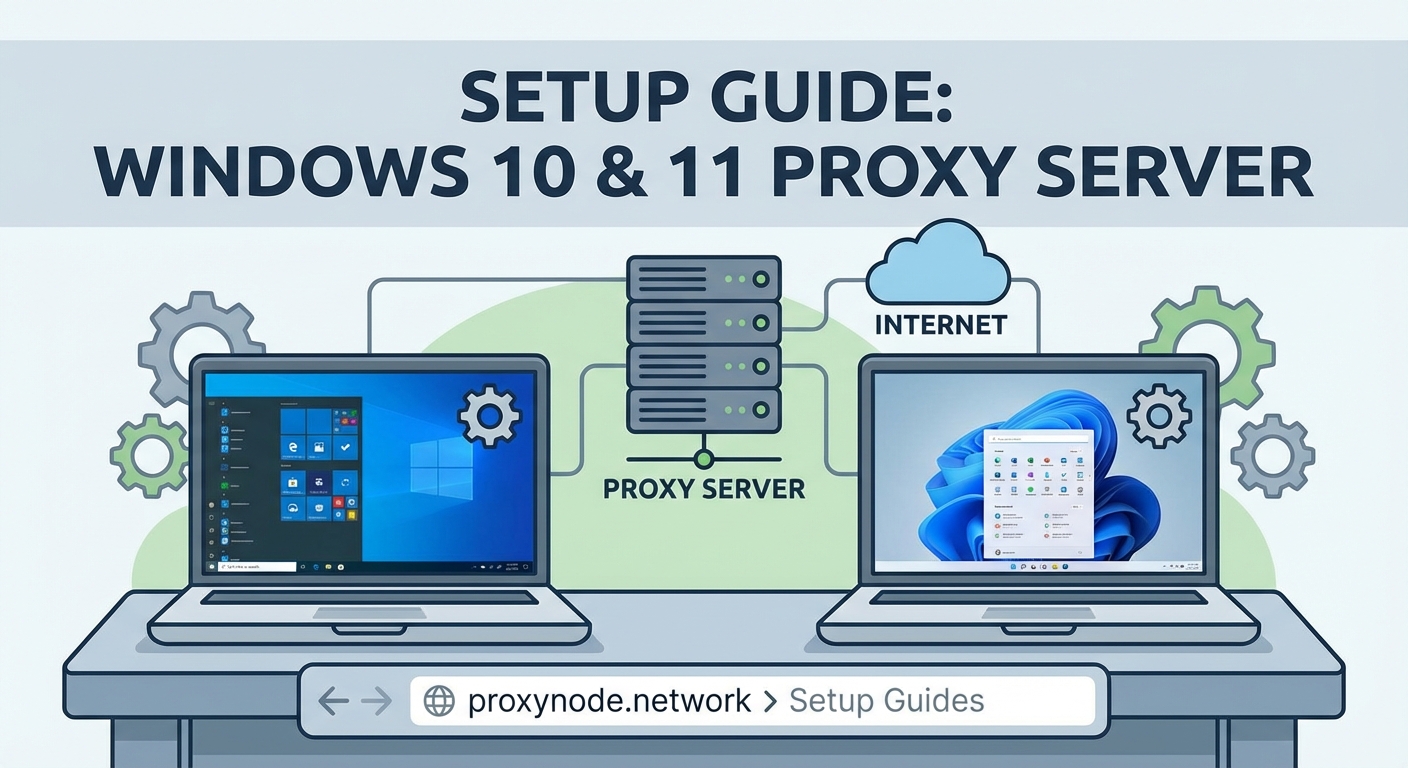
Windows 10 provides three distinct methods for setting up proxy connections. Each method suits different scenarios and technical requirements.
Automatic detection lets Windows find proxy settings on its own. This works when your network administrator has configured a Web Proxy Auto-Discovery (WPAD) protocol. You simply toggle a switch and Windows handles the rest.
Script-based configuration uses a PAC (Proxy Auto-Configuration) file. Your network administrator provides a URL pointing to this script. The script contains rules that determine which proxy to use for different websites.
Manual setup gives you direct control. You enter the proxy server address and port number yourself. This method works best when you have specific proxy credentials from a service provider.
Most home users and individuals with personal proxy subscriptions will use the manual method. Corporate environments typically rely on automatic detection or scripts.
Setting up automatic proxy detection
This method requires the least effort but only works in supported network environments.
- Press Windows key + I to open Settings
- Click on Network & Internet
- Select Proxy from the left sidebar
- Under Automatic proxy setup, toggle “Automatically detect settings” to On
Windows will now attempt to find proxy configuration automatically when you connect to networks. This happens in the background without additional input from you.
If your workplace uses WPAD, this setting should connect you to the corporate proxy immediately. You won’t need to know any server addresses or port numbers.
The downside is limited control. You can’t customize which sites use the proxy or adjust specific settings. For personal proxy services, this method rarely applies.
Configuring a proxy using a setup script
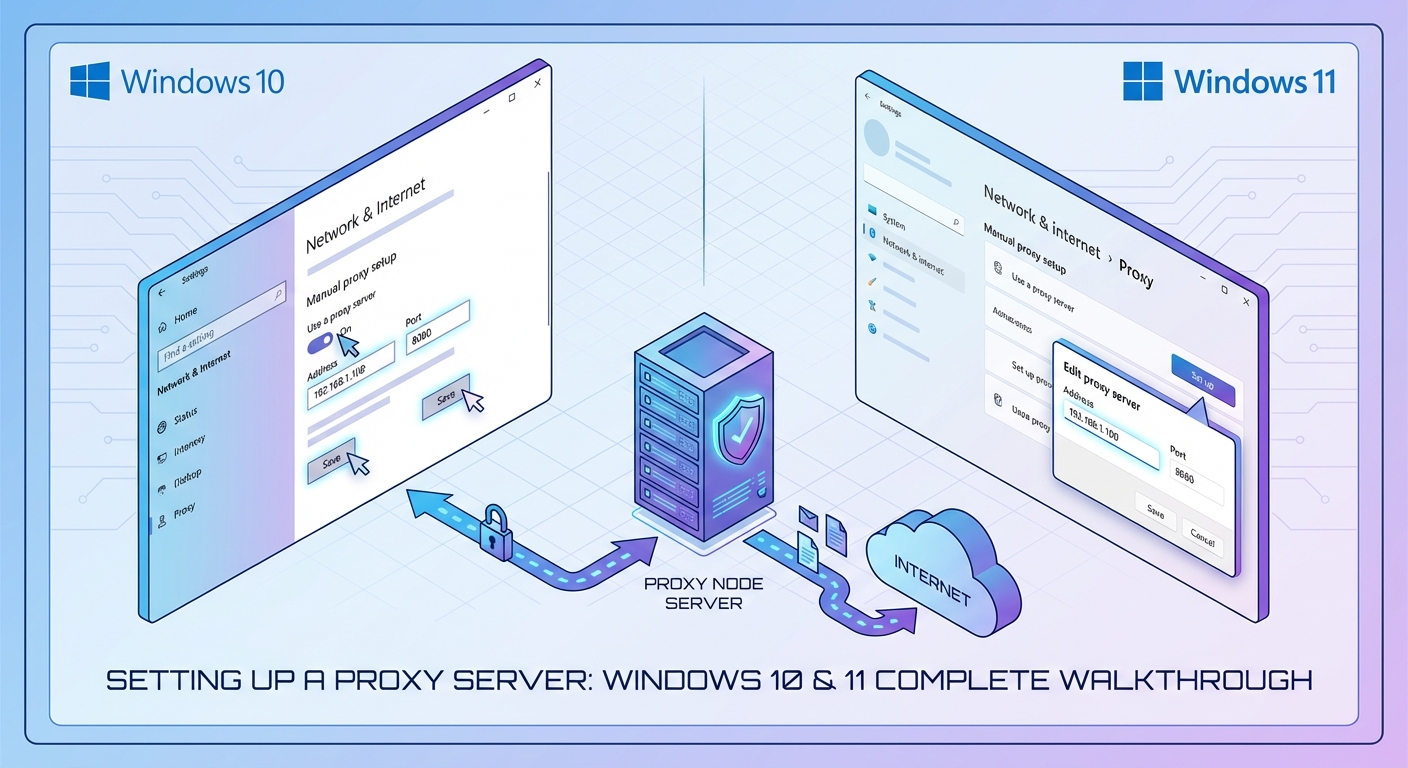
Script-based configuration offers more flexibility than automatic detection while remaining relatively simple to implement.
- Open Settings by pressing Windows key + I
- Navigate to Network & Internet
- Click Proxy in the left menu
- Under Automatic proxy setup, toggle “Use setup script” to On
- Enter the script address in the field labeled “Script address”
- Click Save
Your network administrator or proxy service provider will give you the script URL. It typically looks like http://proxy.example.com/proxy.pac or uses a local file path.
The PAC file contains JavaScript code that determines routing rules. For example, it might send social media traffic through one proxy while directing video streaming through another. Some scripts bypass the proxy entirely for local network addresses.
Always verify the script URL with your IT department or proxy provider before entering it. An incorrect script address can break your internet connection completely.
This method works well for complex proxy setups where different destinations require different routing. Educational institutions and large corporations often use PAC files to manage thousands of users efficiently.
Manual proxy server configuration
Manual setup gives you complete control and works with virtually any proxy service. This is the method most people use for personal proxy subscriptions.
- Press Windows key + I to open Settings
- Click Network & Internet
- Select Proxy from the sidebar
- Scroll down to Manual proxy setup
- Toggle “Use a proxy server” to On
- Enter your proxy server address in the “Address” field
- Enter the port number in the “Port” field
- Add any addresses that should bypass the proxy in the exceptions field
- Check “Don’t use the proxy server for local addresses” if needed
- Click Save
The proxy address is usually an IP address like 198.51.100.45 or a domain name like proxy.example.com. The port number is typically something like 8080, 3128, or 1080, depending on your proxy type.
The exceptions field lets you specify addresses that should connect directly without going through the proxy. Separate multiple entries with semicolons. For example: *.local;192.168.* would bypass the proxy for local domains and private IP addresses.
Some proxy servers require authentication. Windows 10 will prompt you for a username and password when you first try to access the internet through an authenticated proxy. Your credentials get cached for future connections.
Proxy configuration methods compared
Different setup methods serve different purposes. Here’s how they stack up:
| Method | Best For | Technical Skill | Flexibility | Common Use Case |
|---|---|---|---|---|
| Automatic detection | Corporate networks | Beginner | Low | Office environments with WPAD |
| Setup script | Complex routing rules | Intermediate | Medium | Universities, large organizations |
| Manual configuration | Personal proxy services | Beginner | High | Individual users, specific proxy providers |
Manual configuration wins for most personal use cases because it works with any proxy service and gives you direct control. You can change settings instantly without waiting for script updates or automatic detection.
Automatic methods excel in managed environments where IT staff handle configuration. You get the benefit of professional setup without needing technical knowledge.
Testing your proxy connection
After configuring your proxy, you need to verify it’s working correctly. A misconfigured proxy can block all internet access or leak your real IP address.
Open your web browser and visit any website. If the page loads normally, your proxy is routing traffic. However, this doesn’t confirm the proxy is actually masking your IP.
Check your IP address by searching “what is my IP” in your browser. The result should show your proxy server’s IP address, not your actual internet connection’s IP. If you see your real IP, the proxy isn’t working.
Some websites specifically designed for testing proxies provide more detailed information. They show your IP address, location, and whether they detect proxy usage.
Try accessing a few different websites to ensure consistent behavior. Some proxies work for certain sites but fail for others due to blocking or compatibility issues.
Common proxy setup mistakes to avoid
Even straightforward configuration can go wrong. Here are the most frequent errors and how to prevent them.
Wrong port numbers cause immediate connection failures. Double-check the port number from your proxy provider. Transposing digits like entering 8008 instead of 8080 breaks everything.
Missing authentication credentials leave you unable to connect. If your proxy requires a username and password, Windows should prompt you automatically. If it doesn’t, the proxy might not be configured for authentication, or you entered the wrong server address.
Forgetting to save settings means your changes never take effect. Always click the Save button after entering proxy information. Windows won’t apply changes until you explicitly save them.
Overly broad exception lists can route traffic you intended to proxy directly to the internet. Be specific with your exceptions. Only add addresses that genuinely need to bypass the proxy.
Leaving old proxy settings enabled when switching providers causes conflicts. If you change proxy services, make sure to clear out the old server address and port before entering new ones.
Proxy settings for specific applications
Windows system proxy settings work for most programs, but some applications ignore them completely. Browsers, download managers, and certain software tools maintain their own proxy configurations.
Google Chrome and Microsoft Edge typically respect Windows proxy settings by default. Firefox uses system settings but allows you to override them in browser preferences.
Some applications like Skype, gaming clients, and torrent programs need separate proxy configuration within their own settings menus. Check the application’s network or connection settings if it’s not using your system proxy.
Windows Store apps generally follow system proxy settings. However, some may have issues with authenticated proxies that require username and password entry.
For applications that don’t support proxies natively, third-party tools can force proxy usage. These tools intercept network connections and route them through your configured proxy regardless of the application’s built-in settings.
Troubleshooting connection problems
When your proxy stops working or never works in the first place, systematic troubleshooting helps identify the issue.
Start by disabling the proxy temporarily. If your internet works without the proxy but fails with it enabled, the problem lies in your proxy configuration or the proxy server itself.
Verify the proxy server is actually running and accessible. Contact your proxy provider or IT department to confirm the server is operational. Proxy servers sometimes go offline for maintenance or experience technical issues.
Check your firewall settings. Windows Firewall or third-party security software might block connections to the proxy server. Add an exception for the proxy address if needed.
Try a different proxy server if your provider offers multiple options. Server-specific issues can prevent connections even when your configuration is correct.
Clear your browser cache and cookies. Stale data sometimes interferes with proxy connections, especially after changing proxy settings.
Restart your computer after making proxy changes. Windows doesn’t always apply new proxy settings to existing network connections immediately.
When to use different proxy types
Not all proxies work the same way. The type of proxy you choose affects what you can do and how you configure it.
HTTP proxies handle web traffic and work well for browsing. They’re the most common type and easiest to configure. Most proxy services provide HTTP proxies by default.
HTTPS proxies add encryption for secure connections. They work similarly to HTTP proxies but support SSL/TLS traffic. Use these when privacy matters more than speed.
SOCKS proxies handle any type of traffic, not just web browsing. They work for email, file transfers, and applications that don’t support HTTP proxies. SOCKS5 is the current standard and supports authentication.
Windows 10’s built-in proxy settings work best with HTTP and HTTPS proxies. For SOCKS proxies, you often need application-specific configuration or third-party tools.
Residential proxies use IP addresses from real internet service providers. They’re harder to detect and block but typically cost more. Use them when you need to appear as a regular home internet user.
Datacenter proxies come from server facilities and offer faster speeds at lower prices. They’re easier to detect but work fine for most general purposes.
Privacy and security considerations
Using a proxy changes how your internet traffic flows, which affects your privacy and security posture.
Proxies can see all your unencrypted traffic. If you’re using an HTTP proxy without HTTPS, the proxy server can read everything you send and receive. Only use proxies from providers you trust.
Free proxies often come with hidden costs. Some log your activity and sell data to third parties. Others inject advertisements into web pages you visit. Paid proxy services generally offer better privacy protections.
Your ISP can still see that you’re connecting to a proxy server, even if they can’t see what you’re doing through it. They know you’re using a proxy but not which websites you visit.
Proxies don’t protect you from malware or phishing attacks. They route your traffic but don’t scan it for threats. You still need antivirus software and safe browsing habits.
Some websites block known proxy IP addresses. Streaming services, financial institutions, and online retailers often reject connections from proxies to prevent fraud and geographic restriction bypass.
Managing proxy settings across multiple networks
If you connect to different networks regularly, manually changing proxy settings becomes tedious. Windows 10 doesn’t automatically switch proxy configurations based on your network location.
You can create separate network profiles for different locations, but Windows proxy settings apply system-wide regardless of which network you’re connected to. This means you need to manually toggle proxy settings when switching between home, work, and public networks.
One workaround involves using PAC files that detect your network location and apply appropriate proxy settings automatically. This requires some technical knowledge to set up but saves time once configured.
Third-party proxy management tools offer more sophisticated network detection and automatic switching. These programs monitor your network connection and apply the correct proxy profile without manual intervention.
For users who only need proxies at work, the simplest approach is enabling proxy settings when you arrive and disabling them when you leave. The process takes less than a minute once you know where the settings are.
Making proxy configuration work for you
Setting up a proxy server on Windows 10 doesn’t require advanced technical skills. The built-in settings interface handles most scenarios with just a few clicks. Whether you choose automatic detection, script-based configuration, or manual setup depends on your specific needs and network environment.
Manual configuration gives you the most control and works with virtually any proxy service. Just enter your server address, port number, and any necessary exceptions. Save your settings and you’re ready to go.
Remember to test your connection after setup and verify your IP address appears as expected. Keep your proxy credentials secure and only use services from providers you trust. With proper configuration, a proxy server enhances your privacy and helps you access the content you need.