 By carl
Setting up a SOCKS5 proxy isn’t rocket science, but it does require understanding a few key concepts and following the right steps. Whether you’re looking to enhance your online privacy, access geo-restricted content, or improve your web scraping workflow, knowing how to configure SOCKS5 properly makes all the difference. This guide walks you through everything you need to know, from choosing your proxy source to testing your connection.
SOCKS5 proxies route your internet traffic through a remote server, masking your IP address and enabling access to restricted content. Setup involves obtaining proxy credentials, configuring your operating system or application settings, and verifying the connection works correctly. The process takes 5 to 10 minutes and works across Windows, macOS, Linux, and most modern browsers and applications.
Understanding SOCKS5 Before You Begin
SOCKS5 is the fifth version of the SOCKS protocol, which stands for Socket Secure. Unlike HTTP proxies that only handle web traffic, SOCKS5 works at a lower network level and can handle any type of traffic: web browsing, email, file transfers, peer-to-peer connections, you name it.
The protocol doesn’t care what kind of data you’re sending. It just forwards it through the proxy server. This makes SOCKS5 incredibly versatile for developers working with APIs, scraping tools, or applications that need to mask their origin.
SOCKS5 also supports authentication, meaning you can secure your proxy connection with a username and password. This prevents unauthorized users from hijacking your proxy server.
One thing SOCKS5 doesn’t do is encrypt your traffic by default. The proxy forwards your data, but it doesn’t automatically scramble it like a VPN would. If you need encryption, you’ll want to combine SOCKS5 with SSH tunneling or use it alongside other security measures.
What You Need to Get Started
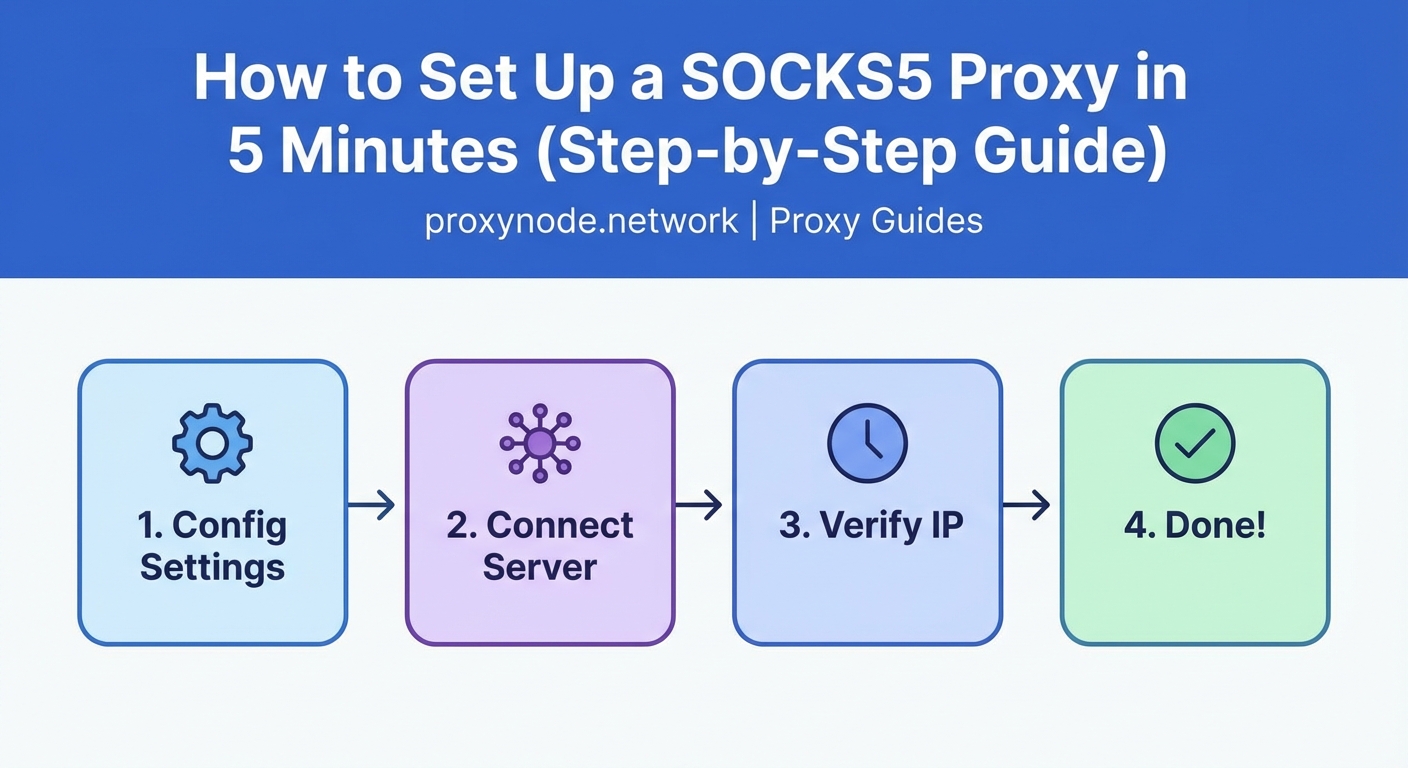
Before you can configure anything, you need access to a SOCKS5 proxy server. You have three main options here.
First, you can purchase proxy access from a commercial provider. These services give you a list of servers, ports, and login credentials. They’re reliable and usually come with customer support.
Second, you can set up your own SOCKS5 proxy server on a VPS or cloud instance. This gives you complete control but requires more technical knowledge and ongoing maintenance.
Third, some VPN providers offer SOCKS5 proxy access as part of their service. This can be a good option if you’re already paying for a VPN subscription.
Whichever route you choose, you’ll need these pieces of information:
- Proxy server IP address or hostname
- Port number (typically 1080, but can vary)
- Username (if authentication is required)
- Password (if authentication is required)
Keep these credentials handy. You’ll enter them multiple times during setup.
Setting Up SOCKS5 on Windows
Windows doesn’t have native system-wide SOCKS5 support built into its settings panel. You have two main approaches: configure individual applications or use third-party software.
Configuring Browsers on Windows
Most browsers let you set proxy settings independently from your system configuration.
For Firefox:
- Open Firefox and click the menu button (three horizontal lines)
- Select Settings and scroll down to Network Settings
- Click the Settings button next to “Configure how Firefox connects to the internet”
- Choose Manual proxy configuration
- In the SOCKS Host field, enter your proxy server IP or hostname
- Enter the port number in the Port field next to it
- Select SOCKS v5 (not SOCKS v4)
- If your proxy requires authentication, Firefox will prompt you when you first connect
- Click OK to save
For Chrome and Edge, the process is different because these browsers use your system proxy settings by default. You’ll need to configure them through Windows settings or use a browser extension like Proxy SwitchyOmega.
Using Third-Party Software
For system-wide SOCKS5 support on Windows, you can use tools like Proxifier or Sockscap64. These applications intercept all network traffic from your computer and route it through the SOCKS5 proxy.
Proxifier is the more polished option:
- Download and install Proxifier from the official website
- Open Proxifier and go to Profile, then Proxy Servers
- Click Add to create a new proxy profile
- Enter your proxy server address and port
- Set the Protocol to SOCKS Version 5
- If authentication is required, check “Enable” under Authentication and enter your credentials
- Click OK, then set this proxy as the default
- Create rules under Profile, then Proxification Rules to control which applications use the proxy
This approach gives you granular control. You can route only specific applications through the proxy while others connect directly.
Setting Up SOCKS5 on macOS
macOS offers better native support for SOCKS proxies than Windows, though it still has limitations.
System-Wide Configuration on Mac
- Open System Preferences and click Network
- Select your active network connection (Wi-Fi or Ethernet)
- Click Advanced in the bottom right
- Navigate to the Proxies tab
- Check the box next to SOCKS Proxy in the left panel
- Enter your proxy server address in the SOCKS Proxy Server field
- Enter the port number in the adjacent field
- If authentication is required, macOS will prompt you when connecting
- Click OK, then Apply
This configures your entire system to use the SOCKS5 proxy. Most applications will respect this setting, but some may still connect directly.
Application-Specific Setup on Mac
Just like on Windows, you can configure individual applications. The Firefox setup process is identical to the Windows instructions above.
For terminal applications and command-line tools, you can set environment variables:
export ALL_PROXY=socks5://username:[email protected]:1080
Add this line to your .bash_profile or .zshrc file to make it permanent.
Setting Up SOCKS5 on Linux
Linux users have the most flexibility when it comes to proxy configuration.
System-Wide Configuration
Most modern Linux desktop environments include proxy settings in their system preferences.
On Ubuntu with GNOME:
- Open Settings and navigate to Network
- Click the Network Proxy option
- Select Manual configuration
- Enter your proxy server details in the Socks Host field
- Enter the port number
- Apply the settings
Command-Line Configuration
For terminal applications, use environment variables just like on macOS:
export ALL_PROXY=socks5://username:[email protected]:1080
Many command-line tools also support proxy configuration through their own config files. For example, curl uses the .curlrc file, and wget uses .wgetrc.
Using Proxychains
Proxychains is a powerful Linux tool that forces any application to use a SOCKS proxy, even if the application doesn’t have built-in proxy support.
- Install proxychains with your package manager:
sudo apt install proxychains4 - Edit the configuration file:
sudo nano /etc/proxychains4.conf - Scroll to the bottom and add your proxy:
socks5 proxy.example.com 1080 username password - Save and exit
- Run any application through proxychains:
proxychains4 firefox
This works with virtually any Linux application.
Configuring Popular Applications
Different applications handle SOCKS5 differently. Here’s how to set it up in commonly used tools.
Web Scraping Tools
Python’s requests library supports SOCKS5 through the requests[socks] package:
import requests

proxies = {
    'http': 'socks5://username:[email protected]:1080',
    'https': 'socks5://username:[email protected]:1080'
}

response = requests.get('https://example.com', proxies=proxies)
Selenium WebDriver can use SOCKS5 by configuring the browser profile before launching.
Torrent Clients
Most torrent clients support SOCKS5 natively. In qBittorrent:
- Go to Tools, then Options
- Navigate to Connection
- Under Proxy Server, select SOCKS5
- Enter your proxy details
- Check “Use proxy for peer connections”
- Enable authentication if needed
This routes all torrent traffic through the proxy while leaving other applications unaffected.
Email Clients
Thunderbird supports SOCKS proxies through Firefox’s network settings since they share the same codebase. Configure it the same way you would Firefox.
Testing Your SOCKS5 Connection
After configuration, you need to verify everything works correctly. Don’t assume it’s working just because you didn’t get an error message.
The simplest test is checking your IP address. Visit a site like whatismyipaddress.com or ipinfo.io. If the SOCKS5 proxy is working, you should see the proxy server’s IP address, not your actual IP.
For more thorough testing, use command-line tools:
curl --socks5 proxy.example.com:1080 --proxy-user username:password https://ipinfo.io
This should return information about the proxy server’s location, not yours.
You can also test DNS leaks. Some SOCKS5 implementations don’t route DNS requests through the proxy, which can reveal your location even when other traffic is proxied. Use dnsleaktest.com to check.
If you’re using the proxy for web scraping, test it with your actual scraping script on a small scale before running large jobs.
Common Configuration Mistakes
Even experienced users run into issues when setting up SOCKS5. Here are the problems we see most often.
| Mistake | Symptom | Solution |
|---|---|---|
| Wrong protocol version | Connection fails or times out | Verify you selected SOCKS5, not SOCKS4 |
| Incorrect port number | Cannot connect to proxy | Double-check the port number with your provider |
| Missing authentication | Connection rejected | Enable authentication and enter credentials |
| DNS not proxied | IP is masked but location still leaks | Use SOCKS5h instead of SOCKS5 to proxy DNS |
| Firewall blocking proxy | Timeout errors | Allow outbound connections on the proxy port |
| Application bypassing proxy | Real IP still visible | Use proxychains or Proxifier to force routing |
The SOCKS5h variant is particularly important. The “h” stands for hostname, meaning DNS resolution happens on the proxy server rather than your local machine. This prevents DNS leaks.
When configuring SOCKS5 for privacy purposes, always verify your setup with multiple testing tools. A single test might miss DNS leaks, WebRTC leaks, or application-specific bypasses. Test thoroughly before relying on the proxy for sensitive activities.
Troubleshooting Connection Issues
If your SOCKS5 proxy isn’t working, work through these steps systematically.
First, verify your credentials are correct. A typo in the password is the most common cause of authentication failures.
Second, check if the proxy server is actually running and accessible. Use telnet or netcat to test the connection:
telnet proxy.example.com 1080
If this fails, the problem is with the proxy server itself or your network’s ability to reach it.
Third, confirm your firewall isn’t blocking the connection. Both your local firewall and any network firewalls (like at work or school) can interfere.
Fourth, look for application-specific issues. Some applications ignore system proxy settings and need individual configuration.
Fifth, check if your proxy provider has usage limits or IP restrictions. Some services only allow connections from specific IP addresses or limit bandwidth.
If you’re getting slow speeds, the issue might be server load, distance from the proxy server, or throttling by your internet provider. Try a different proxy server location if your provider offers multiple options.
Security Considerations
SOCKS5 proxies provide anonymity, but they’re not a complete security solution.
Remember that SOCKS5 doesn’t encrypt your traffic by default. Anyone monitoring the network between you and the proxy server can see what you’re sending. For sensitive data, combine SOCKS5 with encryption at the application layer (like HTTPS) or tunnel it through SSH.
Your proxy provider can see all your traffic. Choose a trustworthy provider with a clear privacy policy. Free proxies often log everything and may even inject ads or malware.
SOCKS5 won’t protect you from browser fingerprinting, cookies, or other tracking methods. It only masks your IP address. For comprehensive privacy, you need additional tools and practices.
If you’re running your own SOCKS5 server, secure it properly. Use strong authentication, keep the software updated, and restrict access to only the IP addresses that need it.
Automating Proxy Switching
Manually enabling and disabling proxies gets tedious if you only need them for specific tasks.
Browser extensions like FoxyProxy (Firefox) and Proxy SwitchyOmega (Chrome, Edge) let you create profiles and switch between them with one click. You can even set rules to automatically use the proxy for certain websites while accessing others directly.
On the command line, you can create shell aliases:
alias proxy-on='export ALL_PROXY=socks5://proxy.example.com:1080'
alias proxy-off='unset ALL_PROXY'
Type proxy-on when you need the proxy, and proxy-off when you don’t.
For more sophisticated automation, you can write scripts that enable the proxy, run specific tasks, then disable it automatically.
Performance Optimization
SOCKS5 proxies add latency to your connection because your traffic takes an extra hop. You can minimize this impact.
Choose a proxy server geographically close to you for better speeds. If you’re in New York, a New York or nearby server will be faster than one in Tokyo.
However, if you’re accessing content in a specific region, choose a proxy in that region. Accessing a European website through a European proxy is often faster than routing through a local proxy that then connects to Europe.
Use dedicated proxies rather than shared ones when possible. Shared proxies split bandwidth among multiple users, which can slow things down during peak hours.
For web scraping, rotate between multiple proxies to distribute load and avoid rate limiting. Most commercial providers offer proxy pools for this purpose.
Monitor your proxy’s performance over time. If speeds degrade, contact your provider or switch to a different server.
Making SOCKS5 Work for You
Setting up a SOCKS5 proxy gives you control over your internet traffic and opens up new possibilities for privacy, access, and development work. The configuration process might seem involved at first, but once you’ve done it a few times, it becomes second nature.
Start with a single application or browser to get comfortable with the process. Test thoroughly to make sure everything works as expected. Then expand to other applications or system-wide configuration as needed. Keep your credentials secure, choose trustworthy proxy providers, and always verify your setup is working correctly before relying on it for important tasks.