 By carl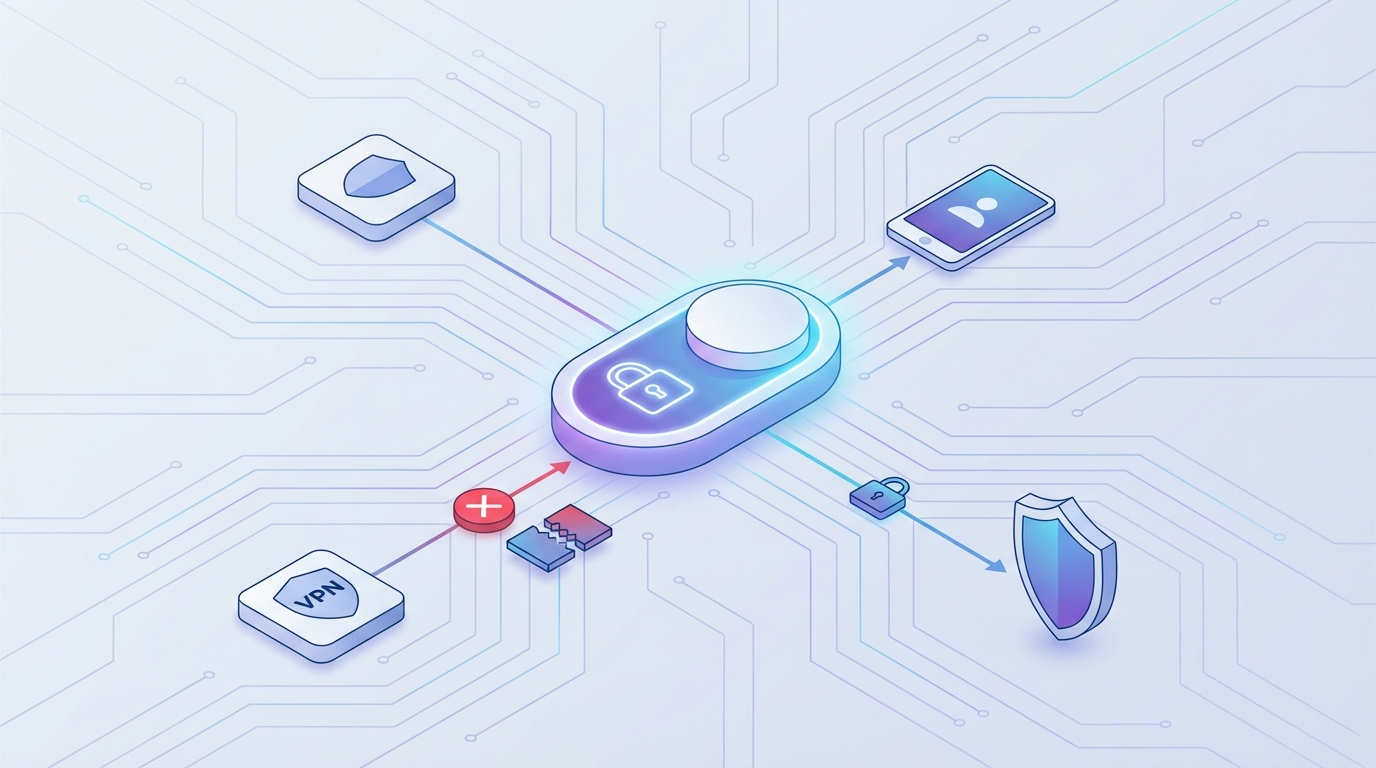
Your VPN connection just dropped for three seconds. You didn’t notice. Your torrent client didn’t notice. But your internet service provider definitely noticed, and now they have your real IP address tied to everything you were doing.
This happens more often than you think. VPN connections drop due to server switches, network hiccups, or simple software glitches. Without a kill switch, those brief moments of exposure can compromise weeks of careful privacy practices.
A VPN kill switch automatically blocks all internet traffic when your VPN connection fails, preventing your real IP address and browsing activity from being exposed. Most quality VPN providers include this feature, but you need to enable it manually in settings. Without a kill switch, even brief disconnections can leak your identity to your ISP, websites, and anyone monitoring your network activity.
What a VPN Kill Switch Actually Does
A kill switch monitors your VPN connection constantly. The moment that connection drops, it cuts off your internet entirely.
Think of it like a circuit breaker in your home. When it detects a problem, it shuts everything down to prevent damage. In this case, the “damage” is your real IP address and unencrypted traffic leaking onto the internet.
The kill switch operates at the network level. It creates firewall rules that only allow internet traffic through your VPN tunnel. No tunnel means no traffic, period.
This protection works in both directions. It prevents data from leaving your device and stops incoming connections that could reveal your location or identity.
Why VPN Connections Drop More Than You Realize
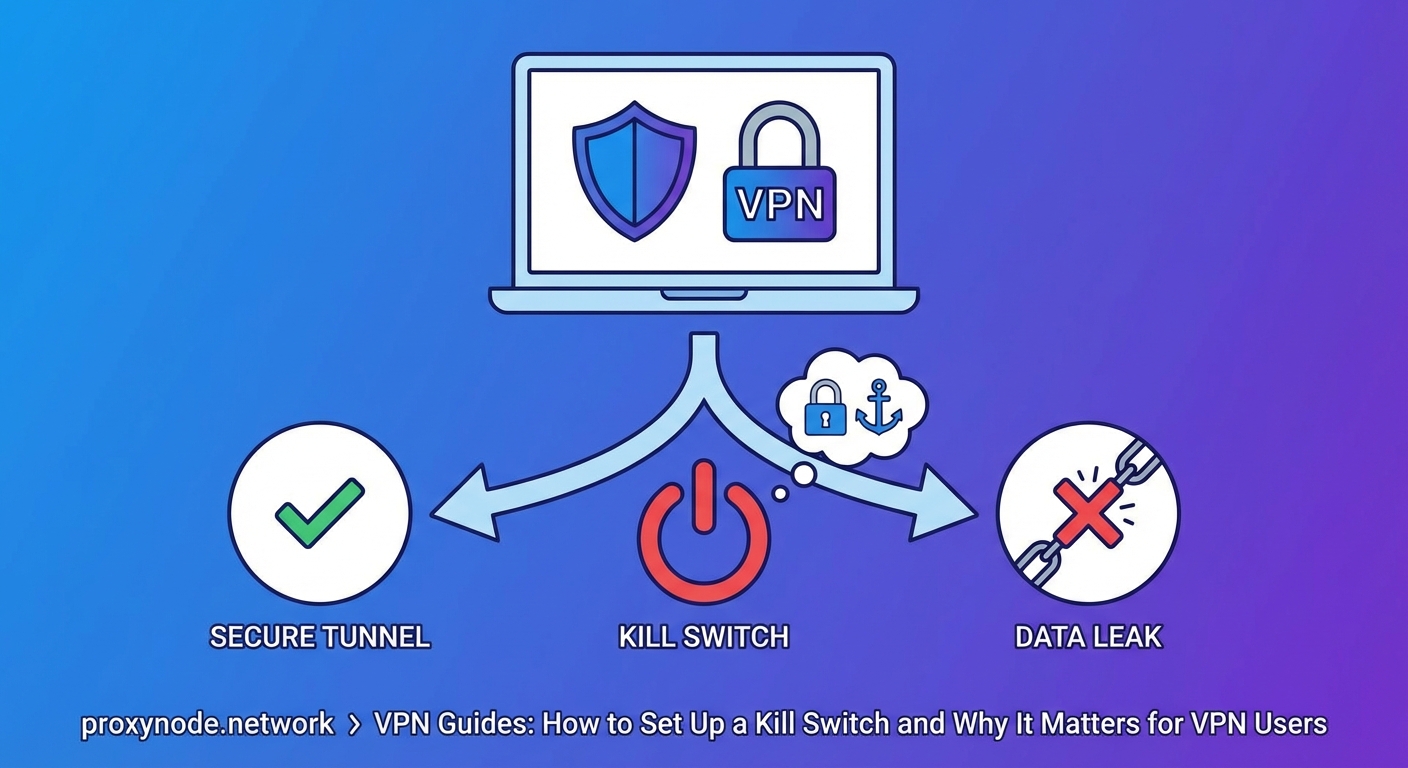
VPN disconnections aren’t rare events. They happen regularly for reasons you can’t always control.
Your VPN provider might restart a server for maintenance. Your phone might switch from WiFi to cellular data. Your router might hiccup during peak usage hours. Your laptop might wake from sleep mode before the VPN client reconnects.
Each disconnection creates a window where your traffic flows unprotected. These windows can last anywhere from a few seconds to several minutes, depending on how your VPN client handles reconnection.
Without a kill switch, your applications keep running during these gaps. Your browser continues loading pages. Your email client keeps syncing. Your torrent software keeps uploading and downloading. All of it happens with your real IP address fully visible.
Understanding what happens when your VPN disconnects helps you appreciate why this protection matters so much.
Types of Kill Switches You’ll Encounter
Not all kill switches work the same way. Understanding the differences helps you choose the right protection level.
System-level kill switches block all internet traffic on your device. Nothing gets through when the VPN drops. This offers maximum protection but can be disruptive if you need certain local network access.
Application-level kill switches only block specific programs you designate. You might protect your torrent client and browser while allowing your email or local file sharing to continue. This offers more flexibility but requires careful configuration.
Passive kill switches simply block traffic when disconnected. Active kill switches go further by attempting to reconnect automatically and only restoring internet access once the VPN tunnel is reestablished.
Some VPN providers offer both options. Others only provide one type. Knowing which you have determines how you should configure your setup.
How to Enable Your Kill Switch
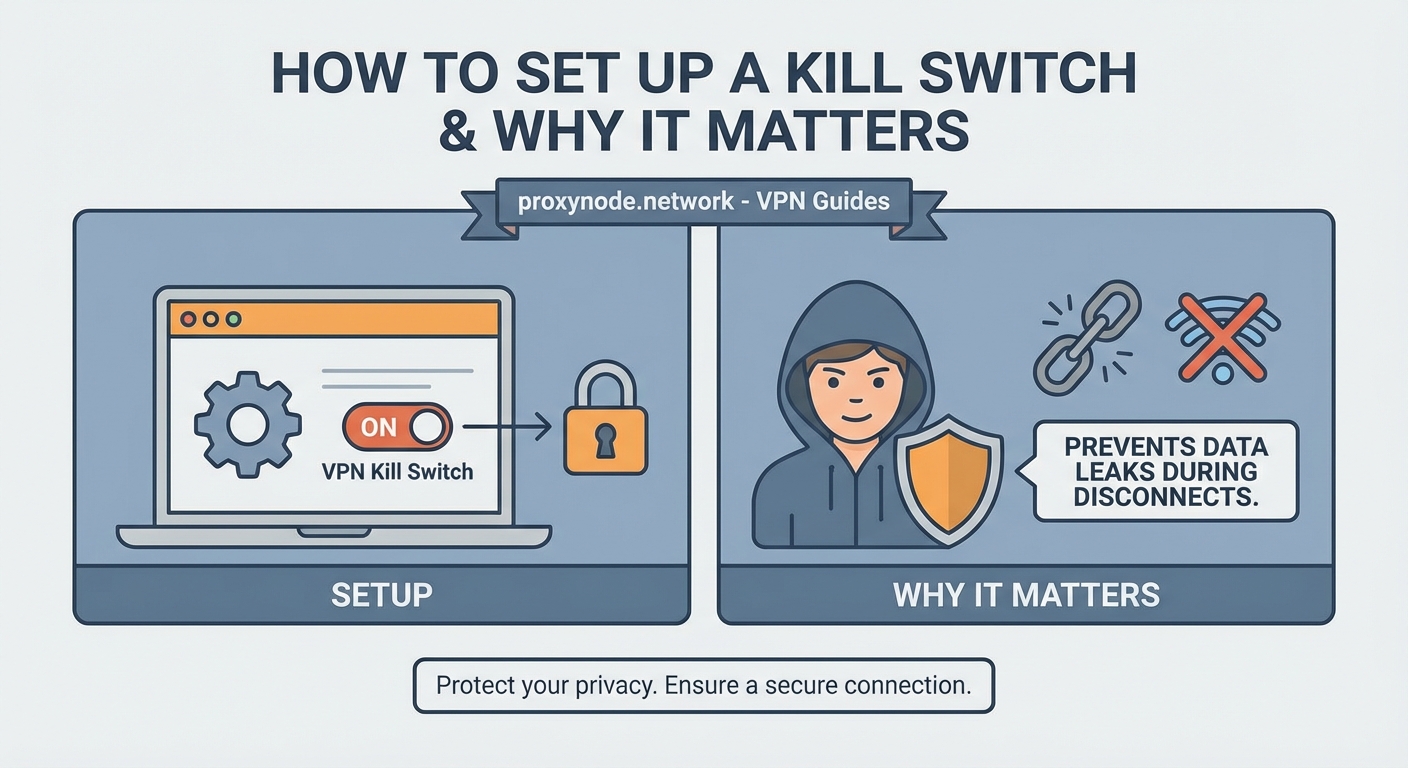
The exact steps vary by provider, but the general process follows a similar pattern.
- Open your VPN application and locate the settings or preferences menu.
- Find the security or advanced settings section where kill switch options live.
- Enable the kill switch feature, which might be labeled as “network lock,” “internet kill switch,” or simply “kill switch.”
- Choose between system-level or app-level protection if your provider offers both options.
- Select specific applications to protect if using app-level mode.
- Save your settings and restart the VPN connection to activate the protection.
Test your kill switch immediately after enabling it. Disconnect your VPN manually and try to load a website. If the kill switch works correctly, you won’t be able to access anything until you reconnect.
Some providers make this feature harder to find than it should be. Check under privacy settings, connection settings, or advanced options if you don’t see it immediately.
Testing Your Kill Switch Properly
Enabling a kill switch isn’t enough. You need to verify it actually works.
Start by checking your current IP address with your VPN connected. Note this address. Then manually disconnect your VPN and immediately try to reload the same IP checking website.
If your kill switch works, the page won’t load. You’ll see a connection timeout or network error. That’s exactly what you want.
If the page loads and shows a different IP address, your kill switch failed. This could mean it’s not properly enabled, not supported by your provider, or configured incorrectly.
Try this test with different applications. Open your browser, email client, and any other software you want protected. Disconnect the VPN and see if they can still access the internet.
Testing if your VPN is actually working should become a regular habit, not a one-time check.
Common Kill Switch Mistakes and How to Avoid Them
| Mistake | Why It Happens | How to Fix It |
|---|---|---|
| Assuming it’s enabled by default | Most VPNs ship with kill switches disabled | Check settings immediately after installation |
| Testing only with browsers | Other apps might still leak | Test with torrent clients, email, and background apps |
| Using app-level protection incorrectly | Forgetting to add new applications to the protected list | Review protected apps monthly or use system-level instead |
| Ignoring local network access | Kill switch blocks printers, file shares, and smart home devices | Configure split tunneling or local network exceptions |
| Not retesting after updates | VPN updates can reset settings | Test kill switch after every major update |
The most dangerous mistake is thinking you’re protected when you’re not. Many users enable a kill switch once and never verify it again. Software updates, operating system changes, and configuration conflicts can all disable your protection without warning.
When Kill Switches Create Problems
Kill switches can interfere with legitimate activities. Understanding these scenarios helps you prepare workarounds.
If you work from home and need to access company resources on your local network, a system-level kill switch might block that access. You’ll need to configure exceptions for your local IP range.
Some online games and streaming services detect and block VPN traffic. When your VPN disconnects and the kill switch activates, you lose all connectivity instead of falling back to your regular connection. This can cause issues in competitive gaming or live streams.
Public WiFi networks often require you to accept terms of service through a captive portal before granting internet access. A kill switch can prevent you from reaching that portal, leaving you unable to connect at all.
The solution isn’t to disable your kill switch. Instead, learn to temporarily disable it for specific situations, then immediately re-enable it afterward.
Kill Switches on Mobile Devices
Mobile kill switches face unique challenges. Your phone constantly switches between WiFi networks, cellular data, and airplane mode. Each transition can trigger disconnections.
iOS and Android handle VPN connections differently. iOS offers a built-in “Connect On Demand” feature that works similarly to a kill switch. Android includes a native “Always-on VPN” option with a “Block connections without VPN” toggle.
These built-in options often work better than third-party VPN app kill switches on mobile devices. They integrate more deeply with the operating system and handle network transitions more gracefully.
Battery life becomes a consideration on mobile. Aggressive kill switches that constantly monitor your connection can drain power faster. Find a balance between protection and practicality.
Free VPNs and Kill Switch Availability
Free VPN services rarely include kill switches. This feature costs money to implement and maintain, and free providers already operate on razor-thin margins.
When free VPNs do offer kill switches, they often work poorly. The feature might be unreliable, slow to activate, or incompatible with certain networks.
This represents one of many reasons why choosing between a free VPN or paying for premium service matters more than many users realize.
If privacy protection is your goal, a VPN without a functional kill switch leaves you vulnerable during the moments that matter most.
Setting Up Kill Switches on Routers
Installing your VPN on your router provides whole-home protection, but kill switch configuration becomes more complex.
Router-level kill switches protect every device on your network automatically. Your phone, laptop, smart TV, and IoT devices all benefit without requiring individual VPN installations.
The downside is that when your router’s VPN connection drops, your entire household loses internet access. This can be disruptive if other people share your network.
Most router VPN installations require manual firewall rule configuration to create a kill switch effect. You’ll need to block all WAN traffic except through the VPN tunnel interface.
Setting up a VPN on your router requires more technical knowledge than using a standard VPN app, but the protection applies universally.
Combining Kill Switches with Other Privacy Tools
A kill switch works best as part of a layered privacy strategy, not as your only defense.
DNS leaks can expose your browsing activity even with a kill switch active. Your VPN connection might stay up while DNS requests leak outside the tunnel. Preventing DNS leaks requires separate configuration.
IP address leaks can occur through WebRTC, even with your VPN connected. A kill switch won’t prevent these browser-level leaks.
“A kill switch protects you from connection failures, but it can’t protect you from configuration mistakes or protocol vulnerabilities. You need multiple layers of protection to maintain real privacy online.”
Regular testing catches problems before they compromise your privacy. Check for DNS leaks, IP leaks, and kill switch functionality at least monthly.
What to Look for When Choosing a VPN Provider
Kill switch quality varies dramatically between providers. Some features to prioritize include:
- Automatic activation on first launch, not buried in advanced settings
- Clear indication when the kill switch is active and blocking traffic
- Granular control over which applications or networks to protect
- Reliable performance across different network types and transitions
- Transparent logging about when disconnections occur and how long they last
Read reviews specifically about kill switch reliability. Some providers advertise the feature but implement it poorly. Real user experiences reveal which VPNs actually protect you during disconnections.
Common VPN mistakes often stem from choosing providers based on price or speed alone, without considering essential security features.
Advanced Kill Switch Configurations
Power users can create custom kill switch setups using firewall rules and scripts.
On Linux, you can configure iptables rules that only allow traffic through your VPN interface. This creates a system-level kill switch that works independently of your VPN client.
On Windows, you can use the Windows Firewall with Advanced Security to create outbound rules that block traffic except through your VPN adapter.
On macOS, you can use the built-in pf firewall to achieve similar results.
These manual configurations offer more control and reliability than some VPN client kill switches, but they require technical knowledge and careful testing.
The advantage is that your kill switch continues working even if your VPN application crashes or fails to start.
Troubleshooting Kill Switch Issues
When your kill switch stops working, systematic troubleshooting identifies the problem.
First, verify the feature is actually enabled in your VPN settings. Updates sometimes reset configurations.
Second, check if your VPN provider changed how the feature works. Software updates occasionally modify kill switch behavior or move the setting to a different menu.
Third, test whether your firewall or antivirus software is interfering. Security software can block VPN kill switch firewall rules, creating conflicts.
Fourth, try reinstalling your VPN client. Corrupted installations can cause kill switch failures.
Fifth, contact your VPN provider’s support team. They can check server-side logs to see if the kill switch is triggering correctly.
Your Privacy Depends on Preparation, Not Luck
Setting up a VPN kill switch takes five minutes. Testing it takes another five. Those ten minutes create the difference between real privacy protection and a false sense of security.
Enable your kill switch today, test it thoroughly, and retest it regularly. Your privacy deserves more than hoping your VPN connection never drops. It deserves active protection that works automatically, even when you’re not paying attention.
The best security measures are the ones you set up once and then forget about, confident they’ll protect you when needed. A properly configured kill switch gives you exactly that peace of mind.