 By carl
Setting up a SOCKS5 proxy in your browser can feel like opening a door to better privacy and more control over your internet connection. Whether you want to mask your IP address, bypass geographic restrictions, or route traffic through a secure tunnel, knowing how to configure SOCKS5 proxy in browser settings is a fundamental skill for anyone serious about online privacy.
SOCKS5 proxies offer superior privacy compared to HTTP proxies by supporting any protocol and authenticating connections. Each major browser handles proxy configuration differently: Firefox has built-in settings, Chrome and Edge use system-level configurations, and Safari relies on macOS network preferences. Proper setup requires your proxy server address, port number, and optional authentication credentials. Always verify your connection works correctly and understand DNS leak risks before relying on proxy protection.
Understanding SOCKS5 Proxy Basics
SOCKS5 stands for Socket Secure version 5. It operates at a lower level than HTTP proxies, which means it can handle any type of traffic, not just web browsing.
This protocol doesn’t interpret your data. It simply forwards packets between your device and the destination server. That makes it faster and more versatile than older proxy types.
The main advantages include:
- Full protocol support (HTTP, HTTPS, FTP, SMTP, and more)
- Authentication options to secure your connection
- Better performance for peer-to-peer applications
- No data modification or caching
Unlike VPNs, SOCKS5 proxies don’t encrypt your traffic by default. They only mask your IP address. That means your ISP can still see what protocols you’re using, just not where the traffic is going.
You’ll need three pieces of information before starting:
- The proxy server address (IP or domain name)
- The port number (commonly 1080 for SOCKS5)
- Username and password if your proxy requires authentication
Setting Up SOCKS5 in Firefox
Firefox makes proxy configuration straightforward because it has independent proxy settings that don’t affect your entire system.
Open Firefox and click the three horizontal lines in the top right corner. Select Settings from the dropdown menu.
Scroll down to Network Settings and click the Settings button on the right side.
You’ll see several options:
- Select “Manual proxy configuration”
- Find the SOCKS Host field
- Enter your proxy server address
- Enter the port number in the adjacent field
- Choose “SOCKS v5” from the radio buttons below
- Check “Proxy DNS when using SOCKS v5” to prevent DNS leaks
If your proxy requires authentication, Firefox will prompt you for credentials when you first try to connect.
The DNS setting is critical. Without it, your browser sends DNS requests outside the proxy tunnel, potentially exposing which websites you visit.
Click OK to save your settings. Firefox will now route all traffic through your SOCKS5 proxy.
To verify it’s working, visit a site that shows your IP address. You should see the proxy server’s IP, not your own.
Configuring SOCKS5 in Chrome
Chrome doesn’t have built-in proxy settings. Instead, it uses your operating system’s network configuration.
On Windows, you have two main approaches: system settings or command-line flags.
Windows System Method
- Open Windows Settings (press Windows + I)
- Navigate to Network & Internet
- Click Proxy in the left sidebar
- Scroll to Manual proxy setup
- Click the Edit button under “Use a proxy server”
Windows doesn’t have a dedicated SOCKS field in the GUI. You’ll need to use a workaround or third-party tool like Proxifier for system-wide SOCKS5 support.
Chrome Command-Line Method
This approach gives you direct SOCKS5 control without changing system settings.
Close Chrome completely. Open Command Prompt or PowerShell.
Type this command (replace the address and port with your details):
chrome.exe –proxy-server=”socks5://proxy.example.com:1080″
Chrome will launch using your SOCKS5 proxy. This setting only lasts for that browser session.
For authentication, the format becomes:
chrome.exe –proxy-server=”socks5://username:[email protected]:1080″
You can create a desktop shortcut with this command to avoid typing it every time.
Using Chrome Extensions
Several extensions like FoxyProxy or Proxy SwitchyOmega provide graphical interfaces for proxy management.
Install the extension from the Chrome Web Store. Click its icon and select Options or Settings.
Add a new proxy profile. Choose SOCKS5 as the type. Enter your server details and credentials if needed.
These extensions let you switch between multiple proxies or bypass the proxy for specific sites.
Setting Up SOCKS5 in Microsoft Edge
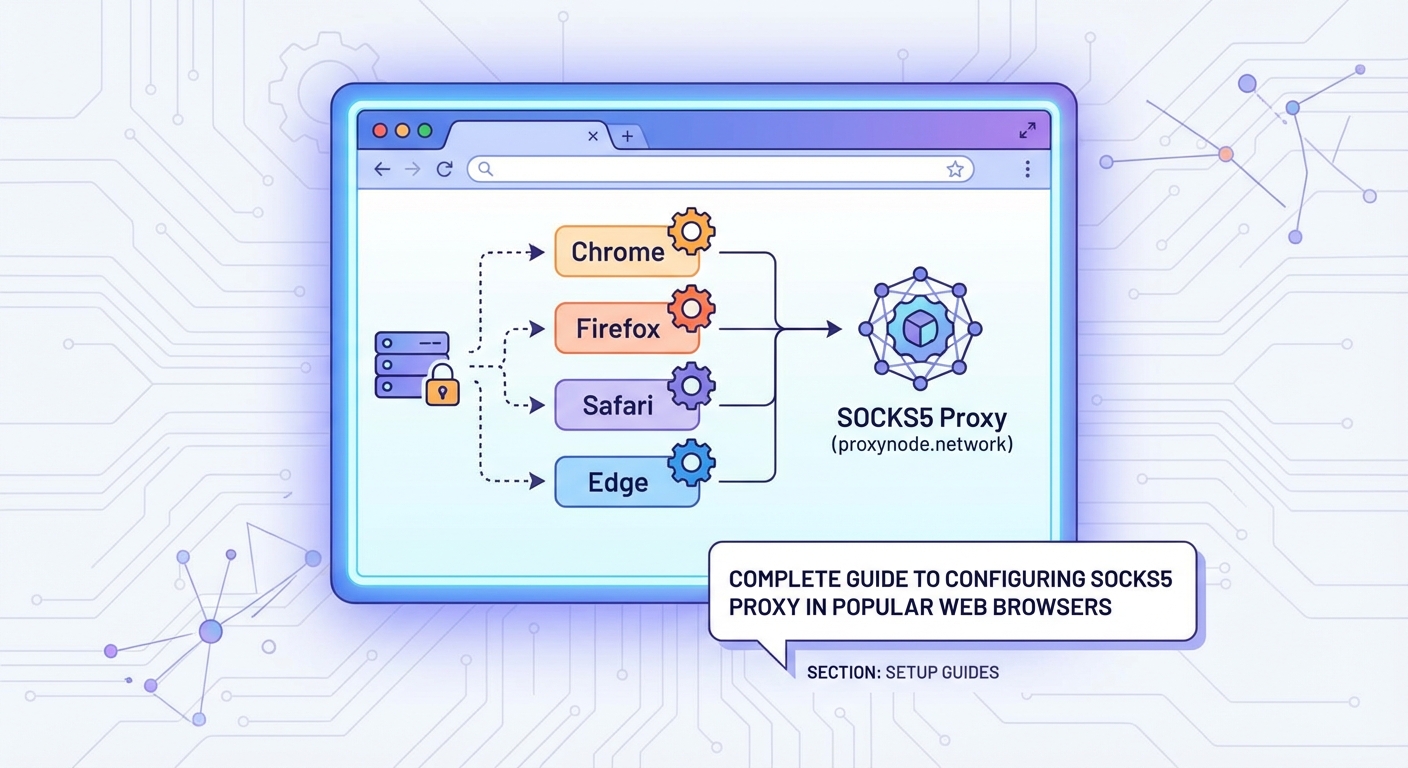
Edge follows the same pattern as Chrome since both use Chromium. The command-line method works identically.
For system-level configuration on Windows, follow the same steps outlined in the Chrome section.
Edge also supports extensions from both the Edge Add-ons store and Chrome Web Store. Install a proxy manager extension for easier control.
One advantage: Edge’s Collections feature lets you organize proxy configurations as bookmarked shortcuts if you use the command-line approach.
Configuring SOCKS5 in Safari on macOS
Safari relies entirely on macOS network settings. Any changes affect all applications that respect system proxy settings.
- Open System Preferences (or System Settings on newer macOS versions)
- Click Network
- Select your active network connection (Wi-Fi or Ethernet)
- Click Advanced in the bottom right
- Navigate to the Proxies tab
You’ll see a list of proxy protocols. Check the box next to “SOCKS Proxy.”
Enter your proxy server address in the SOCKS Proxy Server field. Add the port number in the adjacent box.
If authentication is required, click the lock icon to make changes, then check “Proxy server requires password.” Enter your credentials.
Click OK, then Apply to save changes.
Safari will now route traffic through your SOCKS5 proxy. Other macOS applications may also use this configuration.
Common Configuration Mistakes and Solutions
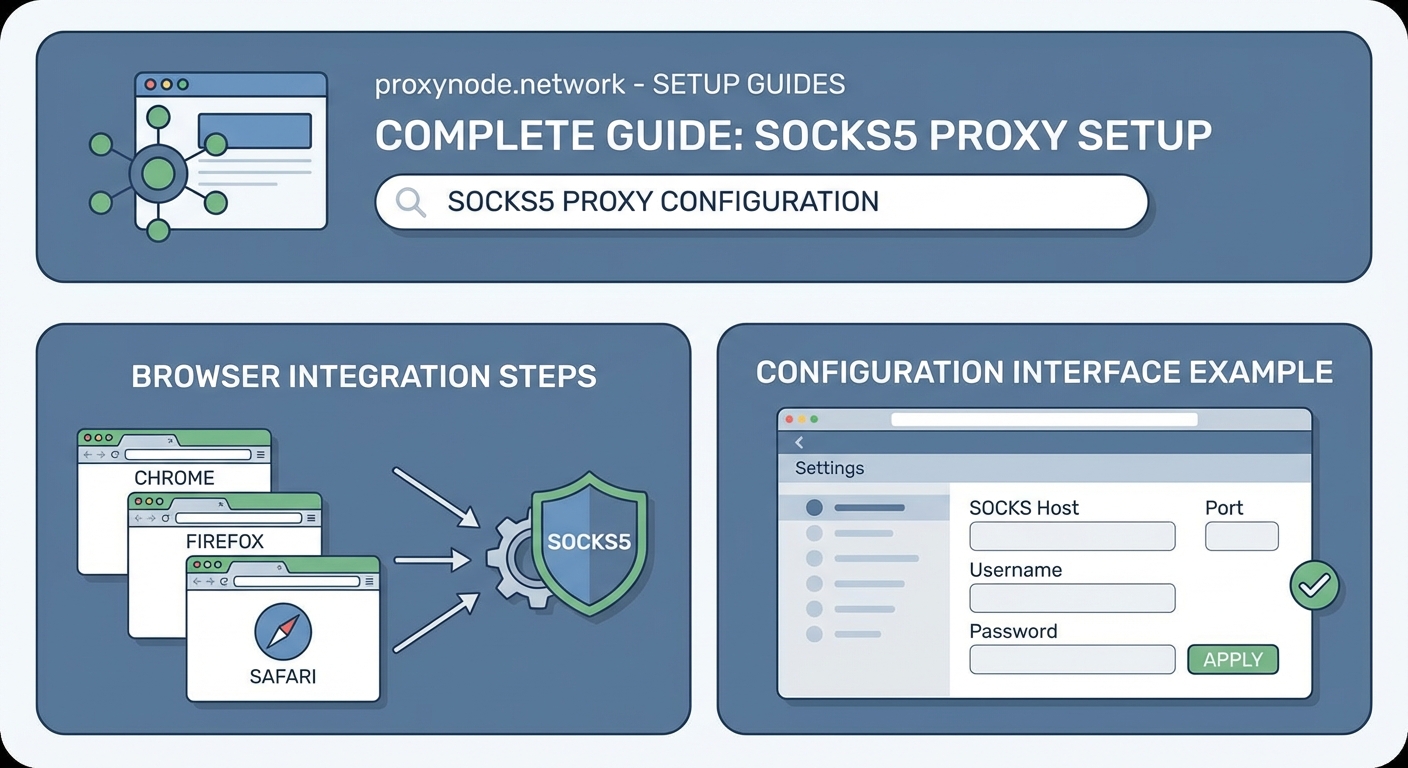
| Mistake | Problem | Solution |
|---|---|---|
| Wrong port number | Connection fails completely | Verify port with your proxy provider (usually 1080) |
| Missing SOCKS version | Browser defaults to SOCKS4 | Explicitly select SOCKS5 in settings |
| DNS leaks | Websites see your real location | Enable “Proxy DNS” or equivalent option |
| Authentication errors | Repeated password prompts | Check username/password for typos and special characters |
| Localhost bypass missing | Can’t access local services | Add 127.0.0.1 and localhost to bypass list |
| System vs. browser confusion | Settings don’t take effect | Understand whether your browser uses independent or system settings |
The DNS leak issue deserves special attention. Even with a proxy configured, your browser might send DNS queries directly to your ISP’s servers. This reveals which websites you’re visiting.
Always enable DNS proxying when available. Test for leaks using online DNS leak test tools after configuration.
Testing Your SOCKS5 Configuration
After setup, verification is essential. Don’t assume everything works correctly.
Visit a site like “whatismyipaddress.com” or similar. The displayed IP should match your proxy server, not your actual IP.
Check for DNS leaks separately. Use a DNS leak test site. It should show your proxy provider’s DNS servers, not your ISP’s.
Try accessing a site that’s normally blocked in your region. If it loads, your proxy is routing traffic correctly.
Test different protocols if possible. Try FTP or other services to confirm SOCKS5 handles them properly.
Always verify your proxy connection before assuming you have privacy protection. A misconfigured proxy can give you a false sense of security while leaking your real IP address through DNS or WebRTC.
Monitor your connection speed. Proxies add latency because traffic takes an extra hop. If speeds are unusually slow, your proxy server might be overloaded or geographically distant.
Browser Extensions vs. Manual Configuration
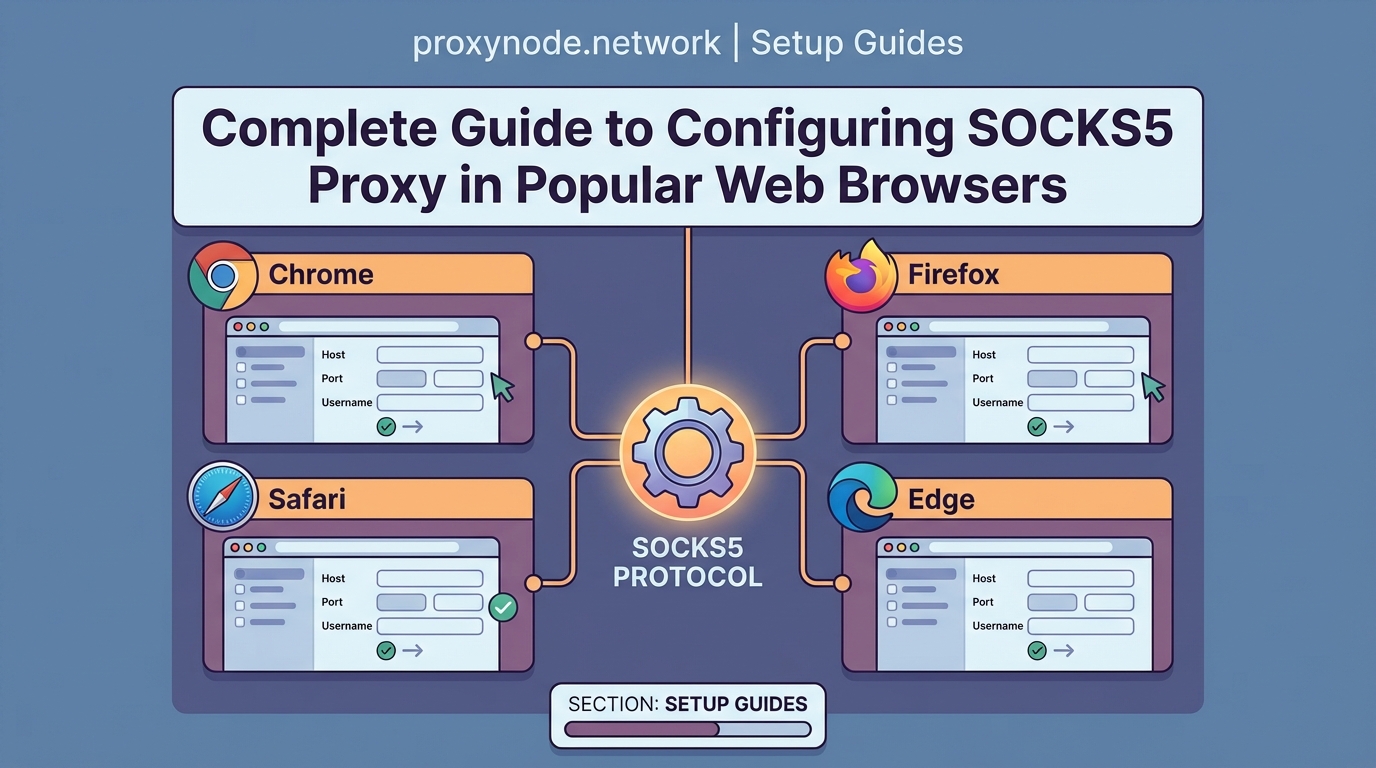
Manual configuration affects all browser traffic uniformly. Extensions offer more flexibility but add complexity.
Extensions let you:
- Switch proxies with one click
- Set different proxies for different websites
- Bypass the proxy for specific domains
- Create profiles for work, personal, and other contexts
Manual configuration is simpler and doesn’t require trusting third-party code. Extensions can potentially log your activity or inject unwanted content.
For maximum privacy, stick with manual configuration using settings you control directly. Use extensions only if you need advanced features like per-site routing.
Authentication and Security Considerations
SOCKS5 supports username and password authentication. This prevents unauthorized users from accessing your proxy server.
However, these credentials are sent in plain text. Anyone monitoring your connection can intercept them.
For sensitive use cases, combine SOCKS5 with SSH tunneling. This encrypts your traffic from your device to the proxy server.
The command for SSH tunneling looks like this:
ssh -D 1080 -N -f [email protected]
This creates a local SOCKS5 proxy on port 1080 that forwards traffic through an encrypted SSH connection.
Configure your browser to use 127.0.0.1:1080 as the proxy. All traffic gets encrypted before leaving your device.
Troubleshooting Connection Issues
Can’t connect at all? Check these items in order:
- Verify the proxy server is running and accessible
- Confirm the IP address and port are correct
- Check firewall settings on your device
- Test if your network blocks proxy connections
- Try a different browser to isolate the problem
Getting authentication errors? Special characters in passwords sometimes cause issues. Try changing your password to alphanumeric characters only.
Websites loading slowly? Your proxy server might be geographically far away or overloaded. Try a different server if available.
Some sites not working? Certain services block known proxy IP ranges. You may need to bypass the proxy for those specific domains.
Connection drops randomly? Your proxy provider might have session timeouts. Reconnect or switch to a more stable provider.
Proxy Bypass Lists
Sometimes you need to access local network resources or specific sites without routing through the proxy.
Most browsers let you specify bypass rules. These are addresses that should connect directly instead of through the proxy.
Common bypass entries include:
- localhost
- 127.0.0.1
- 192.168..
- *.local
- intranet.company.com
In Firefox, add these to the “No Proxy for” field, separated by commas.
For command-line Chrome configurations, add:
–proxy-bypass-list=”localhost;127.0.0.1;192.168..“
This prevents routing internal traffic through external proxies, which improves performance and avoids potential security issues.
Performance Optimization Tips
Proxy connections add latency. You can minimize the impact with a few adjustments.
Choose a proxy server geographically close to you. Physical distance directly affects connection speed.
Use a proxy with sufficient bandwidth. Overloaded servers create bottlenecks that slow everything down.
Disable unnecessary browser extensions. Each one adds processing overhead that compounds with proxy latency.
Clear your browser cache periodically. Stale cache entries can conflict with proxied connections.
Consider using multiple proxies for different purposes. Route streaming through one server, general browsing through another.
Privacy Best Practices
SOCKS5 proxies hide your IP but don’t encrypt traffic. Combine them with HTTPS for better protection.
Always verify that sites use HTTPS before entering sensitive information. The lock icon in your address bar confirms encryption.
Be aware of WebRTC leaks. This browser feature can expose your real IP even with a proxy configured. Disable WebRTC in your browser settings or use an extension to block it.
Don’t mix proxy and non-proxy traffic in the same session. Your real IP might leak through the non-proxied connections.
Use different browsers for different privacy levels. Keep one browser configured with your proxy for sensitive activities, another for general browsing.
Remember that your proxy provider can see all your traffic. Choose trustworthy providers with clear privacy policies.
Making SOCKS5 Work for You
Configuring a SOCKS5 proxy in your browser gives you meaningful control over your internet connection. The process differs across browsers, but the core concepts remain the same: specify your server address, choose the right port, and verify everything works as expected.
Firefox offers the most straightforward built-in configuration. Chrome and Edge require either system-level changes or command-line flags. Safari ties directly to macOS network settings.
Take time to test your setup thoroughly. Check for IP leaks, DNS leaks, and WebRTC leaks. A properly configured proxy should show your proxy server’s IP address, not your own.
Start with manual configuration to understand how everything works. Add extensions later if you need features like automatic switching or per-site rules. Your privacy depends on getting these details right, so don’t rush the setup process.