 By carl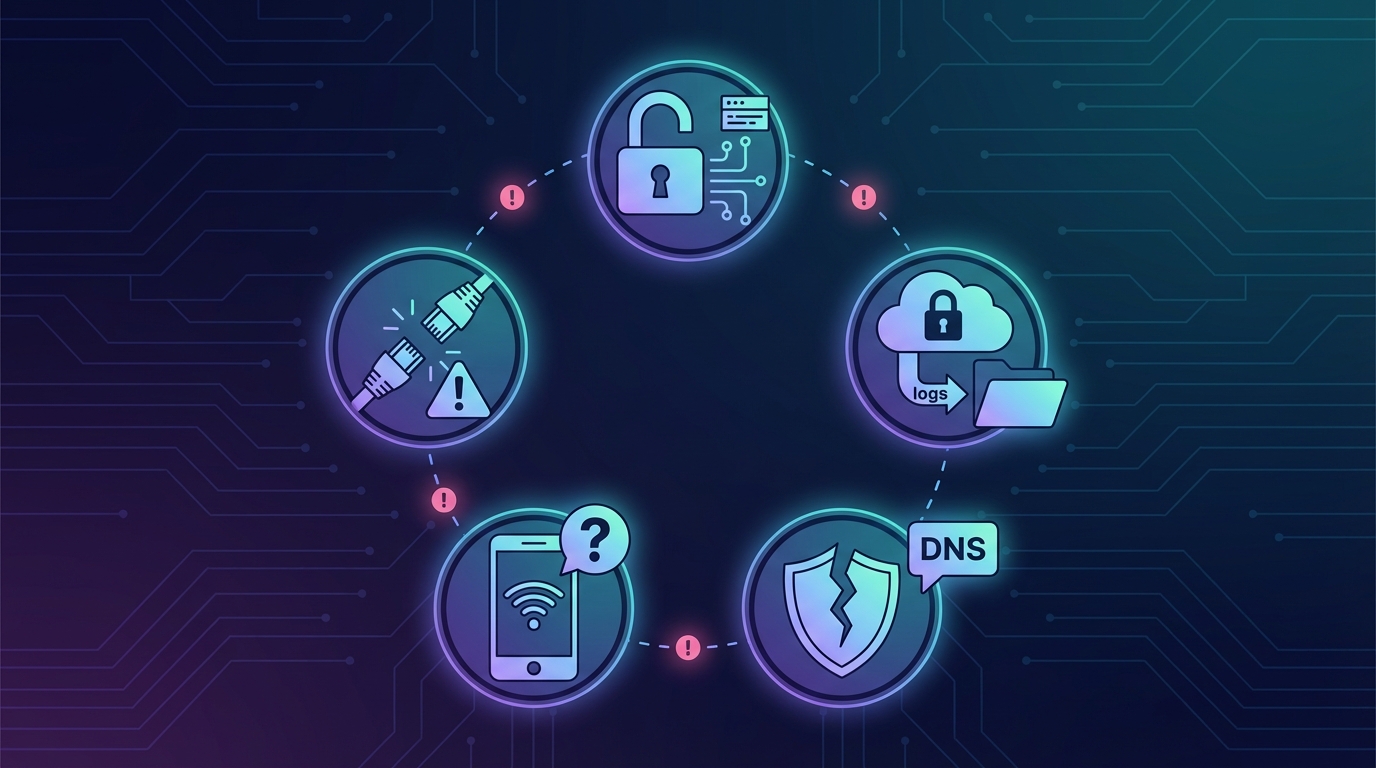
Most people think turning on a VPN automatically makes them invisible online. That’s not quite how it works. In fact, many users unknowingly sabotage their own privacy through simple configuration errors and misunderstandings about how VPNs actually function.
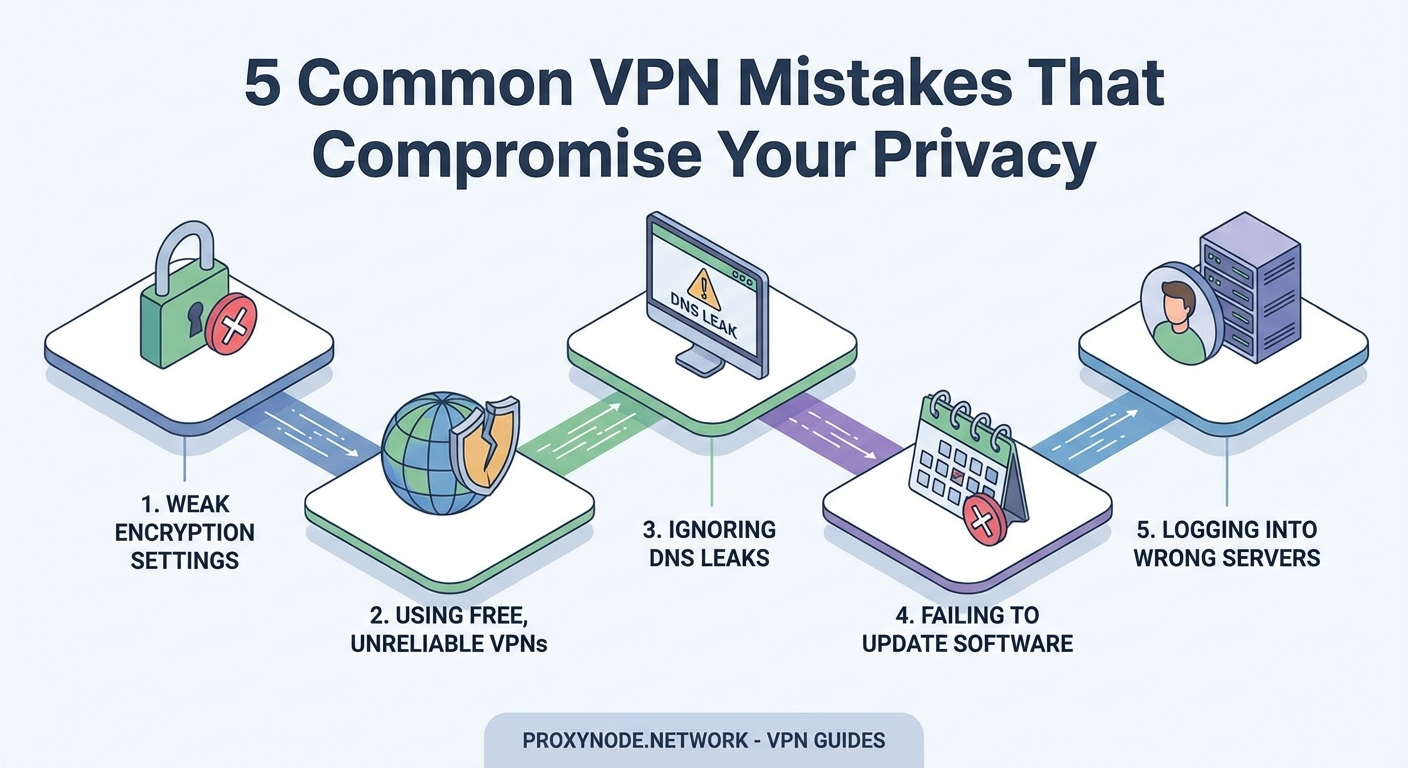
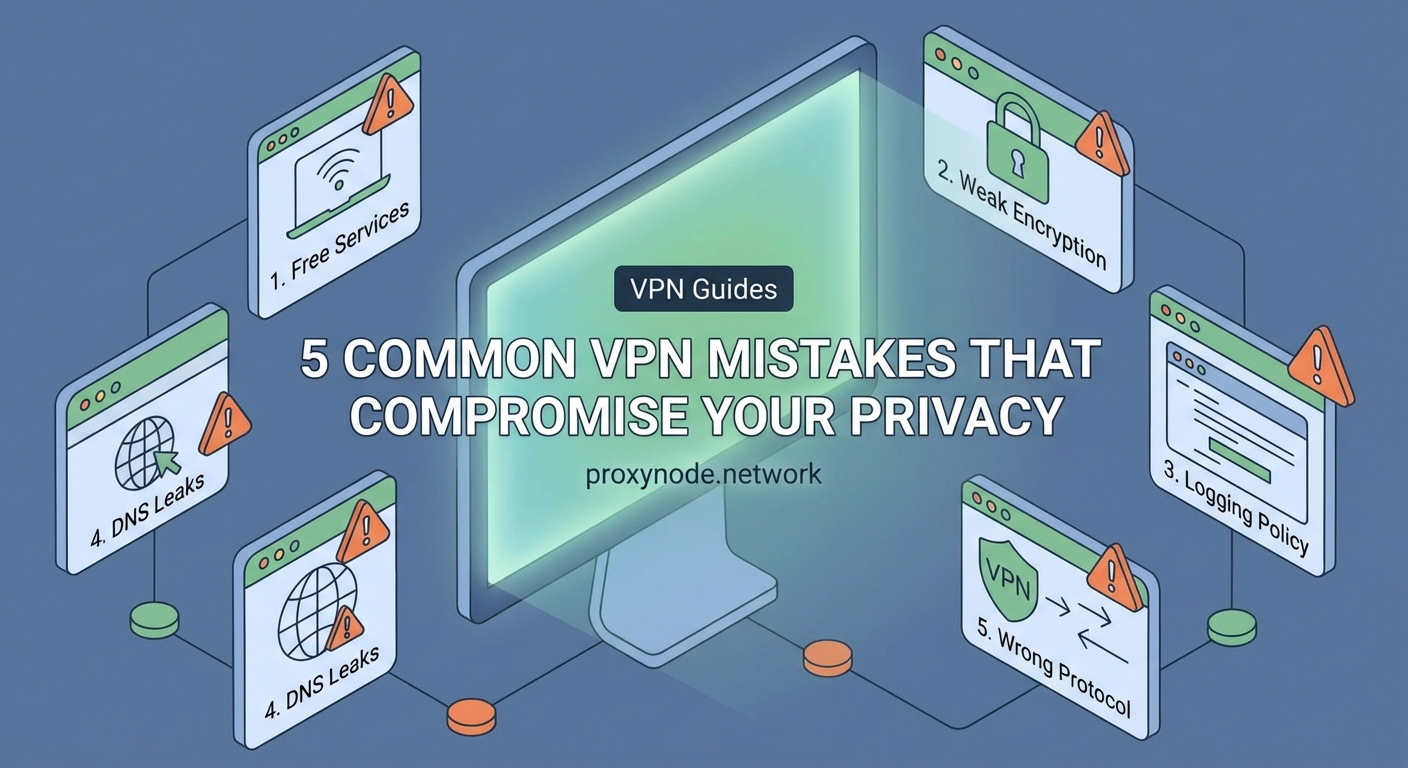
Common VPN mistakes include choosing free providers that log your data, leaving kill switches disabled, using outdated protocols, ignoring DNS leaks, and assuming VPNs provide complete anonymity. These errors create security gaps that expose your real IP address, browsing history, and personal information. Understanding these pitfalls helps you configure your VPN properly and maintain genuine privacy protection online.
Trusting free VPN services with your data
Free VPN services sound appealing until you realize how they actually make money. These providers need revenue somehow, and if you’re not paying with cash, you’re likely paying with your data.
Many free VPNs log your browsing activity and sell it to advertisers or data brokers. Some inject tracking cookies into your browser sessions. Others bundle malware or adware with their software. The privacy policy you skipped reading probably spells all this out in legal language.
Research from privacy advocacy groups has repeatedly found free VPN apps that leak DNS queries, expose real IP addresses, and maintain detailed connection logs. One study examined 283 free VPN apps and found that 38% contained malware, 84% leaked user data, and 18% didn’t encrypt traffic at all.
“If you’re not paying for the product, you are the product. Free VPNs have to monetize somehow, and that usually means compromising the very privacy they promise to protect.”
The solution is straightforward. Pay for a reputable VPN service with a clear no-logs policy and third-party audits. The cost typically runs between $3 and $12 per month, which is reasonable for actual privacy protection.
Leaving the kill switch disabled
A VPN kill switch cuts your internet connection if the VPN drops unexpectedly. Without it, your device automatically reconnects through your regular unencrypted connection, exposing your real IP address and activity.
This happens more often than you’d think:
- Your VPN server goes down for maintenance
- You switch between WiFi and mobile data
- Your VPN app crashes or updates
- Network congestion causes connection drops
During these brief moments, your traffic flows through your ISP without encryption. Anyone monitoring the network can see your real location and what sites you’re visiting. Your IP address gets logged by every server you connect to.
Most VPN apps include kill switch functionality, but it’s often disabled by default. You need to manually enable it in settings. Some providers call it “network lock” or “internet kill switch” instead.
Here’s what to check:
- Open your VPN app settings
- Look for kill switch, network lock, or connection guard options
- Enable the feature for all network types
- Test it by manually disconnecting your VPN while browsing
- Verify that your internet connection stops working until the VPN reconnects
Different operating systems may require additional configuration. Windows users sometimes need to adjust firewall rules. Mobile devices might need special permissions to enforce network blocking.
Using outdated encryption protocols
Not all VPN protocols offer the same security level. Older protocols like PPTP and L2TP have known vulnerabilities that skilled attackers can exploit. Yet many VPN apps still default to these outdated options for compatibility or speed reasons.
PPTP (Point-to-Point Tunneling Protocol) dates back to the 1990s. Security researchers have demonstrated multiple ways to crack its encryption. Government agencies can likely decrypt PPTP traffic in real time.
L2TP/IPSec is better but still shows its age. While the encryption remains reasonably strong, the protocol has implementation flaws that create potential attack vectors.
| Protocol | Security Level | Speed | Best Use Case |
|---|---|---|---|
| PPTP | Weak | Fast | Never recommended |
| L2TP/IPSec | Moderate | Medium | Legacy systems only |
| IKEv2 | Strong | Fast | Mobile devices |
| OpenVPN | Strong | Medium | General purpose |
| WireGuard | Very Strong | Very Fast | Modern systems |
Modern protocols like WireGuard and OpenVPN provide much stronger protection. WireGuard uses contemporary cryptography and runs with minimal code, reducing the attack surface. OpenVPN has been thoroughly tested over two decades and remains highly secure when properly configured.
Check your VPN app settings and switch to WireGuard or OpenVPN if available. Some providers offer both UDP and TCP versions of OpenVPN. UDP typically performs better, while TCP works more reliably on restrictive networks.
Ignoring DNS leaks
Your VPN might encrypt your traffic perfectly while your DNS queries still flow through your ISP’s servers. This creates a detailed log of every website you visit, completely bypassing your VPN’s privacy protection.
DNS (Domain Name System) translates website names into IP addresses. When you type a URL, your device asks a DNS server for the corresponding IP address. If these queries go to your ISP’s DNS servers instead of through your VPN tunnel, your ISP sees every site you visit.
Many VPN apps have DNS leak protection built in, but configuration errors or system settings can override it. Windows particularly tends to send DNS queries outside the VPN tunnel under certain conditions.
Testing for DNS leaks takes about 30 seconds:
- Connect to your VPN
- Visit a DNS leak test website
- Check if the DNS servers listed belong to your VPN provider or your ISP
- If you see your ISP’s DNS servers, you have a leak
Fixing DNS leaks depends on your operating system and VPN provider. Most quality VPN apps handle this automatically when properly configured. You can also manually set your system to use privacy-focused DNS servers like Cloudflare (1.1.1.1) or Quad9 (9.9.9.9).
Some advanced users configure their router to force all DNS queries through the VPN tunnel. This protects every device on the network automatically.
Assuming VPNs provide complete anonymity
VPNs hide your IP address and encrypt your traffic. They don’t make you invisible or untraceable. This misunderstanding leads people to take unnecessary risks while thinking they’re fully protected.
Websites can still identify you through:
- Browser fingerprinting that tracks your unique configuration
- Cookies and tracking pixels you’ve already accepted
- Login credentials when you sign into accounts
- Payment information from purchases
- WebRTC leaks that expose your real IP despite the VPN
Your VPN provider can also see your traffic if they choose to log it. You’re essentially shifting trust from your ISP to your VPN company. If that company keeps logs, gets hacked, or receives a court order, your data could be exposed.
Law enforcement agencies have successfully tracked VPN users through timing analysis, traffic correlation, and cooperation from VPN providers who claimed to keep no logs. Several high-profile cases involved VPN companies that maintained logs despite their marketing claims.
True anonymity requires multiple layers of protection. Privacy-focused browsers, tracker blockers, careful account management, and understanding your threat model all matter just as much as your VPN choice.
Connecting to public WiFi without proper configuration
Public WiFi networks at coffee shops, airports, and hotels are notoriously insecure. Using a VPN on these networks makes sense, but only if you connect to the VPN before accessing anything else.
The danger window exists between when you join the WiFi network and when your VPN establishes its encrypted tunnel. During those few seconds, your device might automatically check for updates, sync cloud services, or connect to previously visited websites.
Attackers on the same network can intercept this initial unencrypted traffic. They can see what services you use, capture login tokens, or even inject malicious code into your connection.
Smart configuration prevents this:
- Enable your VPN’s auto-connect feature for untrusted networks
- Disable automatic WiFi connections in your device settings
- Turn on your VPN before joining the public network
- Configure your firewall to block all traffic except through the VPN tunnel
- Avoid accessing sensitive accounts even with VPN protection on public networks
Some VPN apps offer “always-on” modes that refuse to allow any internet traffic without an active VPN connection. This provides the strongest protection but can be inconvenient when you need to troubleshoot connection issues.
Reusing the same VPN server location
Connecting to the same VPN server every time creates a consistent pattern that can be tracked. While your real IP address stays hidden, your VPN exit node becomes a semi-permanent identifier.
Websites and services can build profiles based on your VPN IP address just like they would with your real IP. They track your browsing patterns, shopping behavior, and login times associated with that specific VPN server.
Some services actively block or throttle traffic from known VPN IP addresses. Streaming platforms, banking sites, and online retailers often flag VPN connections as suspicious or fraudulent.
Rotating between different server locations makes tracking harder. You don’t need to switch constantly, but varying your server choice weekly or for different activities improves privacy.
Consider these rotation strategies:
- Use different servers for different types of activities
- Switch servers when accessing sensitive accounts
- Choose servers in countries with strong privacy laws
- Avoid servers in your home country if possible
- Test multiple servers to find reliable options in several regions
Some VPN providers offer automatic server rotation or specialty servers optimized for specific uses like streaming, torrenting, or high-security applications.
Neglecting regular software updates
VPN software needs updates just like any other application. Security vulnerabilities get discovered regularly, and providers release patches to fix them. Running outdated VPN software leaves known security holes open for exploitation.
Critical vulnerabilities in popular VPN clients have allowed attackers to bypass encryption, leak DNS queries, or execute arbitrary code. These flaws only get fixed when users install updates.
Many people disable automatic updates because they find them annoying or worry about compatibility issues. This trades minor convenience for significant security risks.
Enable automatic updates for your VPN app. Most providers push updates that install seamlessly in the background. You might need to restart the app occasionally, but this small inconvenience is worth the protection.
Also keep your operating system and other security software current. VPN protection only works as well as the device it runs on. A compromised operating system can leak data around your VPN tunnel or log your activity before encryption happens.
Forgetting about IPv6 leaks
Most VPN services focus on IPv4 traffic while ignoring IPv6 completely. If your internet provider and the websites you visit support IPv6, your traffic might bypass the VPN tunnel entirely through the IPv6 protocol.
IPv6 is the newer internet protocol designed to replace IPv4. Many modern devices and networks support both protocols simultaneously. When your VPN only tunnels IPv4 traffic, IPv6 requests go directly through your ISP without encryption.
This exposes your real IPv6 address, location, and browsing activity. The leak happens silently in the background while your VPN status shows connected and secure.
Testing for IPv6 leaks works similarly to DNS leak tests. Specialized websites can detect if your IPv6 address is visible while your VPN is active.
Three ways to handle IPv6 leaks:
- Choose a VPN provider that supports full IPv6 routing
- Disable IPv6 entirely on your device or router
- Configure your firewall to block IPv6 traffic when the VPN is active
Disabling IPv6 is often the simplest solution since IPv4 still works for nearly all internet services. Some users prefer keeping IPv6 enabled for future compatibility and instead use VPN providers with proper IPv6 support.
Overlooking WebRTC vulnerabilities
WebRTC (Web Real-Time Communication) enables video calls and peer-to-peer connections directly in your browser. It’s built into Chrome, Firefox, Edge, and other modern browsers. The problem is WebRTC can reveal your real IP address even when you’re connected to a VPN.
WebRTC creates direct connections between browsers for faster communication. To establish these connections, it needs to discover your device’s real IP addresses, including local and public IPs. This discovery process bypasses your VPN tunnel.
Websites can use JavaScript to query WebRTC and extract your real IP address. This happens invisibly without any indication that your privacy has been compromised. Your VPN shows connected, your traffic flows encrypted, but websites still see your actual location.
Testing for WebRTC leaks requires visiting a specialized test page while connected to your VPN. These tools use WebRTC to attempt discovering your real IP address.
Fixing WebRTC leaks involves several approaches:
- Install browser extensions that disable WebRTC or block IP leaks
- Use browsers with built-in WebRTC leak protection
- Disable WebRTC entirely in your browser settings
- Choose VPN providers with WebRTC leak protection built into their apps
Disabling WebRTC completely prevents the leaks but breaks video calling features on websites. Browser extensions offer a middle ground by blocking the leak mechanism while preserving functionality.
Skipping the privacy policy review
VPN providers love marketing themselves as “no-logs” services, but the actual logging policy lives in the privacy policy and terms of service. These documents often tell a different story than the marketing copy.
Some providers claim zero logging while their privacy policy admits to collecting connection timestamps, bandwidth usage, or originating IP addresses. Others operate in countries with mandatory data retention laws that override any no-logs promises.
Reading privacy policies is tedious, but you need to understand what data your VPN provider actually collects:
- Connection logs (when you connect and disconnect)
- Usage logs (what sites you visit and how much data you transfer)
- IP address logging (your real IP and the VPN server IP)
- DNS query logs (what domains you look up)
- Payment information and account details
Look for providers that publish regular third-party audits of their logging practices. Independent security firms verify whether the VPN actually operates as claimed. These audits should examine the actual server infrastructure, not just review policy documents.
Jurisdiction matters too. VPNs based in countries with strong privacy laws and no mandatory data retention requirements offer better protection than those in surveillance-friendly jurisdictions.
Making privacy protection work for you
Understanding these common VPN mistakes helps you configure your privacy tools properly. No single technology provides perfect protection, but avoiding these pitfalls significantly improves your security posture.
Start by auditing your current VPN setup against this list. Enable the kill switch, check for leaks, update your software, and review your provider’s actual logging policy. Small configuration changes often make the difference between real privacy protection and a false sense of security.
Your privacy deserves more than just turning on a VPN and hoping for the best. Take the time to understand how these tools actually work and where they fall short. That knowledge helps you make informed decisions about protecting your data online.